Record-enabled conference not appearing for viewing
Moderators must select the Start/Stop recording button in a live Canvas Conference for it to record, even when the Conference was created with recording enabled.
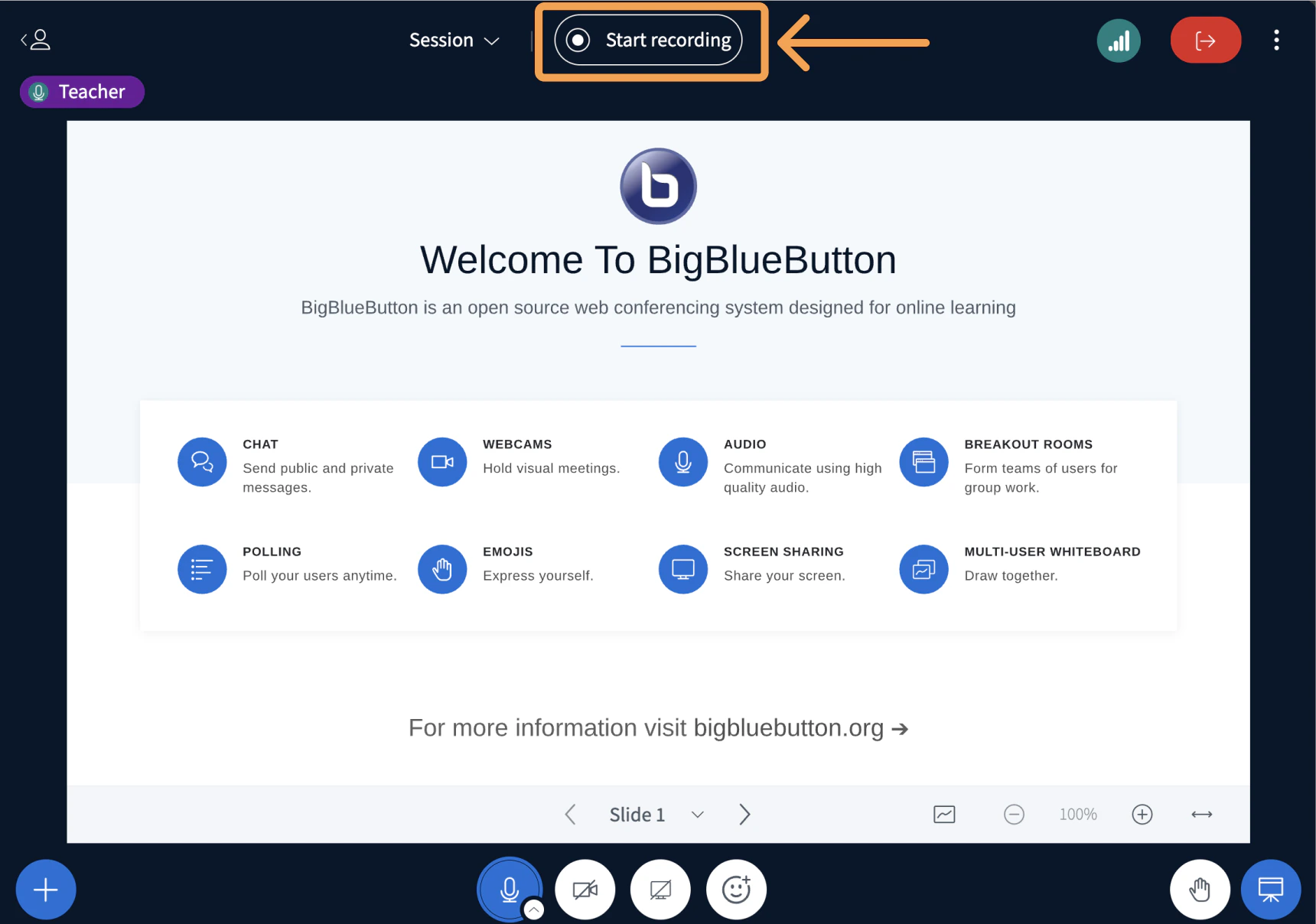
When a Canvas Conference is enabled for recording, the moderator must still select the Start/Stop recording button in the live session to capture a recording.If a Conference is enabled for recording when it is created, the moderator sees the Start/Stop recording button in the upper-right corner of the BigBlueButton interface.
Enabling recording does not capture the session automatically. The moderator must select the Start/Stop recording button to begin capturing.
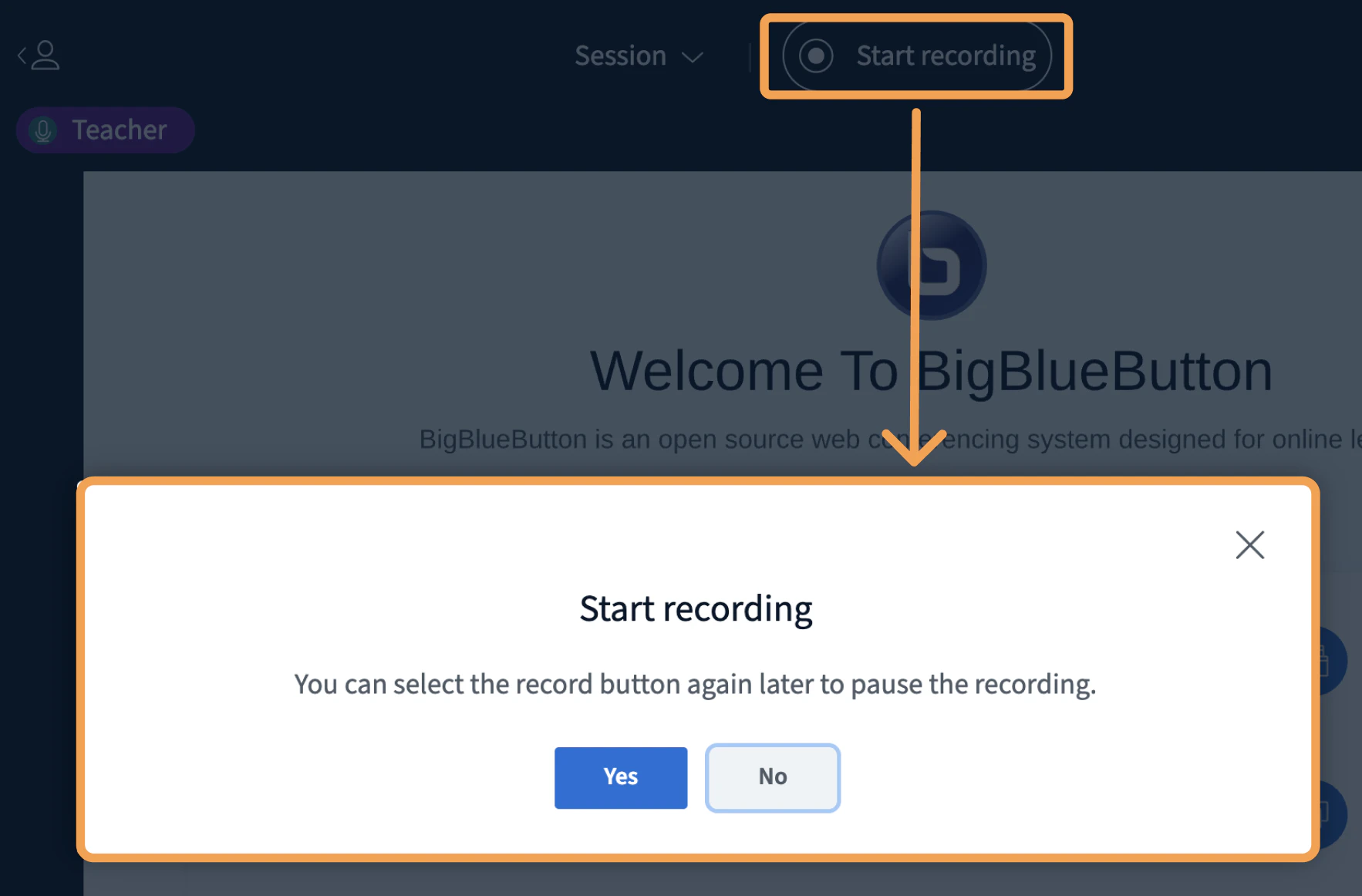
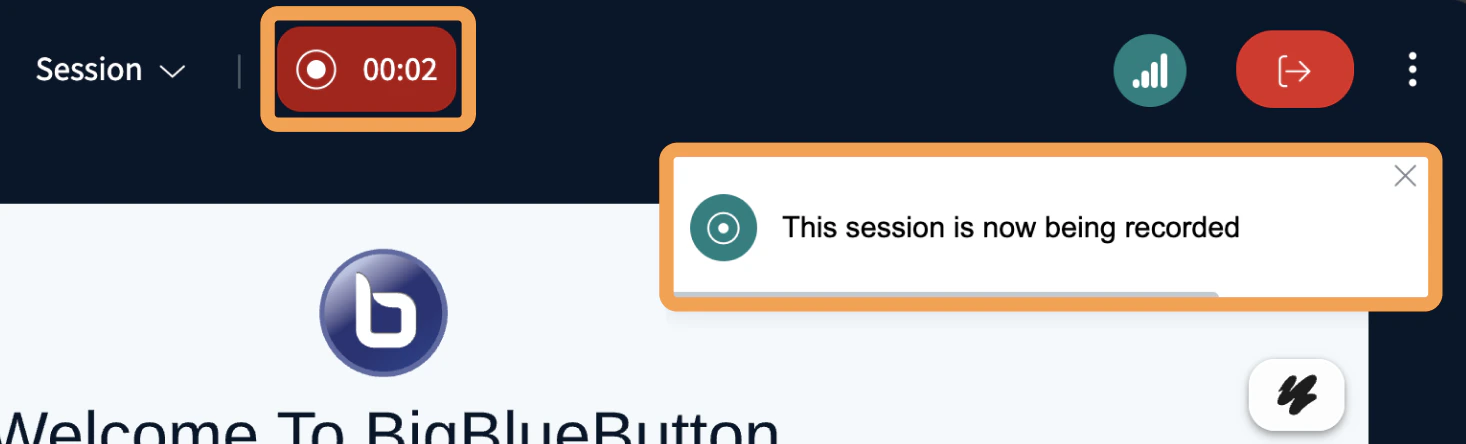
To start recording, select the Start/Stop recording button. A prompt appears to confirm you want to begin recording.Once recording starts, the button changes to light blue with a red indicator, and a counter shows the number of minutes recorded from the session.
If you do not see the Start/Stop recording button, recording was not enabled when the Conference was created in Canvas.To enable recording, log out of the current session before editing the Conference settings.
Edits applied to a live session do not take effect until all attendees leave and the session restarts.