

Create breakout rooms
Only viewers who have already joined the BigBlueButton session can be assigned to a breakout room. All connected users appear in the Users list.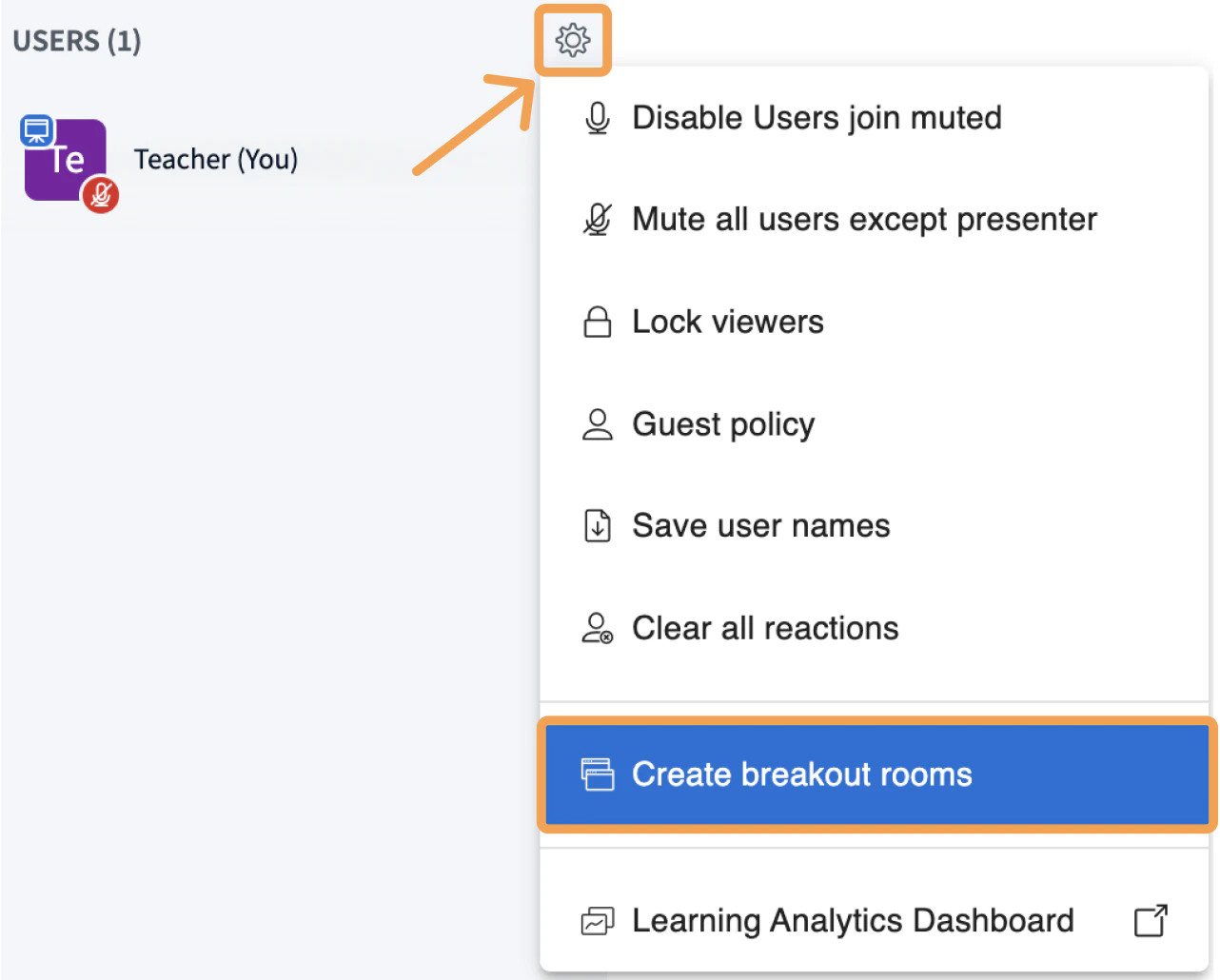
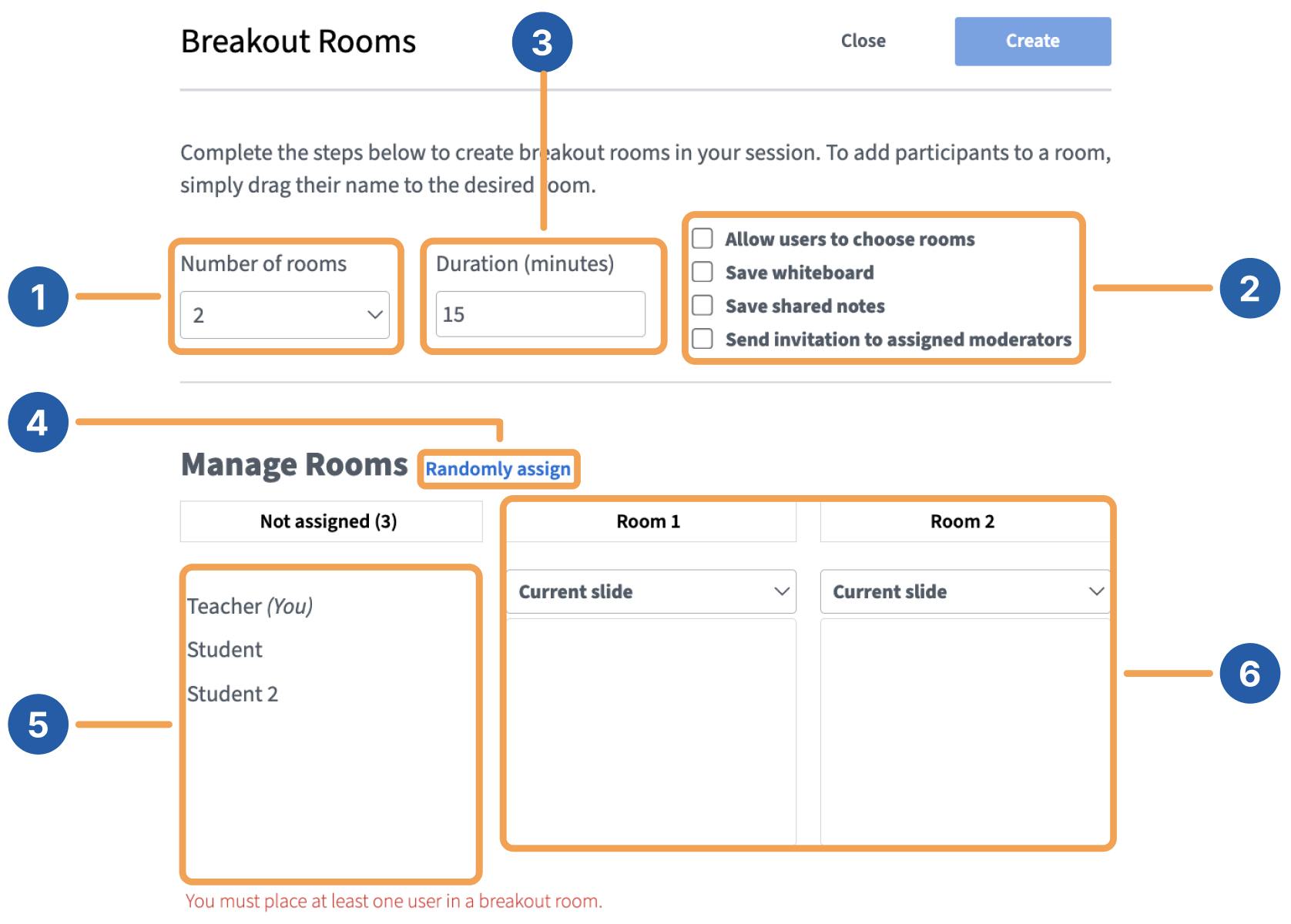
- Number of rooms [1]: the default minimum is 2. Select the dropdown to change the number of breakout rooms, up to a maximum of 8.
- Breakout room options [2]: see the list below for each option.
- Duration (minutes) [3]: all rooms close once this duration is reached, and users return to the main session.
- Randomly assign [4]: distributes viewers evenly across the selected number of rooms.
- Not assigned [5]: lists users who have not yet been assigned to a breakout room.
- Created Rooms [6]: shows each room with its assigned users.
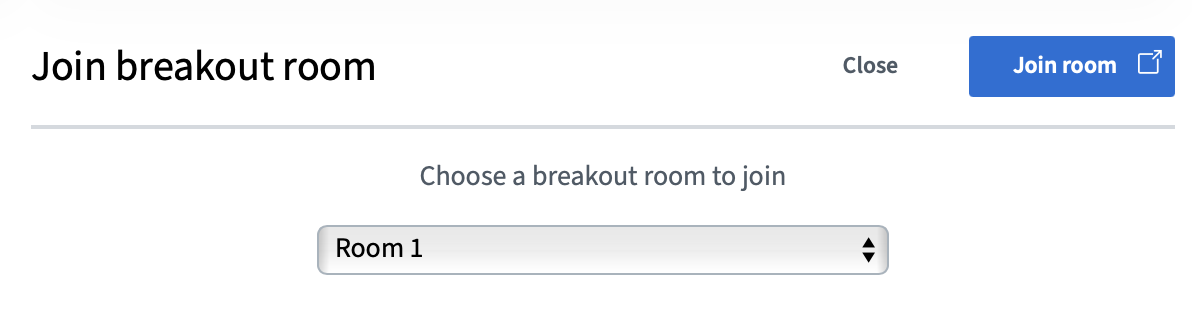
- Allow users to choose a breakout room to join: viewers select from a dropdown of available breakout rooms when prompted.
- Save whiteboard: whiteboard annotations are converted to a PDF and made available as a presentation from the action menu.
- Save shared notes: shared notes are converted to a PDF and made available as a presentation from the action menu.
- Send invitation to assigned moderators: sends breakout room invitations to selected moderators so they can manage the rooms their users are assigned to.
Moderators are not assigned to breakout rooms from the create panel. Use Send invitation to assigned moderators or join a room manually after creation.
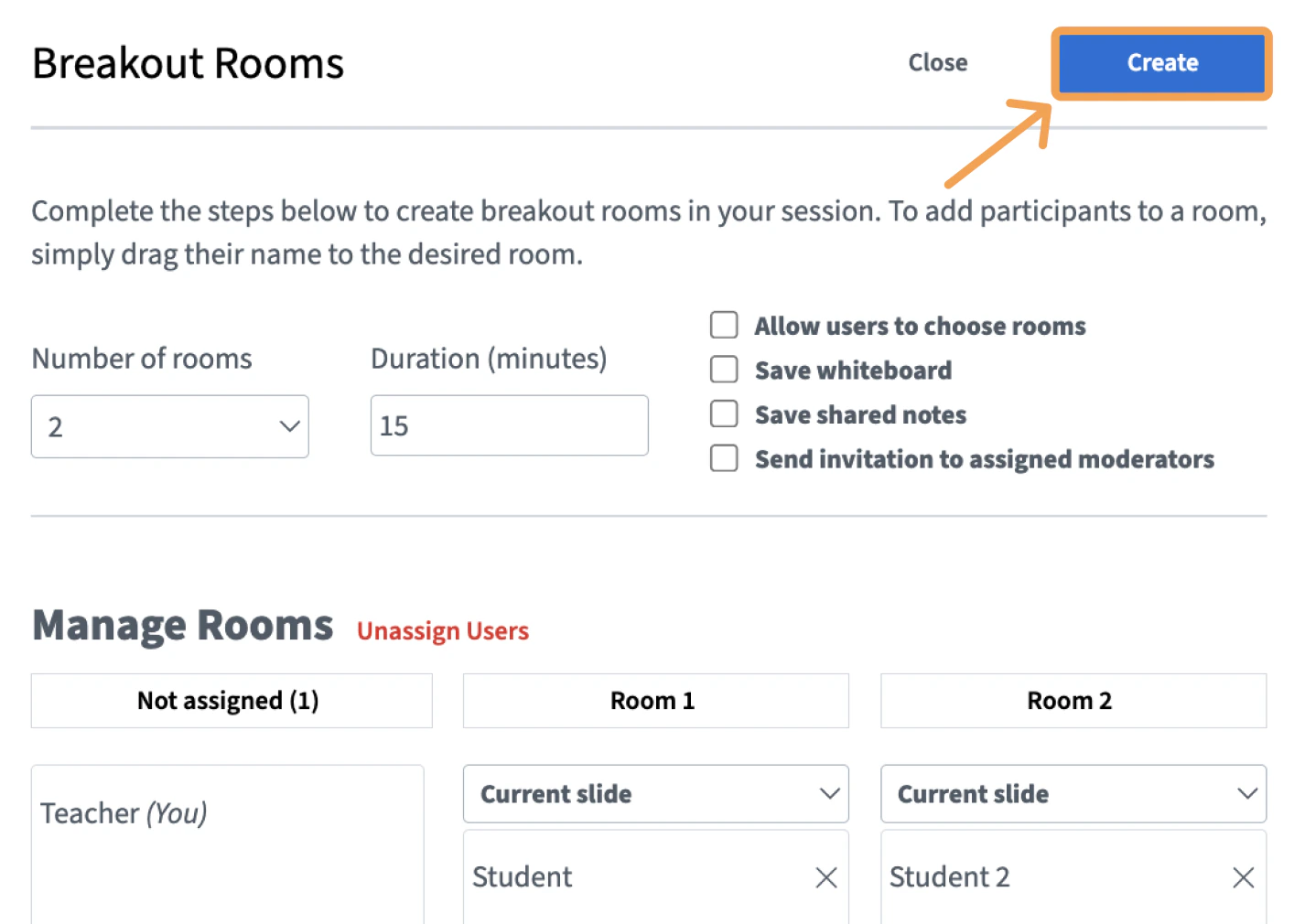
Manage breakout rooms
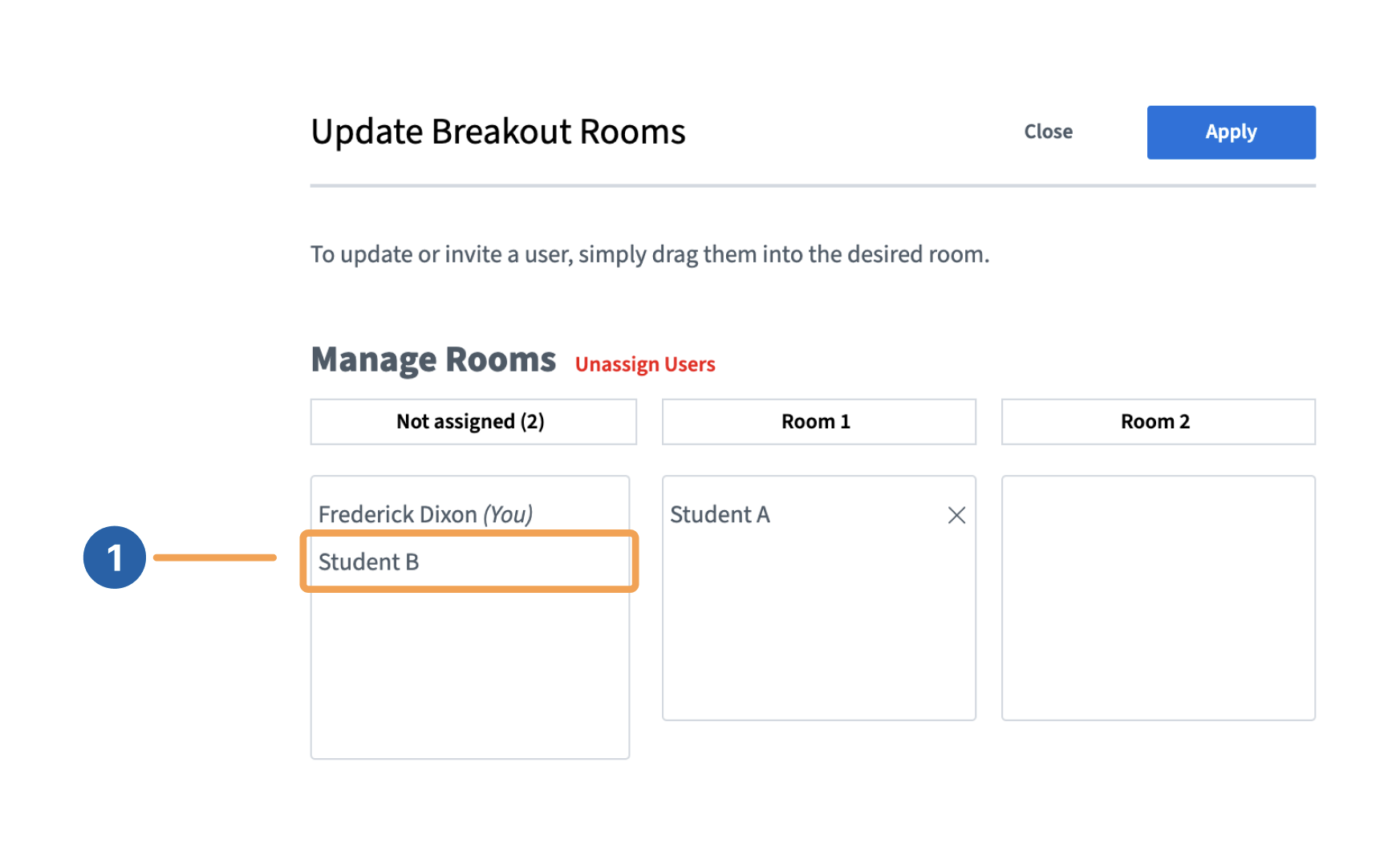
To invite students who are not currently in a breakout room, select the gear icon and choose Breakout room invitation.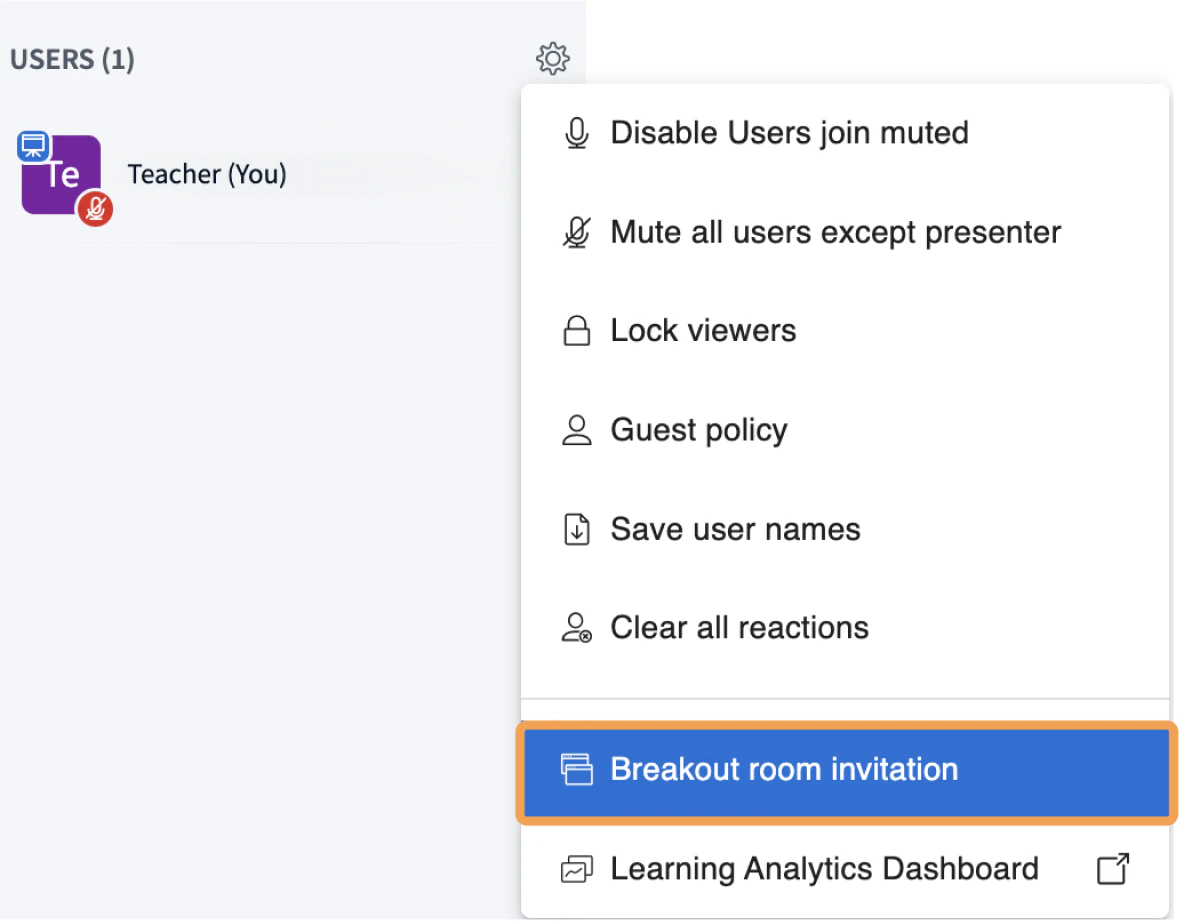
Breakout room controls
After breakout rooms are created and viewers have joined, moderators manage and join the rooms from the main session through the Breakout Room Control panel.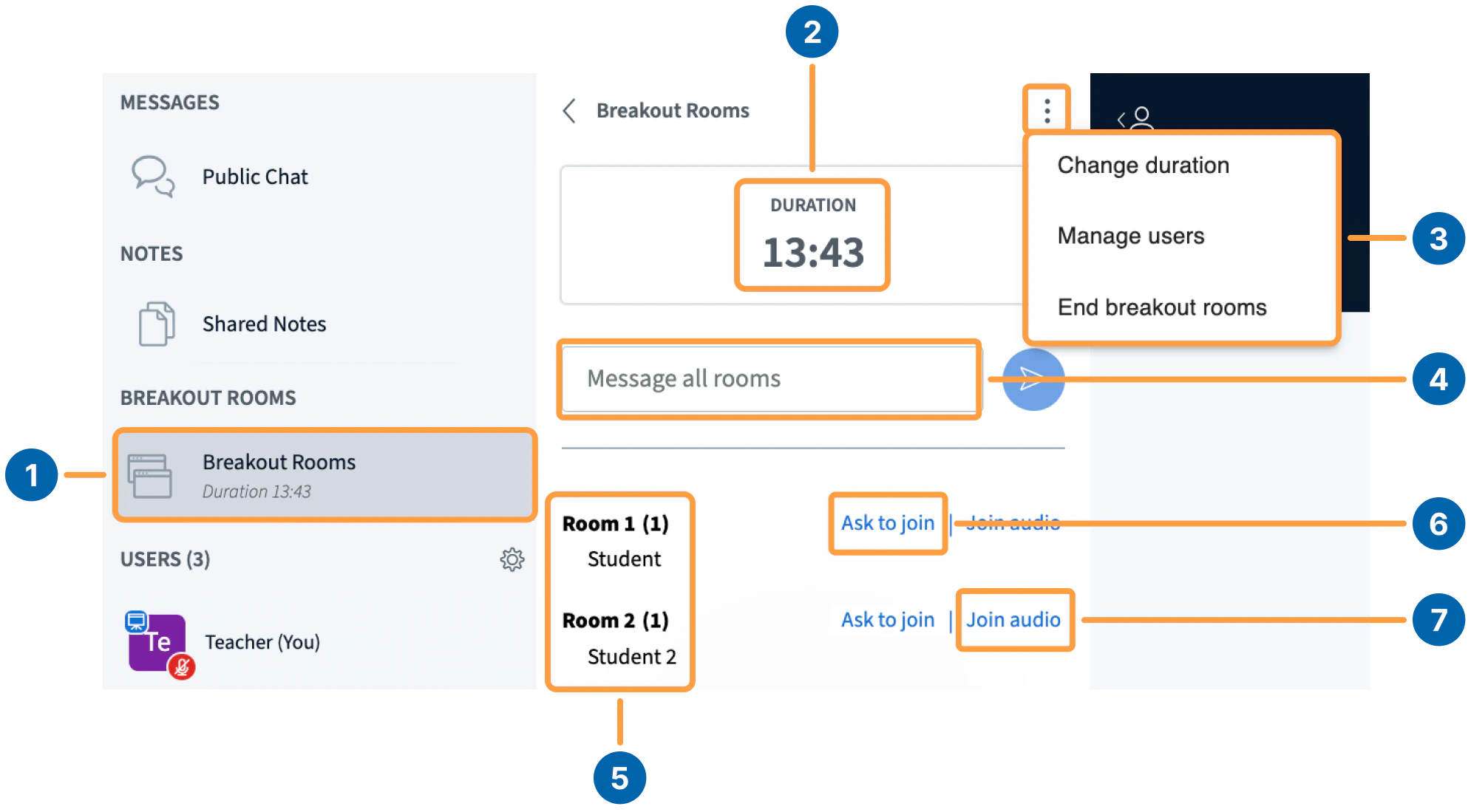
- Duration time [2]: shows the remaining time for the breakout rooms.
- Breakout room options menu [3]: opens the actions described below.
- Message all rooms [4]: send a message to every breakout room from the chat box.
- Number and names of attendees in each room [5]: lists active breakout rooms and their participants.
- Ask to join [6]: join a specific breakout room directly.
- Join audio [7]: listen in on a breakout room without joining it (Note: This feature is currently disabled in BigBlueButton).
- Change duration: increase or decrease the time remaining for all breakout rooms.
- Manage users: open the breakout room settings panel to add or remove users in each room.
- End breakout rooms: close all breakout rooms before the duration ends. Users return to the main session and rejoin audio.
Join a breakout room
To join a breakout room directly, select Ask to join [6] for that room. Your audio disconnects from the main session, and you are prompted to connect audio in the breakout room.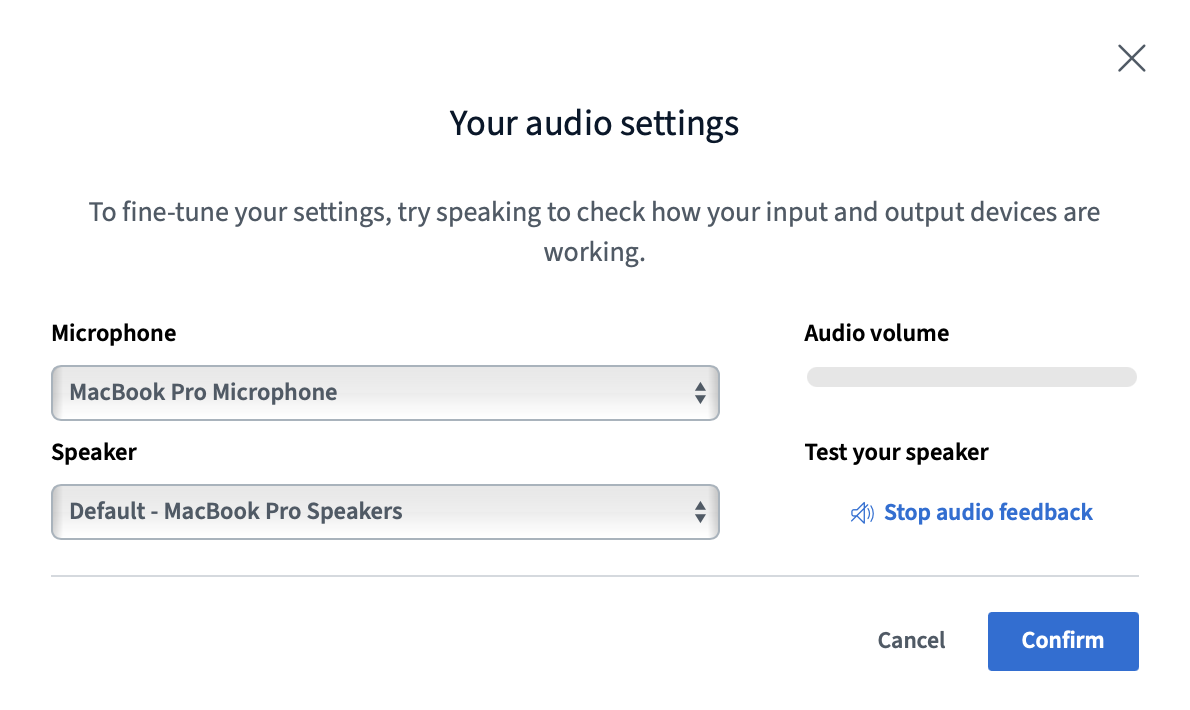
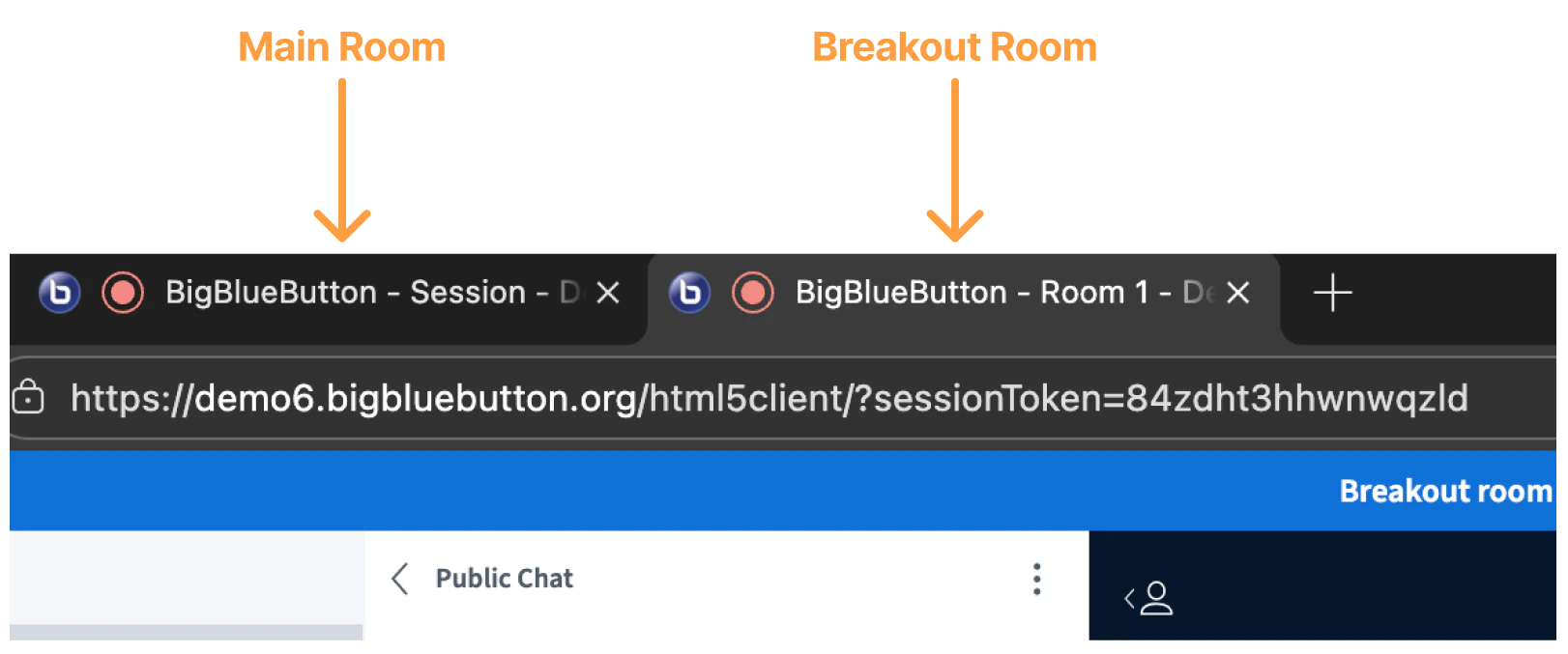
Manage Breakout Rooms
Important notes and recommendations
All viewers enter breakout rooms with moderator status, and the first to connect is assigned the presenter role. We recommend assigning one person per room as the “breakout captain” to upload content or pass the presenter role during the discussion.