While a presenter can join a BigBlueButton session on an iPad through Safari, the browser does not provide the means to share the screen. If you have an Mac computer, you can connect your iPad to the computer, record the screen using QuickTime Player, and then share the connected screen in a BigBlueButton session. The result is that other users in the session will see you iPad screen. Here’s how to do it.
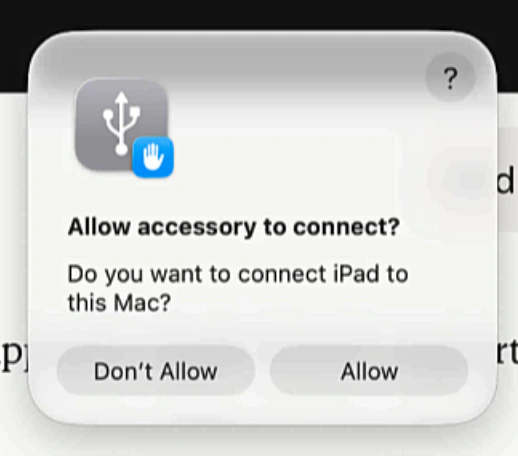
  1. Connect your iPad through a USB-C cable. You’ll get prompted to allow it to connect. Select Allow.
Image
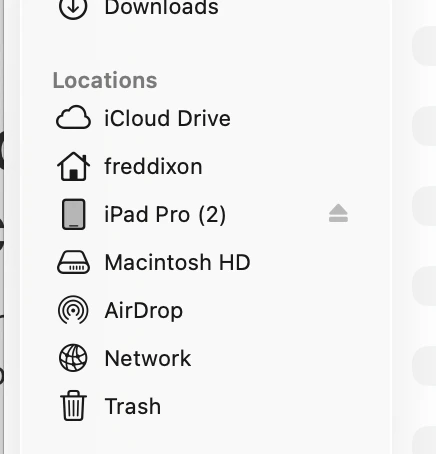
  1. To verify your Mac has connected to your iPad, open the Finder. You should see your iPad listed in Locations. In the screen shot below it shows as iPad Pro (2).
Image
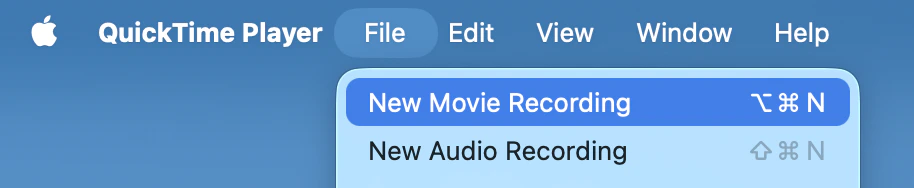
  1. Launch QuickTime Player and choose New Movie Recording
Image
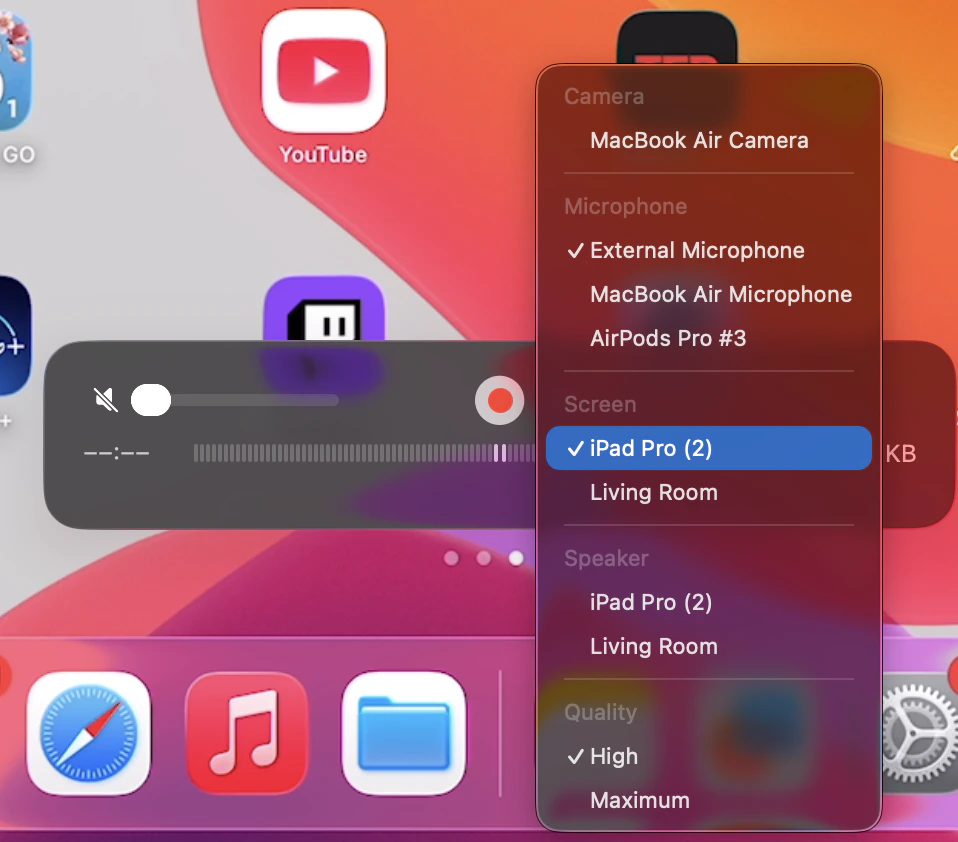
  1. Select the source menu (dow next to the red Record button.
    Image
  2. In the pop-up menu, choose the name of your iPad you saw a few moments ago in the Finder window. In the screenshot below it again appeared as iPad Pro (2).
Image
Note, don’t have to actually record the iPad screen in Quicktime player. The purpose of the above is to have QuickTime Player display your iPad screen on your Mac. Now that it’s visible in its own window, you can screen share that window using BigBlueButton.
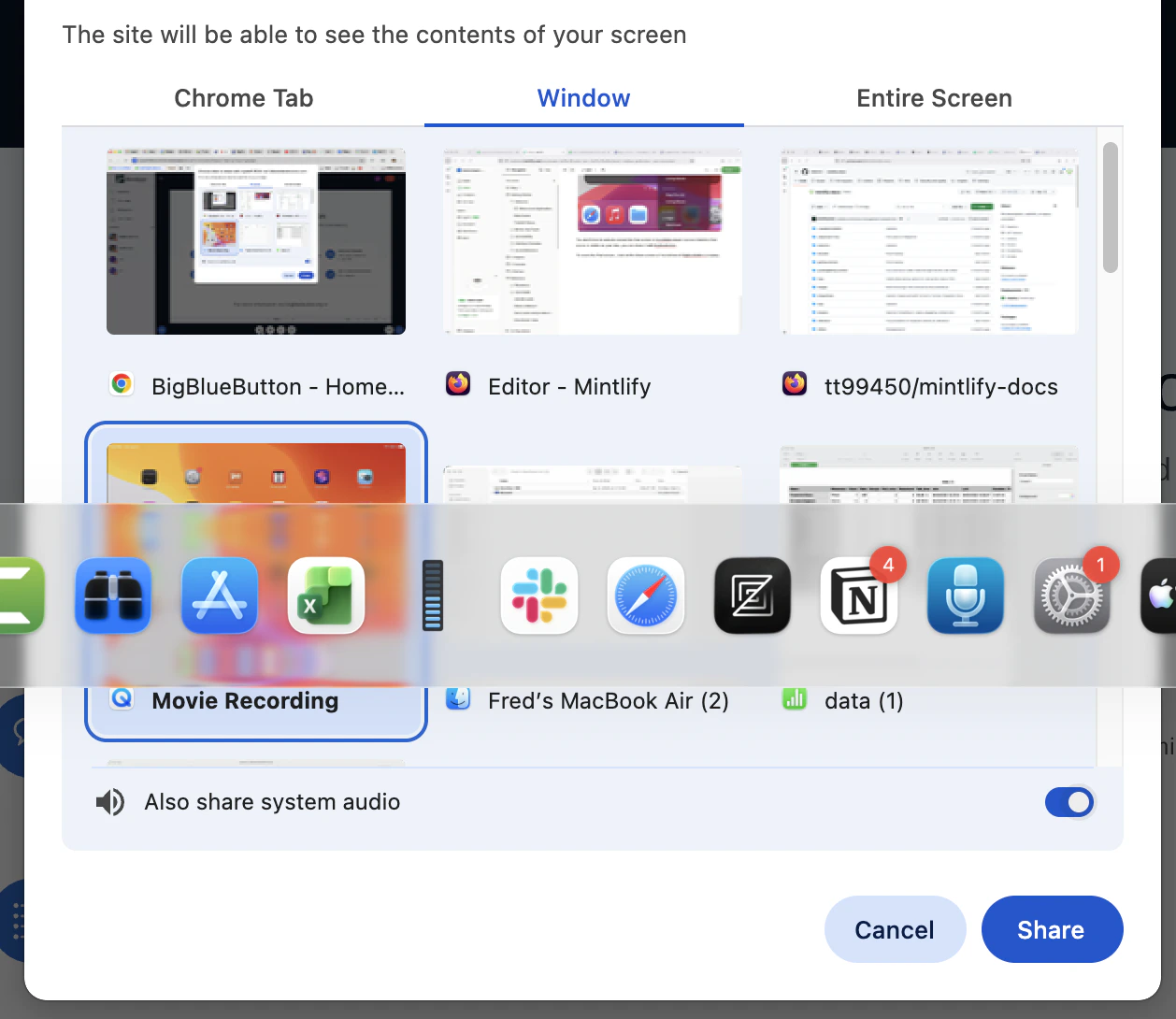
  1. To share the iPad window, click on the Share screen at the bottom of BigBlueButton’s display. Select Window, then select Movie Recording, then select Share.
Image
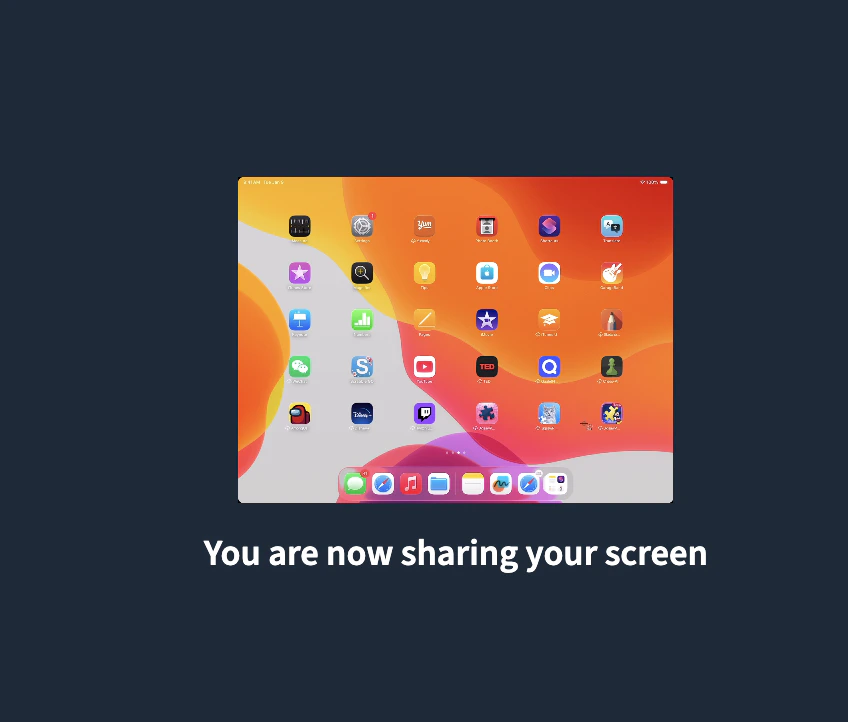
BigBlueButton will share iPad screen to all users in the session. This is a live view of your iPad, so anything you do on your iPad will be visible to everyone in the BigBlueButton session
Image