Overview

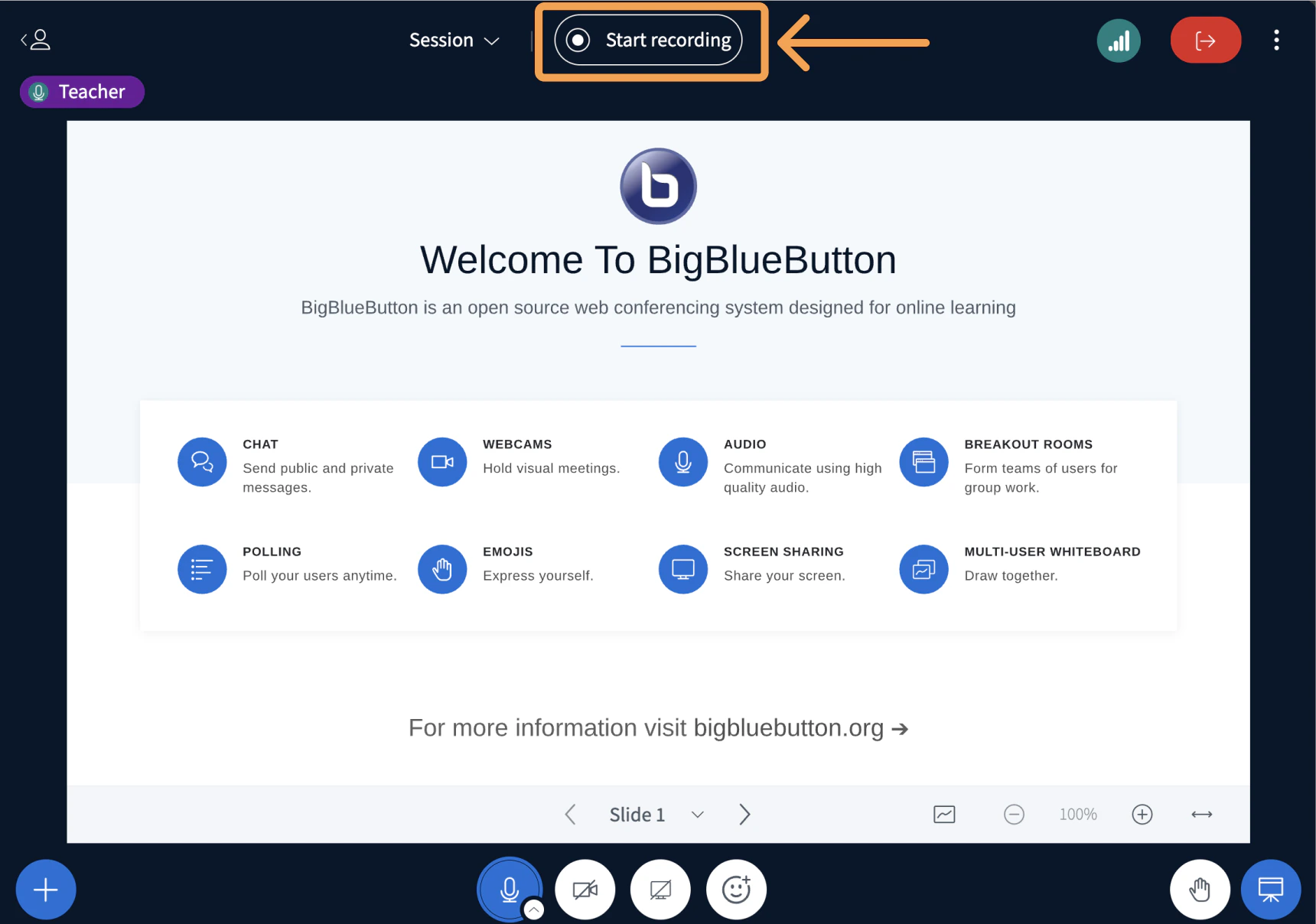
When a BigBlueButton conference or activity is enabled for recording, you can use the Start/Stop button in the live session to generate a recording. It is important to note that enabling your conference or activity to be recorded when it was created is not an auto-capture function. You must still use the start/stop record button in the live session for a recording to process.
Screenshot 2026 03 24 At 10 44 37 AM
The recording icon is located in the top centre of the BigBlueButton interface to the right of the session title.

Start the recording

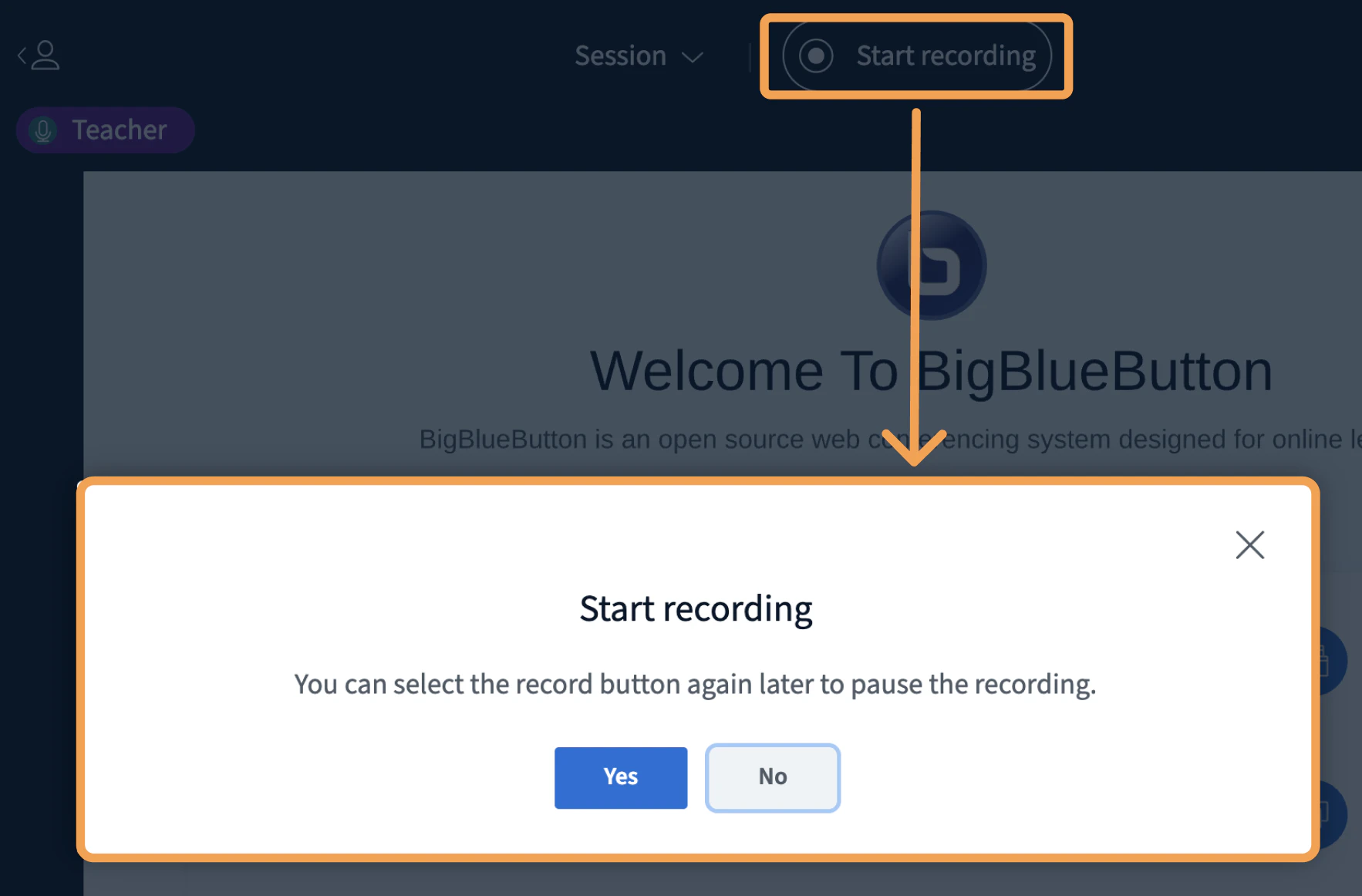
To start the recording, select the Start Recording button:
Screenshot 2026 03 24 At 10 49 30 AM
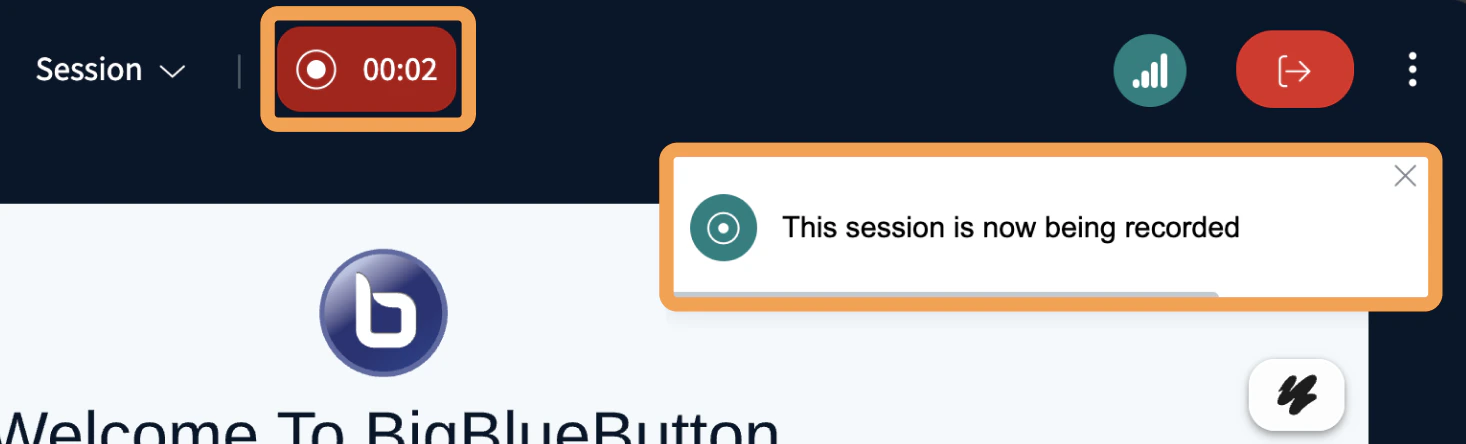
Screenshot 2026 03 24 At 10 45 53 AM
When started, the recording icon will change to red and a timer will begin counting up the total number of recorded minutes captured.

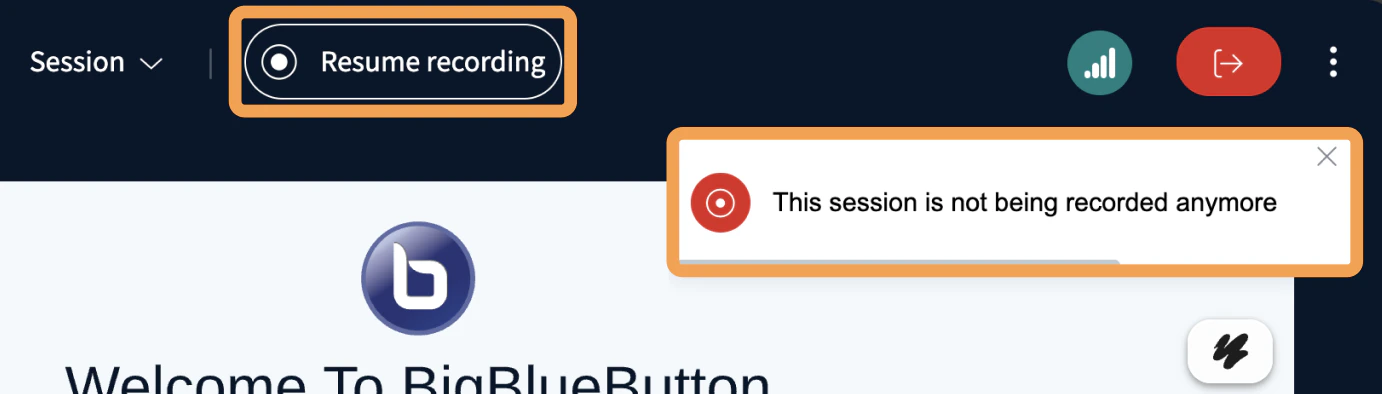
Stop or pause the recording

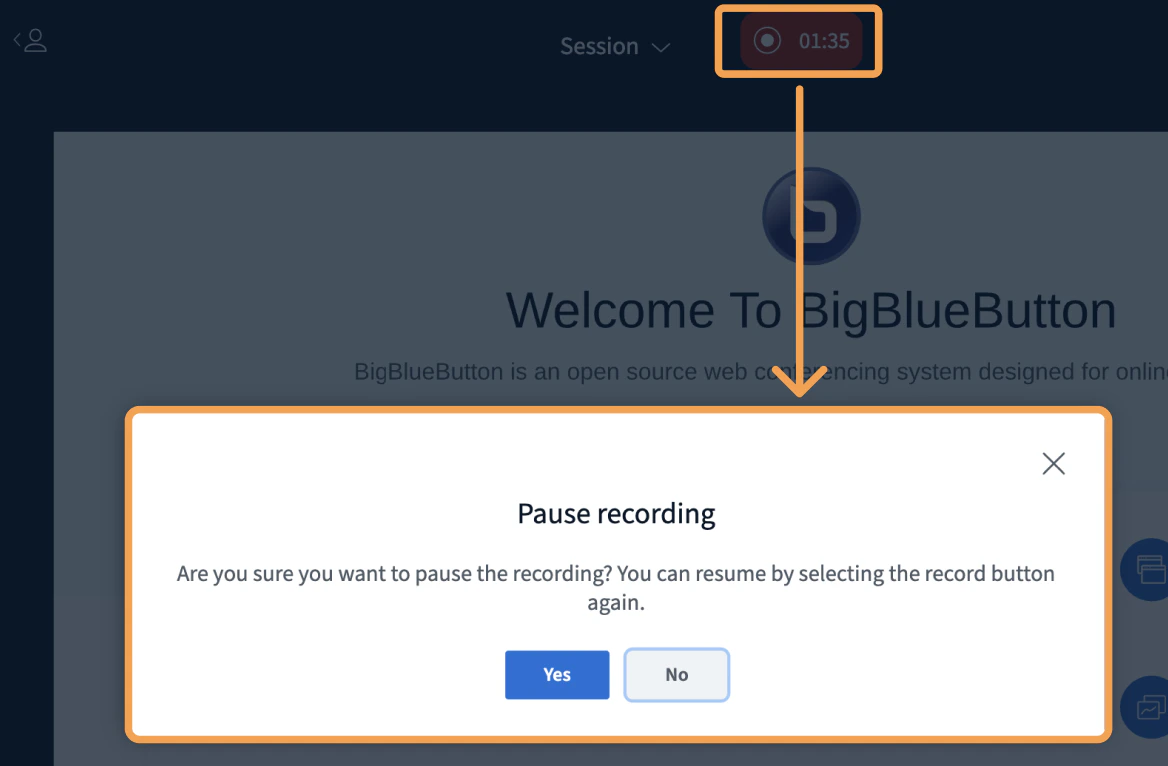
To stop or pause the recording, select the red icon and timer:
Screenshot 2026 03 24 At 10 55 17 AM
Screenshot 2026 03 24 At 10 46 45 AM
The recording processing takes approximately the same amount of time as the full duration of the live session and does not begin until the session has ended or all attendees have logged out of BigBlueButton.
All sessions have a duration of 9 hours.