As a viewer, join, rejoin, and use features within a breakout room.
In BigBlueButton, a moderator may create breakout rooms for small group discussions, collaboration, or team work; only moderators can engage breakout rooms.If you enter a session after the breakout rooms have been launched, you can inform the moderator and they can resend an invitation for you to join.
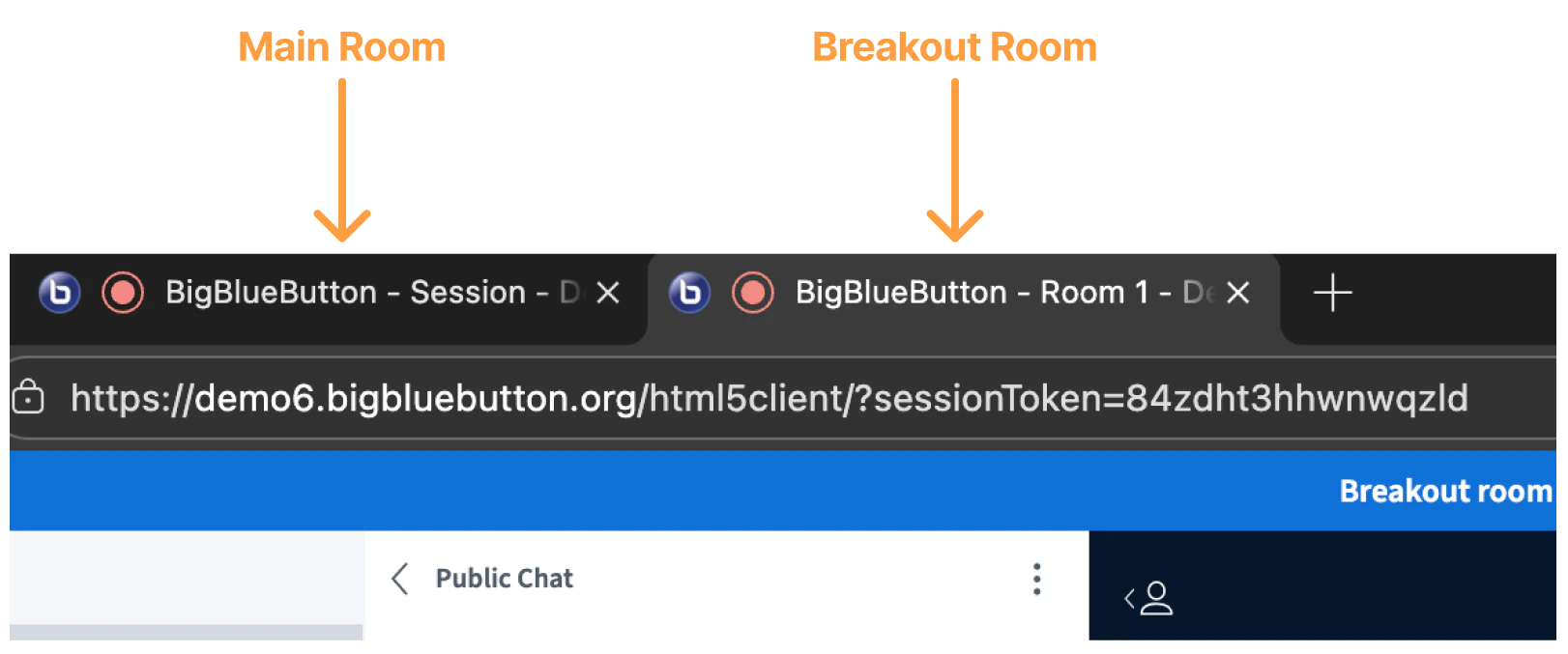
When you enter the breakout room, the interface looks the same as the main BigBlueButton session; however, there are a couple of important notes:
All users are connected to the breakout rooms with limited moderator status.
The first user to make a successful connection to the breakout room is allocated the presenter role.
The overall interface and important components remain the same.
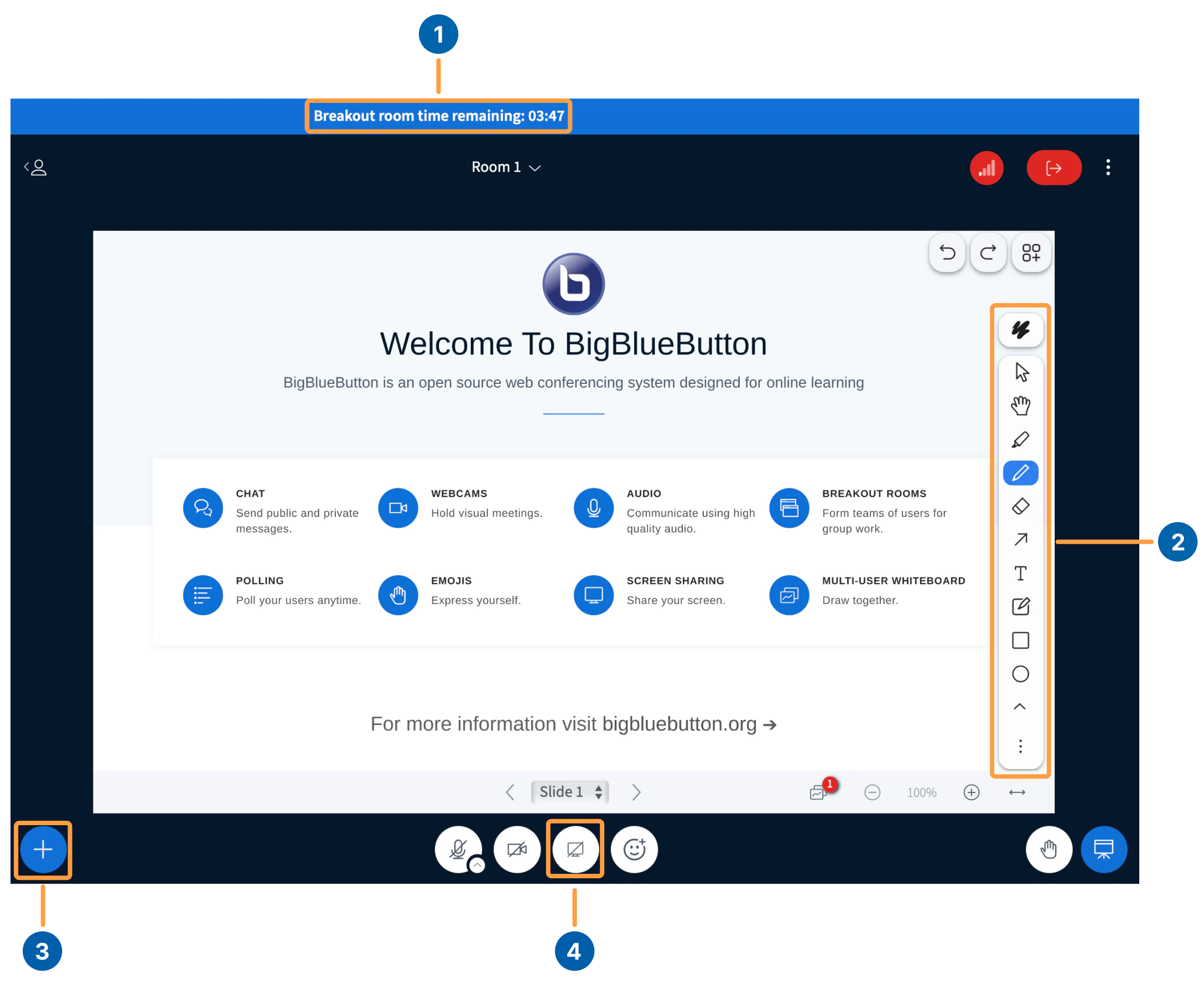
Features in the breakout rooms consist of:
Breakout room title and time [1]: indicates the current tab is running a breakout room session and the time remaining; the breakout rooms automatically close when this duration is met.
Whiteboard annotations [2]: accessible by the user with the presenter status; enables annotations to the whiteboard or uploaded document.
Presenter actions menu [3]: start a poll, upload a presentation, a link from YouTube, or take presenter status from the current presenter.
Screen sharing [4]: accessible by the individual with presenter status; enables the individual to share their screen.
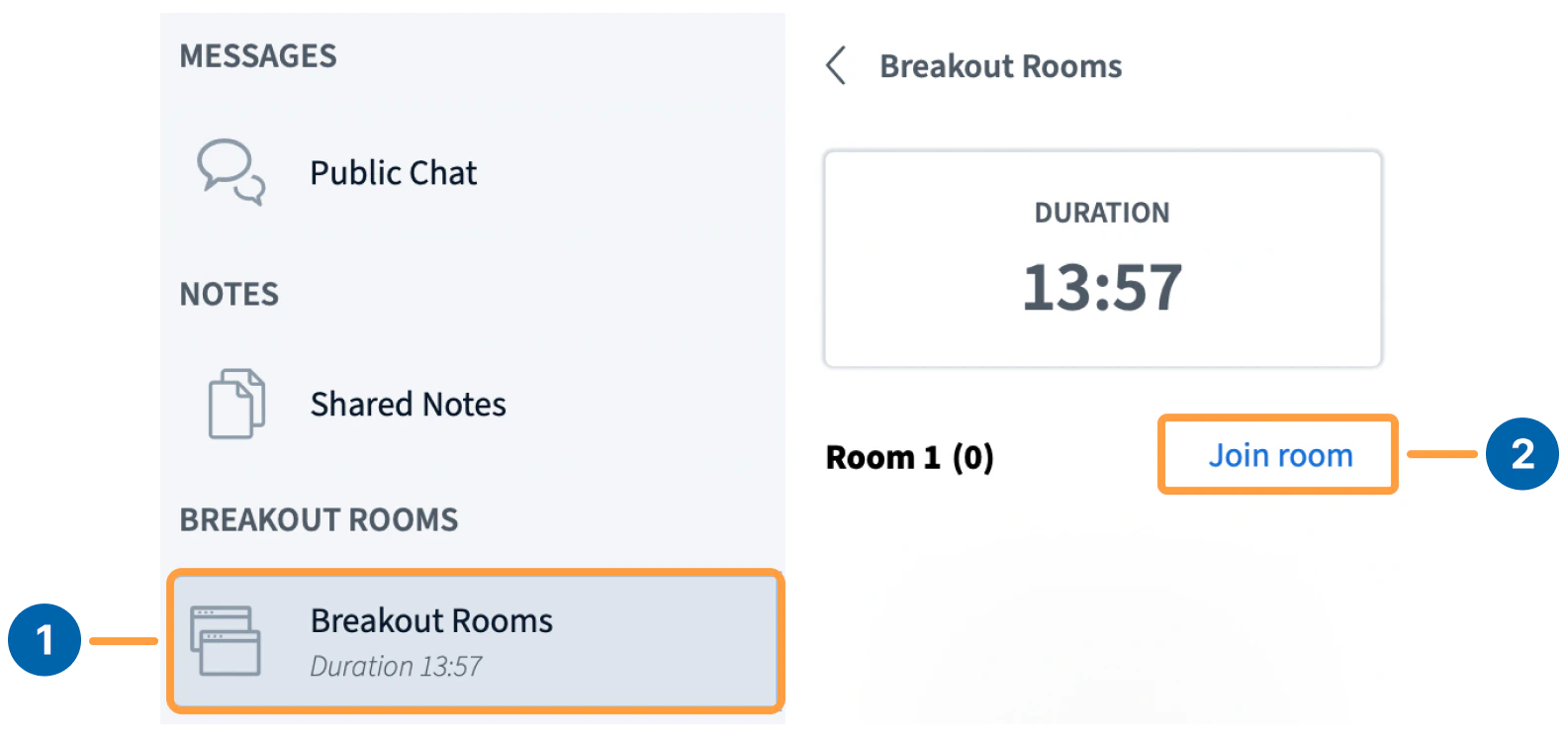
If you lose the connection or accidentally close the breakout room window, you can rejoin the room you originally connected to.Return to the main session and navigate to the messages and users list panel.Expand the Breakout Rooms [1] menu and select Join Room [2] to rejoin the breakout room.
If you do not see the breakout room menu, you can request the moderator resend a breakout room invitation to you.
Was this page helpful?
Assistant
Responses are generated using AI and may contain mistakes.