Presenters can launch polls and quizzes during a session to gauge understanding, gather feedback, and review answers with the class.
Presenters can start a poll to engage students, run informal pop quizzes, or gather quick feedback during a session. Presenters can also run a quiz — a poll with a correct answer marked.By default, the first moderator to enter the session receives the presenter role. If you are a viewer, request the presenter role from a moderator before starting a poll.
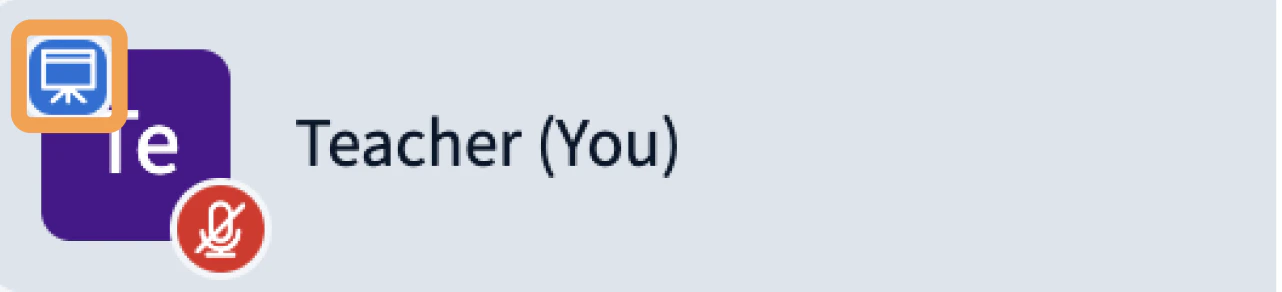
When a user has the presenter role, a presenter icon appears over their avatar in the user list.
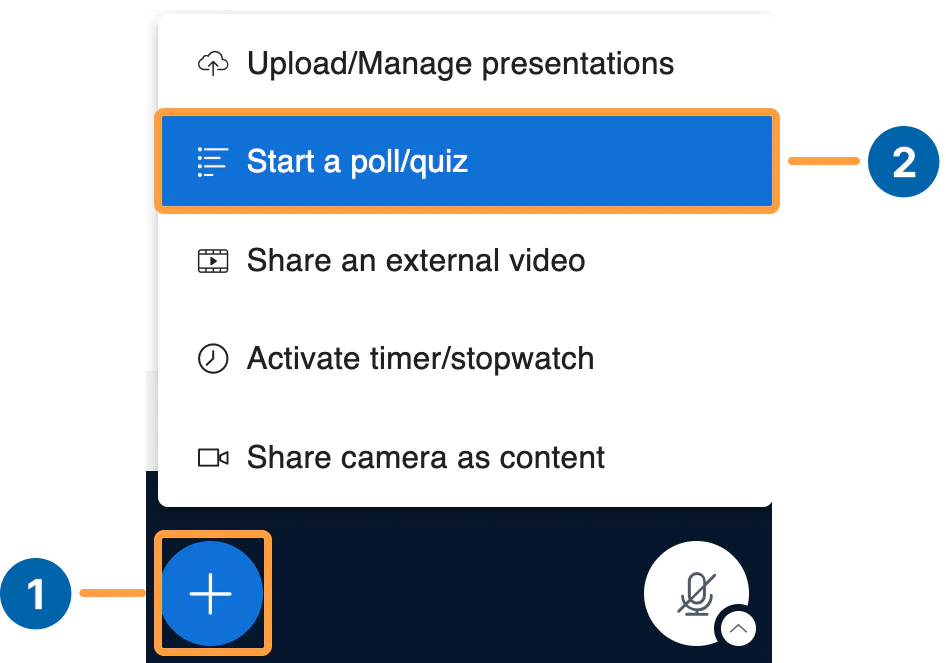
To open the polling panel, select the Actions menu[1] in the lower-left corner of the presentation window, then Start a poll/quiz[2].
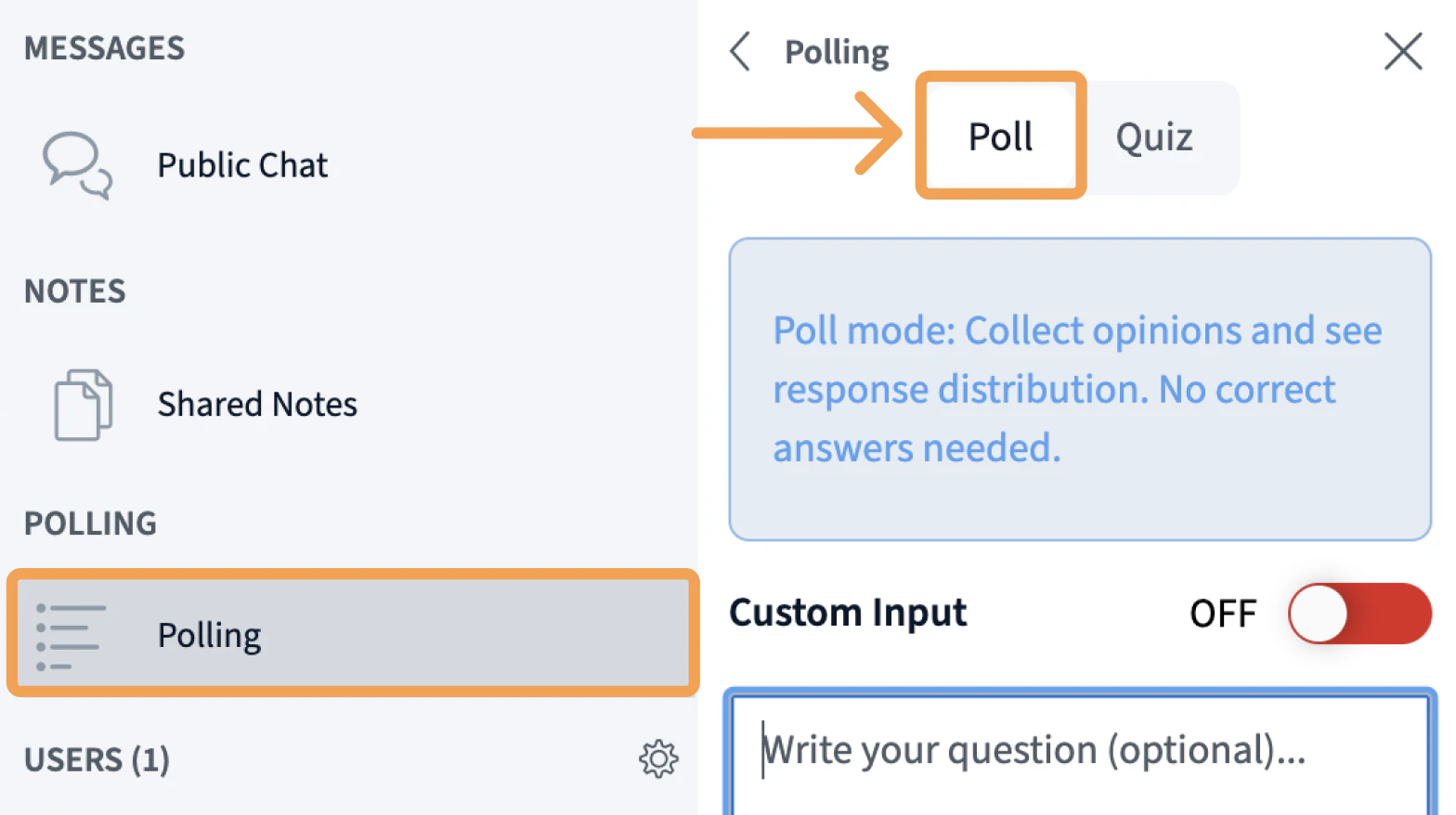
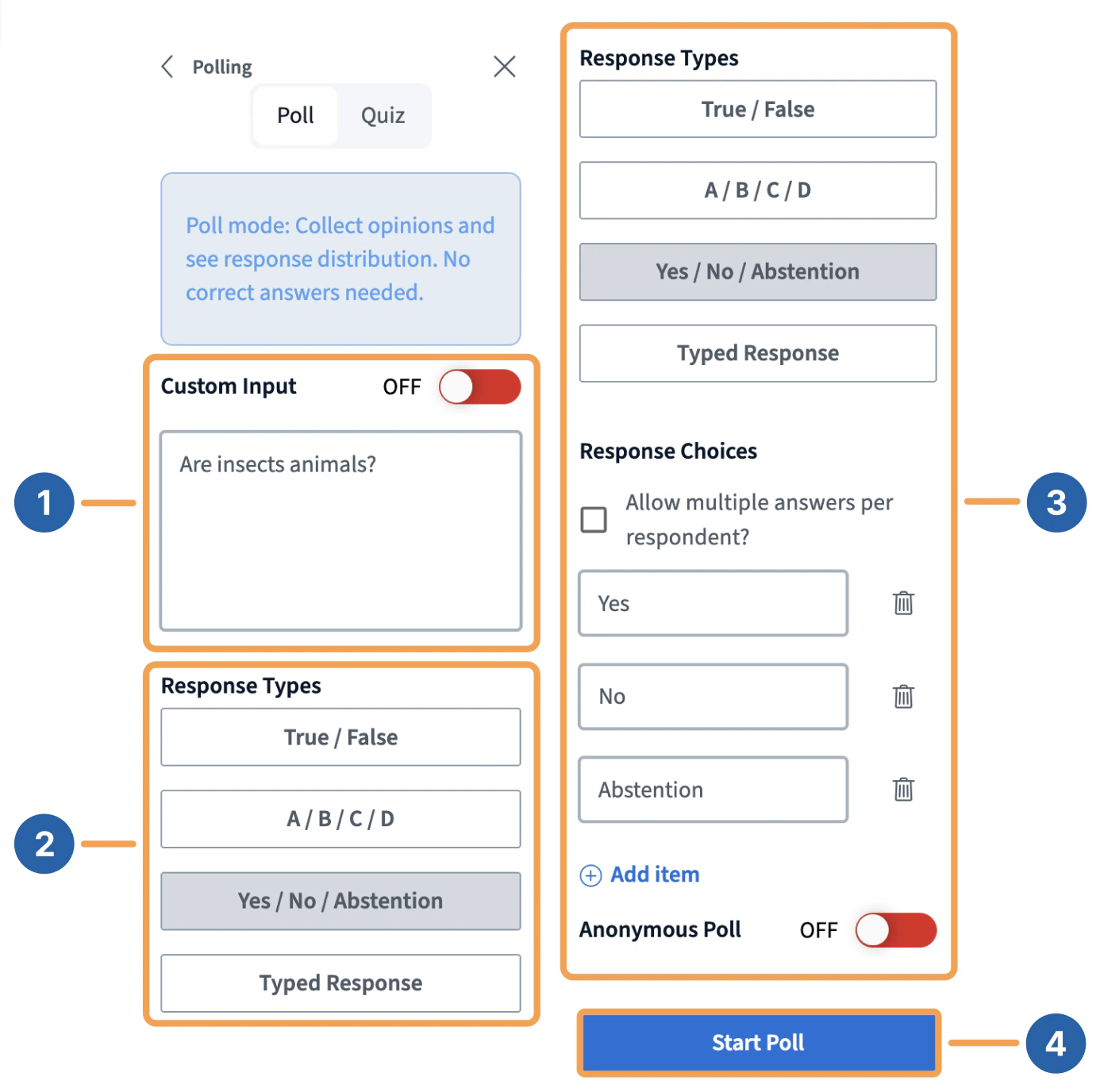
The Poll option is selected by default. Enter a question in the Write your question[1] field, then pick one of the Response Types[2] to set how users answer.
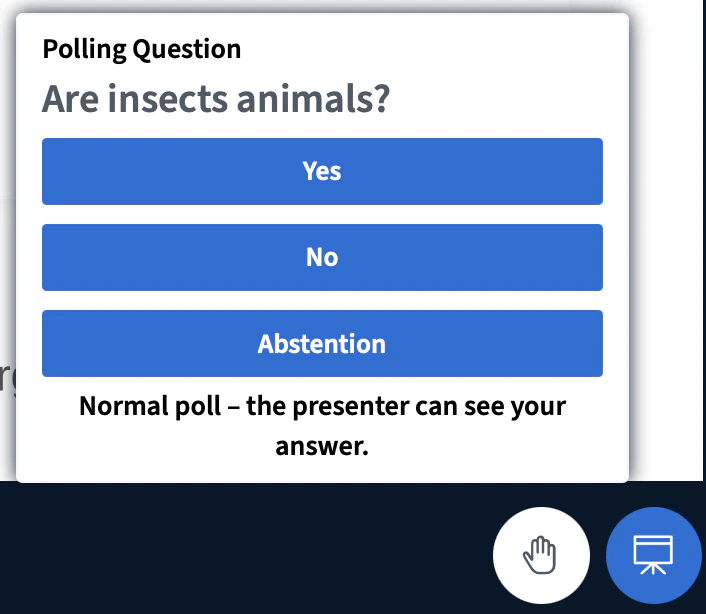
For example, type “Are insects animals?”[1], choose Yes / No / Abstention[2], then select Start poll[4] to push the poll to all users.After you start the poll, every user receives a prompt to respond.
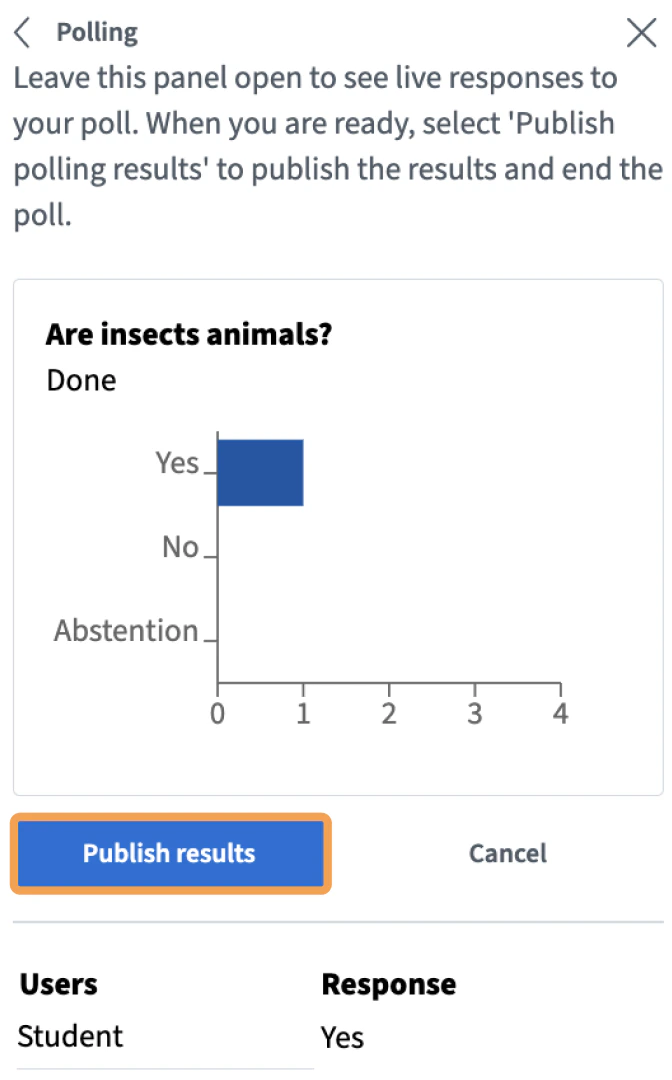
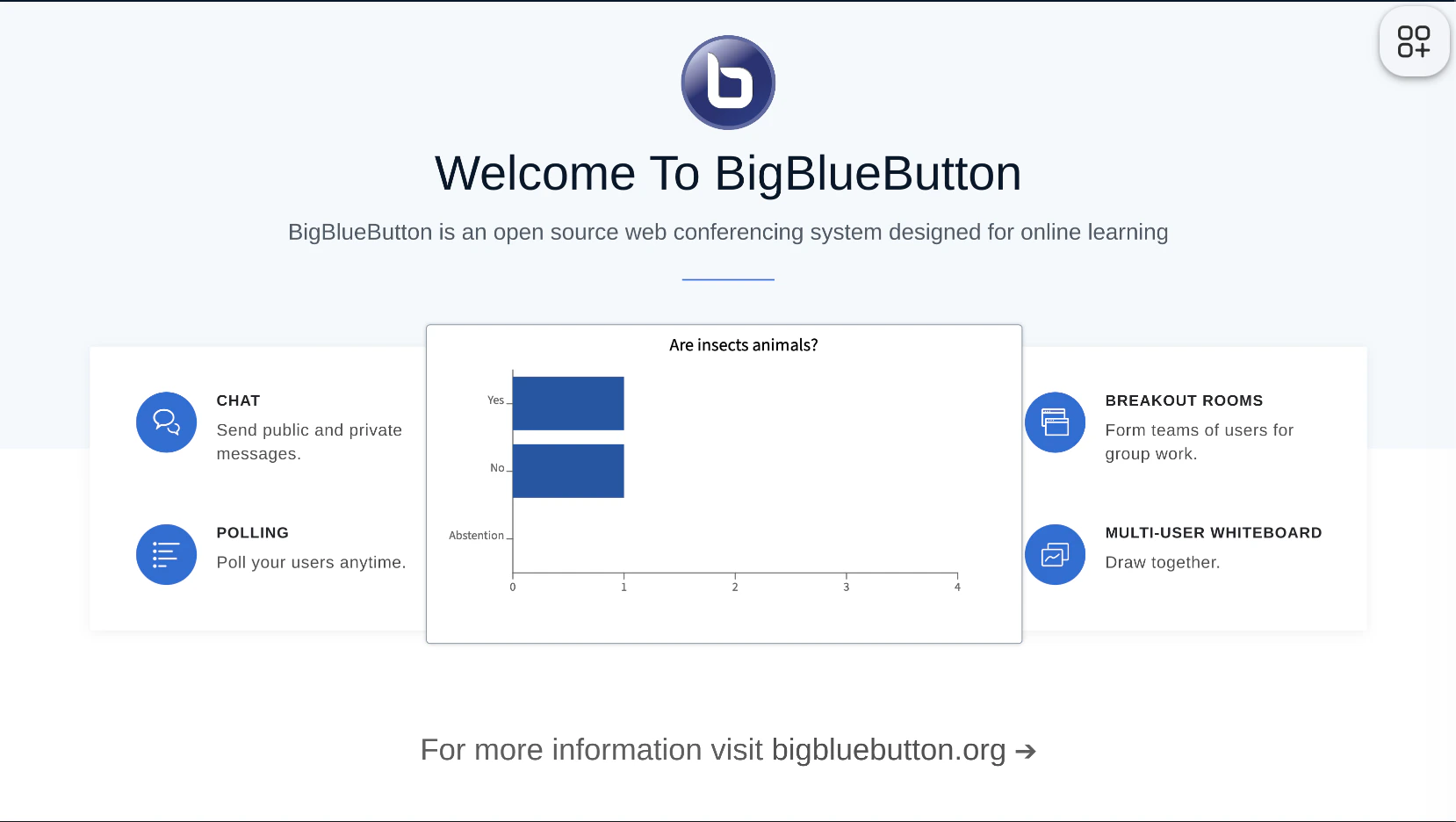
As users respond — for example, by selecting Yes — the presenter sees live results.
The poll panel shows each student’s Yes response next to their name.
Select Anonymous Poll before starting the poll to hide student names from the results.
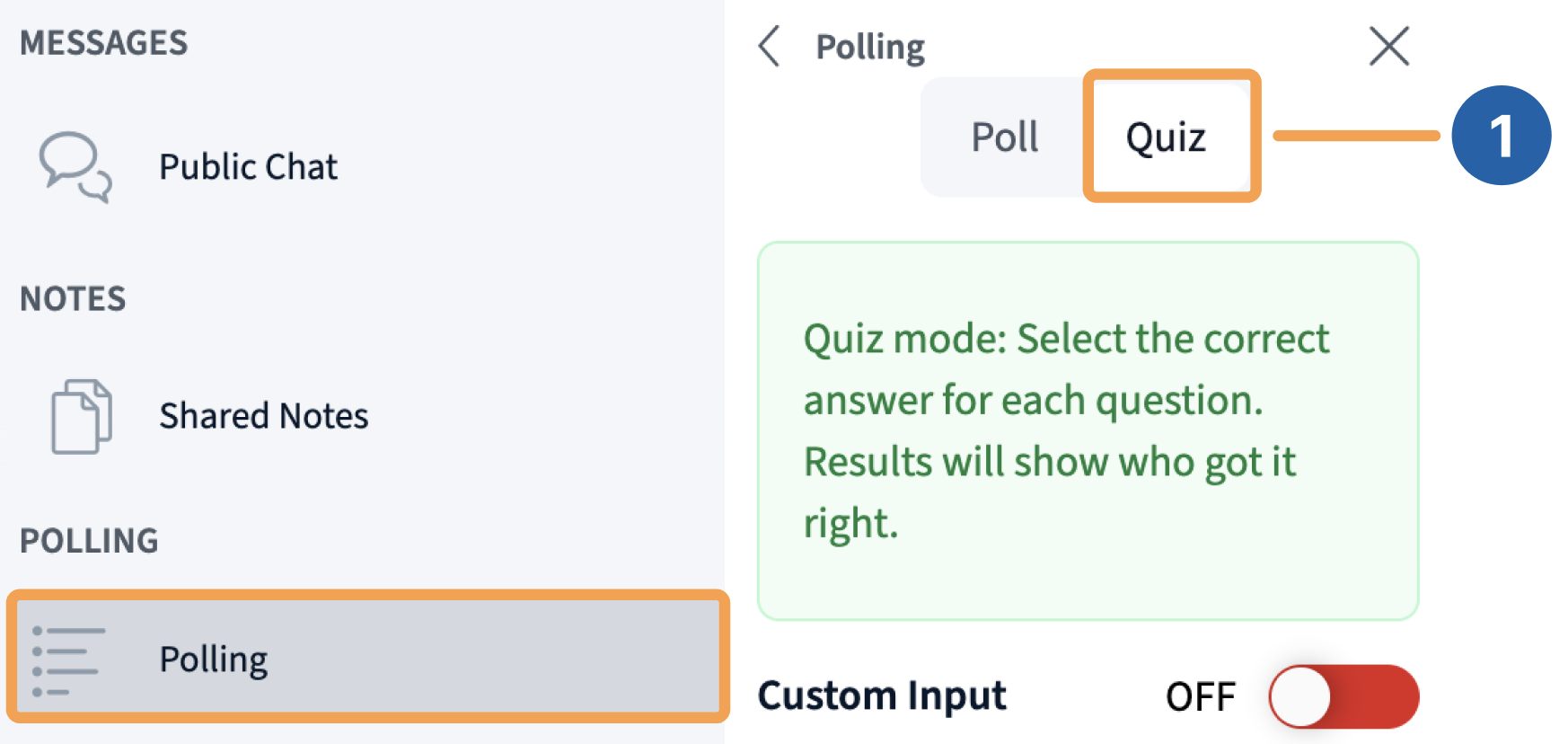
A quiz is a poll with a correct answer marked. To start one, select Quiz[1] in the polling panel — the response types update to show multiple-choice options.
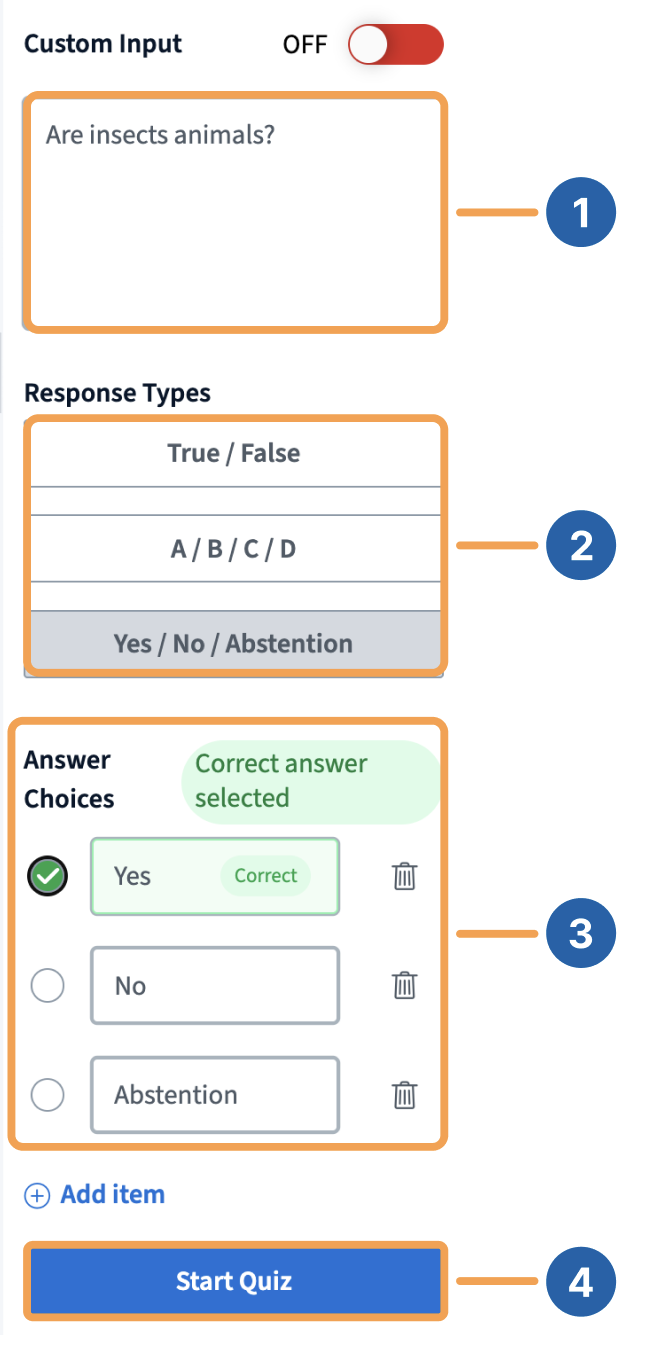
To launch the quiz, enter a question such as “Are insects animals?”[1], choose Yes / No / Abstention[2], mark True[3] as the correct answer, then select Start quiz[4].
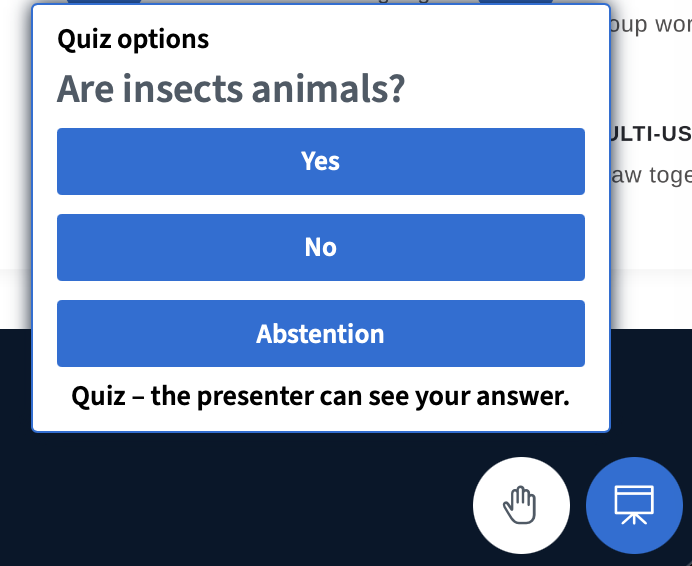
Users see a prompt to respond to the quiz.
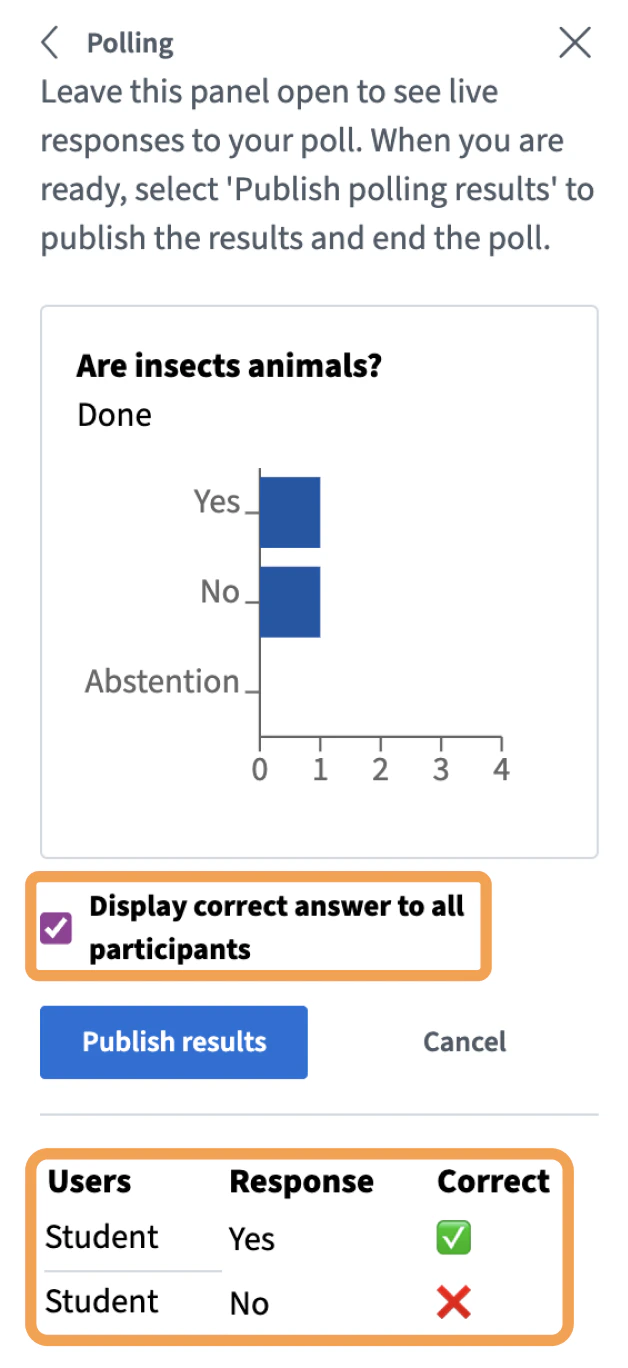
The presenter sees live results. Because the quiz has a correct answer, BigBlueButton indicates whether each student selected it.
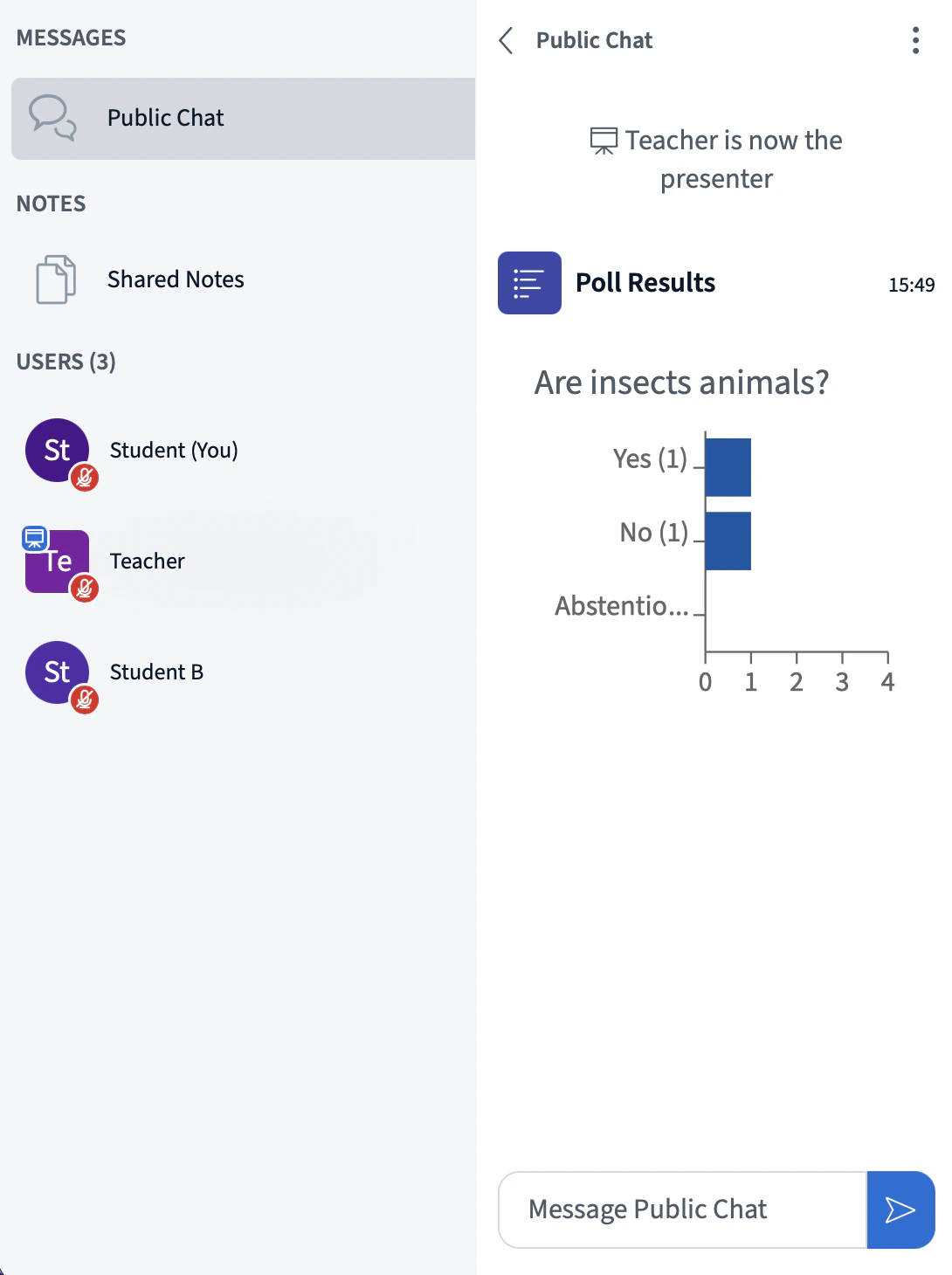
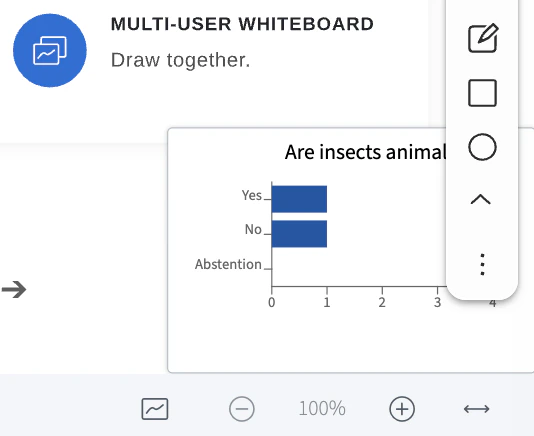
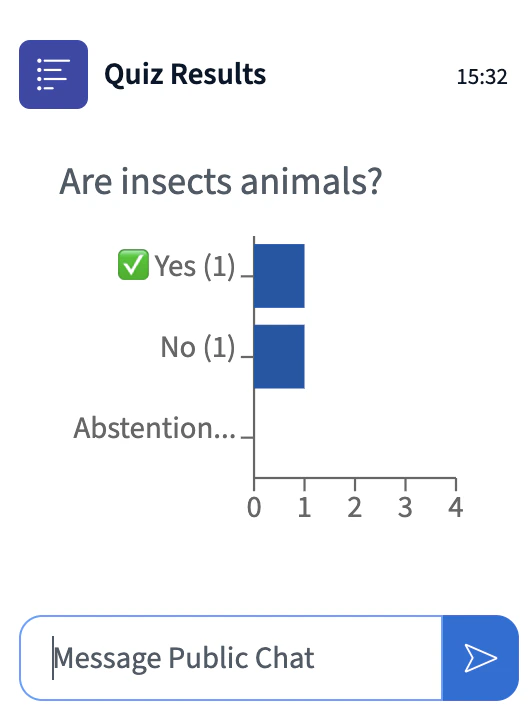
Published quiz results show the correct answer alongside each response, unless you clear Display correct answers to all participants before publishing.