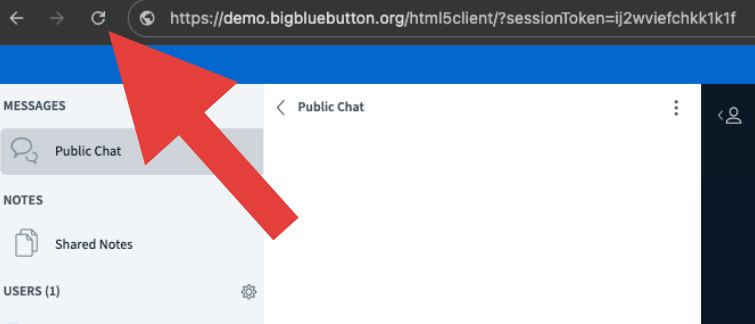
Any user can troubleshoot a BigBlueButton client that repeatedly disconnects and reconnects, which interrupts microphone, webcam, and screen sharing. This guide helps you isolate whether the cause is your internet connection, your computer, or a router or firewall setting. An occasional disconnect is not unexpected. If the drop is momentary, you can rejoin the session by refreshing your browser. You can refresh at any time to reload the client and establish new connections. The browser refresh button sits to the left of the URL bar. Browser refresh button location to the left of the URL bar

Run a test session

For a quick connectivity check before joining a full test session, run the self-test at https://test.bigbluebutton.com/. It checks your browser’s ability to make network connections (especially WebRTC connections for media) to a BigBlueButton server. The test page will give you a list of any failed attempts as well as the ability to download a PDF report of all tests.
To confirm whether the problem is reproducible, join a test session at https://my.bigbluebutton.com/ using Chrome or Firefox on the desktop, or Safari on iOS. Join the audio and share your webcam. If the connection holds, the original session may have had a transient issue. If the test session also disconnects repeatedly, the cause is likely your internet connection, your computer, or a router or firewall.

Test on a different network

To rule out your local network, connect through a different network while keeping everything else the same. A smart phone hotspot works well for this.
1

Create a hotspot

Set up a temporary wireless hotspot on your smart phone.
2

Switch networks

Connect your computer to the phone’s wireless hotspot.
3

Rejoin the test session

Open https://my.bigbluebutton.com/ and join a test session again.
If the disconnects continue on the hotspot, the issue is likely with your computer rather than the network. If the connection is stable on the hotspot, the issue is likely with your home or office router or firewall.

Test your computer

If the hotspot test still disconnects, work through the following checks on your computer. To rule out anti-virus interference, temporarily disable any real-time monitoring in your anti-virus software and rejoin the test session. Some anti-virus tools mistakenly close the browser’s connection to the BigBlueButton server. To rule out a browser-specific problem, test in both Chrome and Firefox. To rule out a hardware-specific problem, try joining from a different computer on the same network.

Resolve router or firewall issues

If the hotspot test was stable, focus on your router or firewall. If you are behind a corporate firewall, ask your network administrator to whitelist the BigBlueButton servers using the wildcard domain name. If you are connecting from home, your router may be mishandling IPv6. We have received reports from Spectrum customers experiencing periodic disconnects related to IPv6. To resolve IPv6-related disconnects, disable IPv6 on your computer or router and then retest at https://my.bigbluebutton.com/.