When the presenter enables the multi-user whiteboard, all users in the BigBlueButton session can annotate the whiteboard simultaneously.

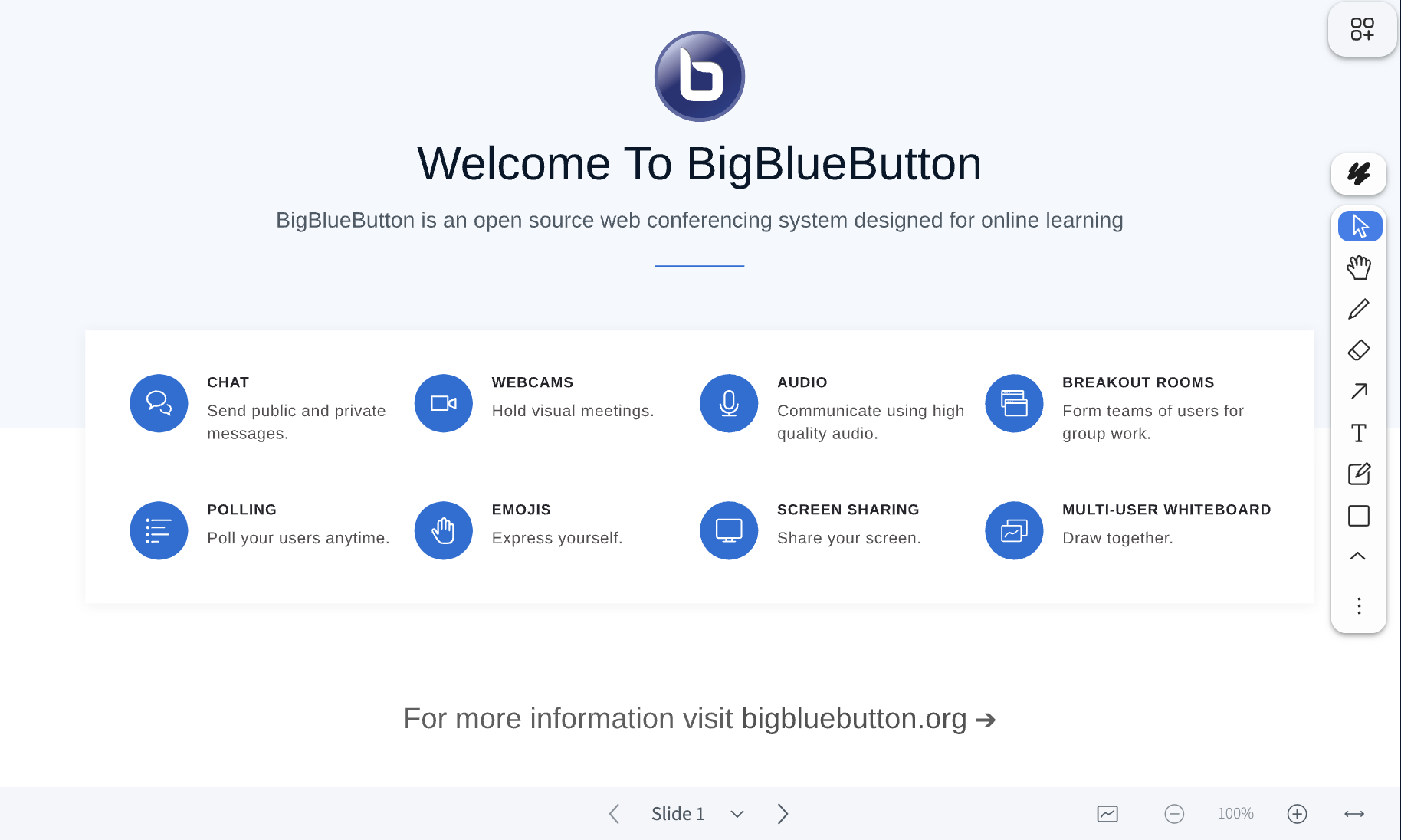
To engage, as a presenter, click the multi-user whiteboard button on the toolbar.
Screenshot 2026 03 24 At 10 02 24 AM
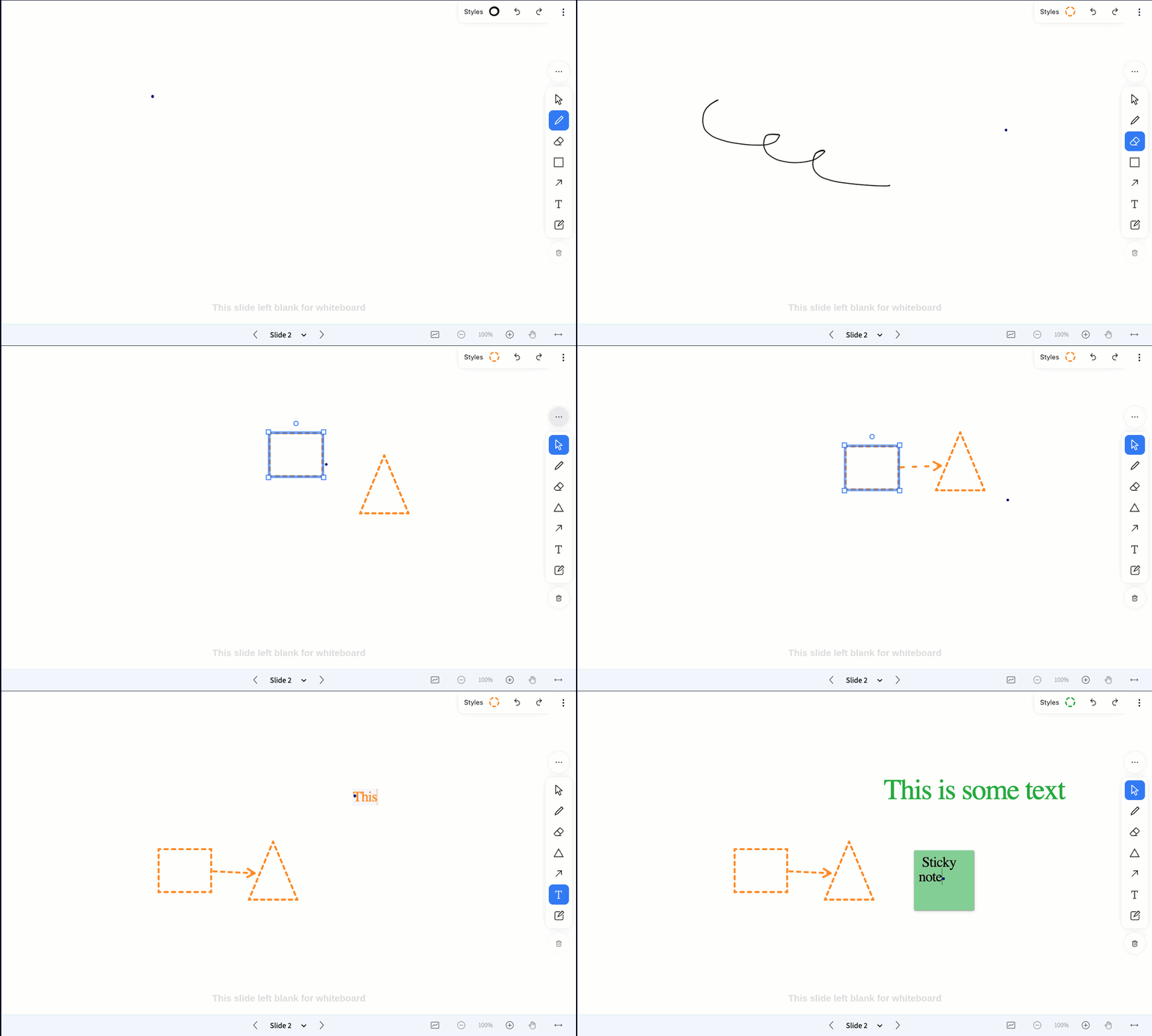
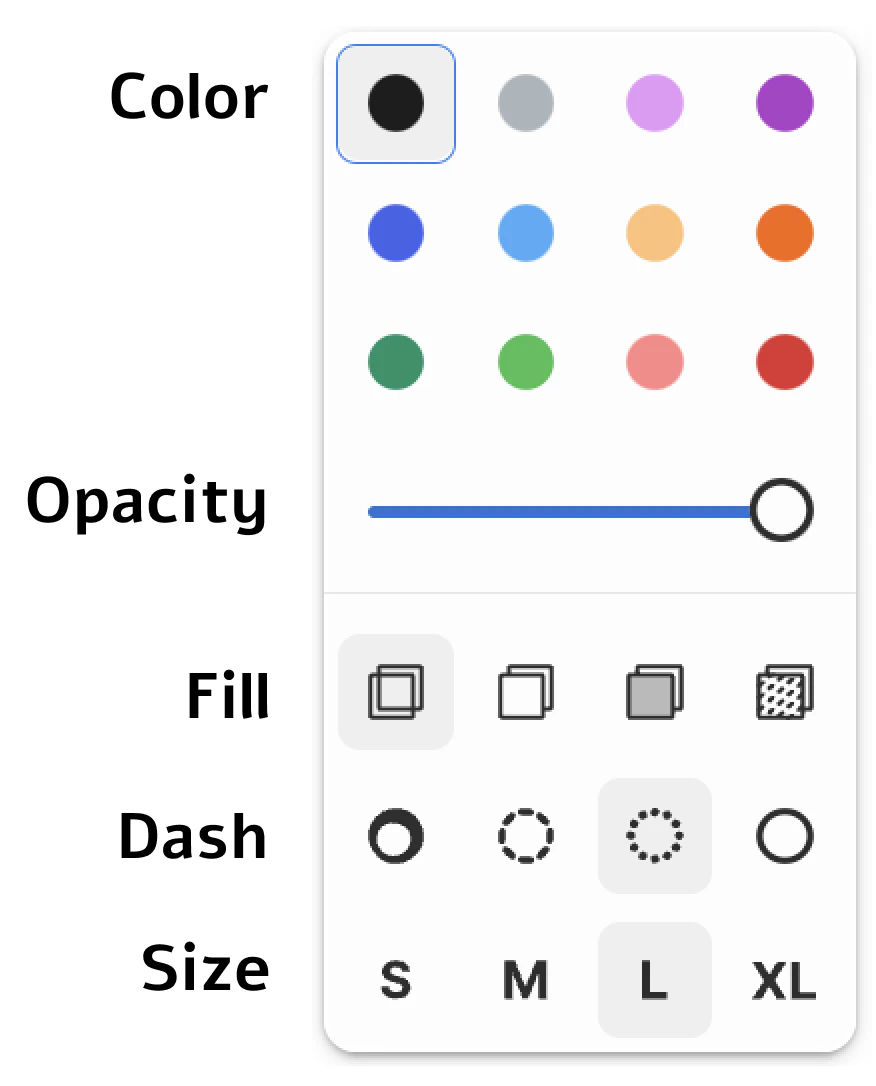
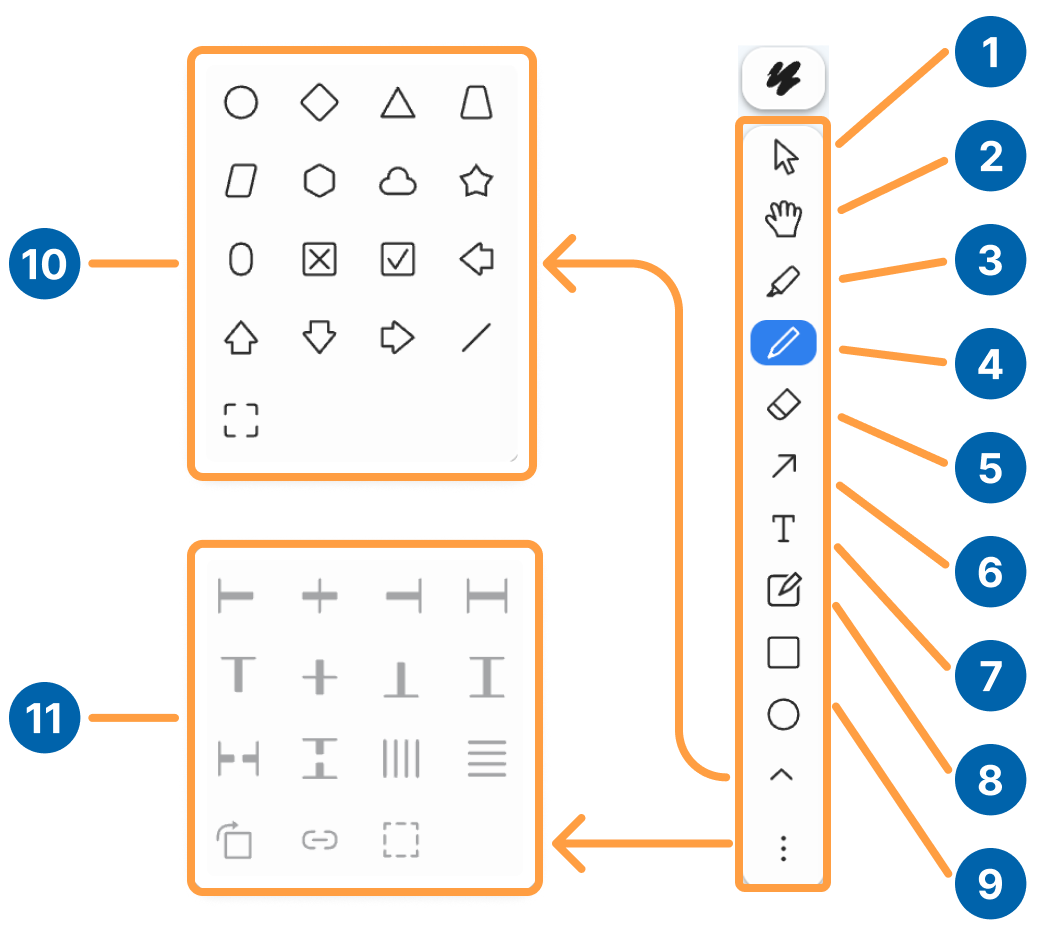
When engaging the multi-user capabilities, the whiteboard controls will appear on the right-hand side in the presentation area. There are two toolbars that can be used when interacting with the whiteboard. The styles toolbar contains tools that allow you to change the style (color, dash pattern, size, and fill) of your annotations along with undo and redo tools. The tools toolbar contains tools that allow you to interact with your annotations (grouping, aligning, rotating, etc.) and create new annotations with selection, pen, eraser, shapes, arrows, text, sticky notes, and delete tools.
2.6_Whiteboard.gif
* Hold shift to select multiple objects

The Multi-User Whiteboard

newwhiteboard.png
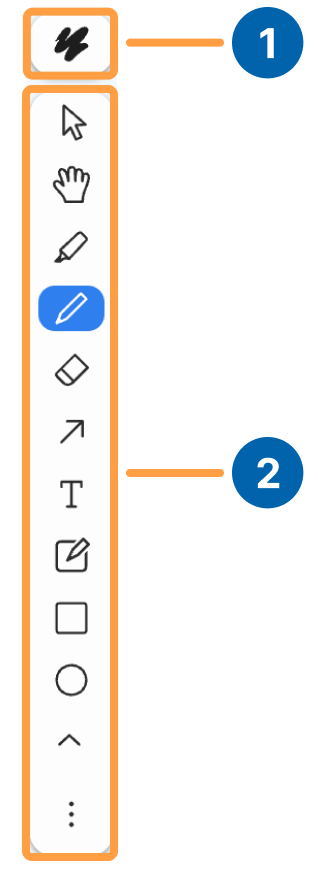
There are two toolbars on the whiteboard. A Styles toolbar [1] and a Tools toolbar [2].
Boardmenu
Styles toolbar
Styles
stylesbarlabels.png
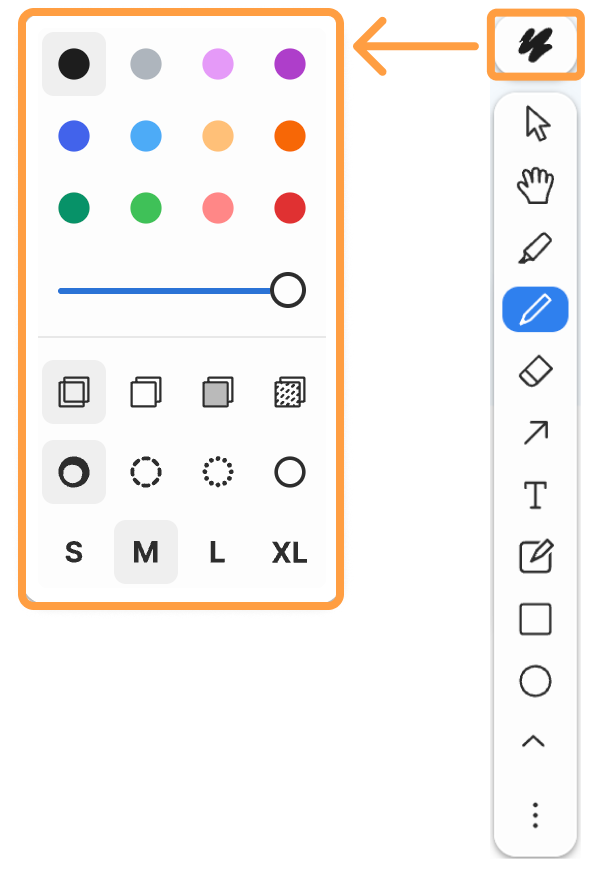
ColorSelect the color for your annotations to display in
FillSelect objects that will be filled with a color
OpacityChange the opacity of your object
DashSelect the dash pattern of your object
SizeSelect your font size (S)mall, (M)edium, (L)arge, or Extra Large (XL)
Tools toolbar
Tools
Tools
1Selection - select annotations
2Hand - move your positioning on the whiteboard
3Pen - freehand line drawing
4Highlighter tool - highlight text on the board
5Eraser - swipe across objects to erase them
6Arrow - draw an arrow
7Text - type text
8Sticky Notes - place a sticky note to type on
9Shapes - place a shape on the whiteboard. To change your shape, go to the shapes submenu [10]
10Shapes submenu: Select from a range of shapes to place, use the line tool, or place a frame on the whiteboard
11Actions submenu.