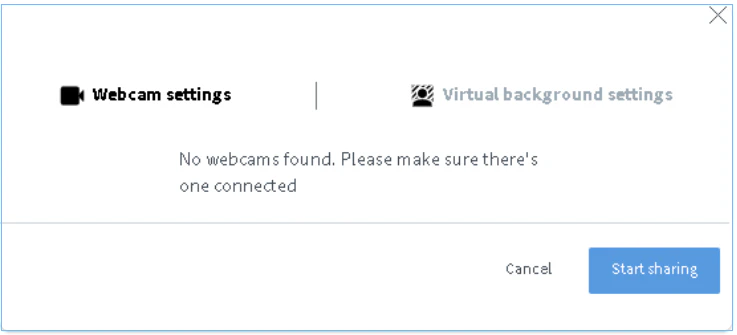
There are a few reasons that users may be unable to share their webcam. 1. Unable to find available webcams When the user clicks to share their webcam, the browser will first search for available webcams. If none are available, you will see No webcams found. Please make sure there’s one connected Webcam share dialog showing the error "No webcams found. Please make sure there's one connected" This error is caused when there are no available webcam sources.  The reasons for this are
  • Another application (such as Skype) is using the webcam and won’t release it
  • You have an older version of ManyCam installed (Windows 10)
First, if you have ManyCam installed, upgrade it to the latest version. Second, restart your computer.  This clears any access to your webcam so that the browser can access it. 2. Latest version of Firefox, Chrome, or Edge While there are checks in BigBlueButton to warn the user, in general the user should use the latest version of Chrome, Firefox, or Edge (which as of version 18 is based on Chromium). Users of the older version of Edge will have intermittent success sharing their webcam. 3. Permission not granted to share webcam Before a user can share their webcam, the browser will ask for permission to access the user’s webcam.  On Mac OS X, the operating system will also ask (one time) for permission as well. If the user didn’t grant permission, there will be a webcam icon on the browser’s toolbar with a slash ’/’ through it.  Clicking that icon will give the user another chance to grant permissions (a refresh of the page may be needed). 4. Error Establishing Connection (1020) If there is an error setting up a network connection with the BigBlueButton server, the user will get “Error 1020: media could not reach the server”.  The issue is usually network-related (usually due to a firewall). Have them visit https://my.bigbluebutton.com/ and try sharing their webcam within a test session.  This will test on a completely different BigBlueButton server. If they are unable to share their webcam on the demo server, then the issue might be their network related, in which case try
  1. Have them switch between Firefox or Chrome (there are rare cases where one works and the other does not)
  2. If possible, have them setup a wireless hot spot with their phone.  This will keep everything the same, but use a different network path.
If it works on the hot spot, but not on their default network, then the issue is very likely network/firewall related.  Explore if there is an option to use an alternative network. If it does not work on the hotspot — that is, they have tried two different BigBlueButton servers (from their LMS and my.bigbluebutton.com) and two different network connections (default and hotspot) — then the issue is likely with their computer.   See if there is a different computer available to them on the same network and then have them test sharing a webcam with https://my.bigbluebutton.com/. If this second computer also fails, then there may be a firewall restricting UDP connections in the range 16384 - 32768 somewhere between their local network and the BigBlueButton server (either from their LMS or my.bigbluebutton.com).