Mobile devices such as iPhone, iPad, and Android do not support screen sharing.
Confirm your presenter role
By default, the first moderator to enter a BigBlueButton session receives the presenter role. If you are a viewer, request the presenter role from a moderator before continuing.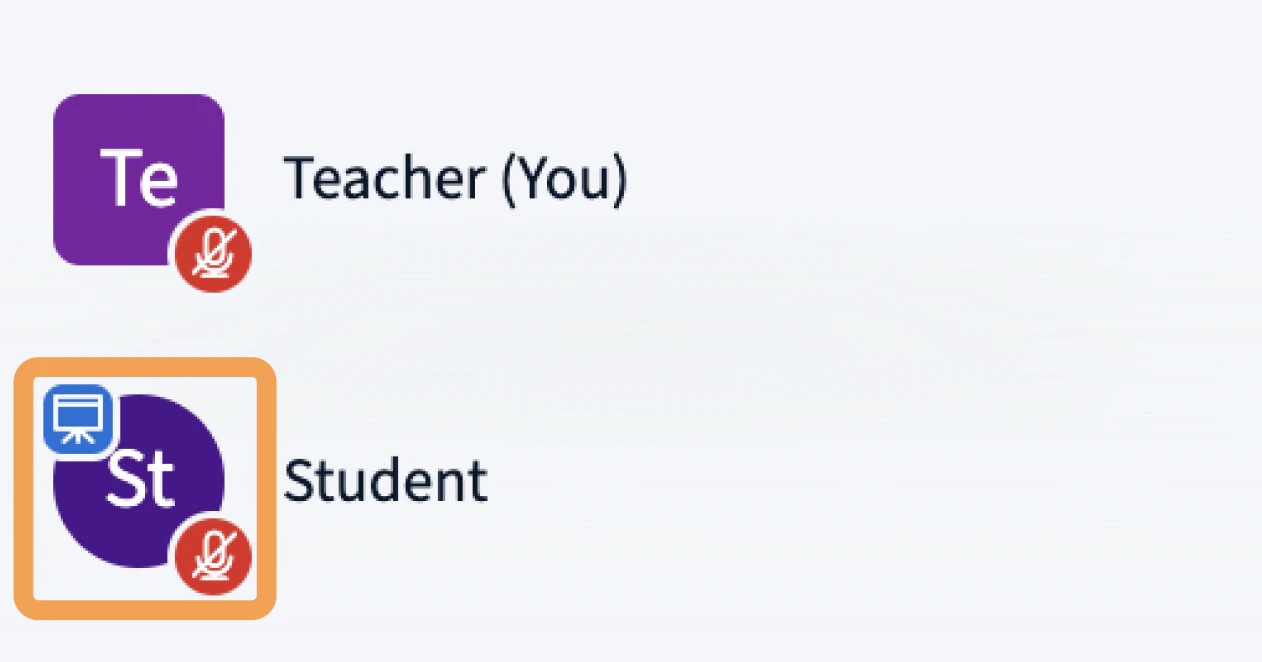
Start sharing your screen
To begin sharing, select the Screen Share button in the media bar.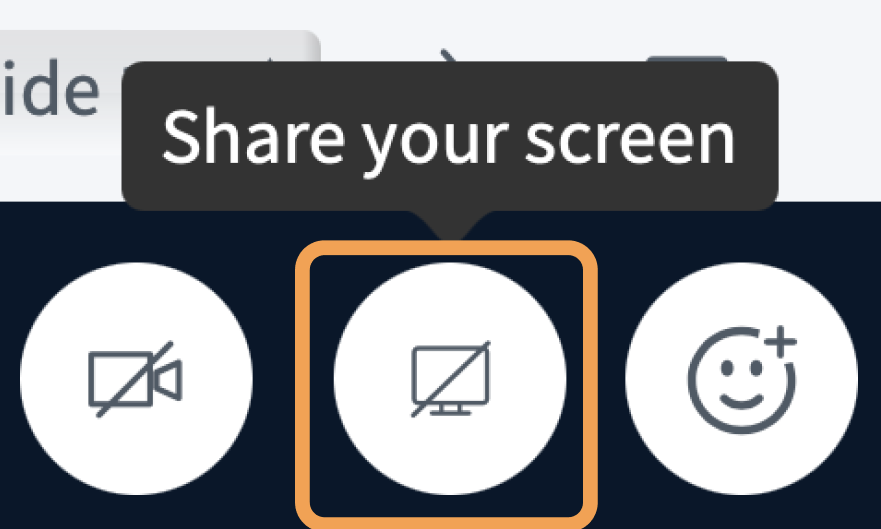
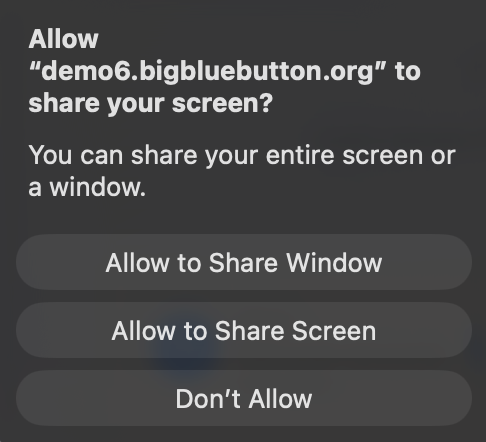
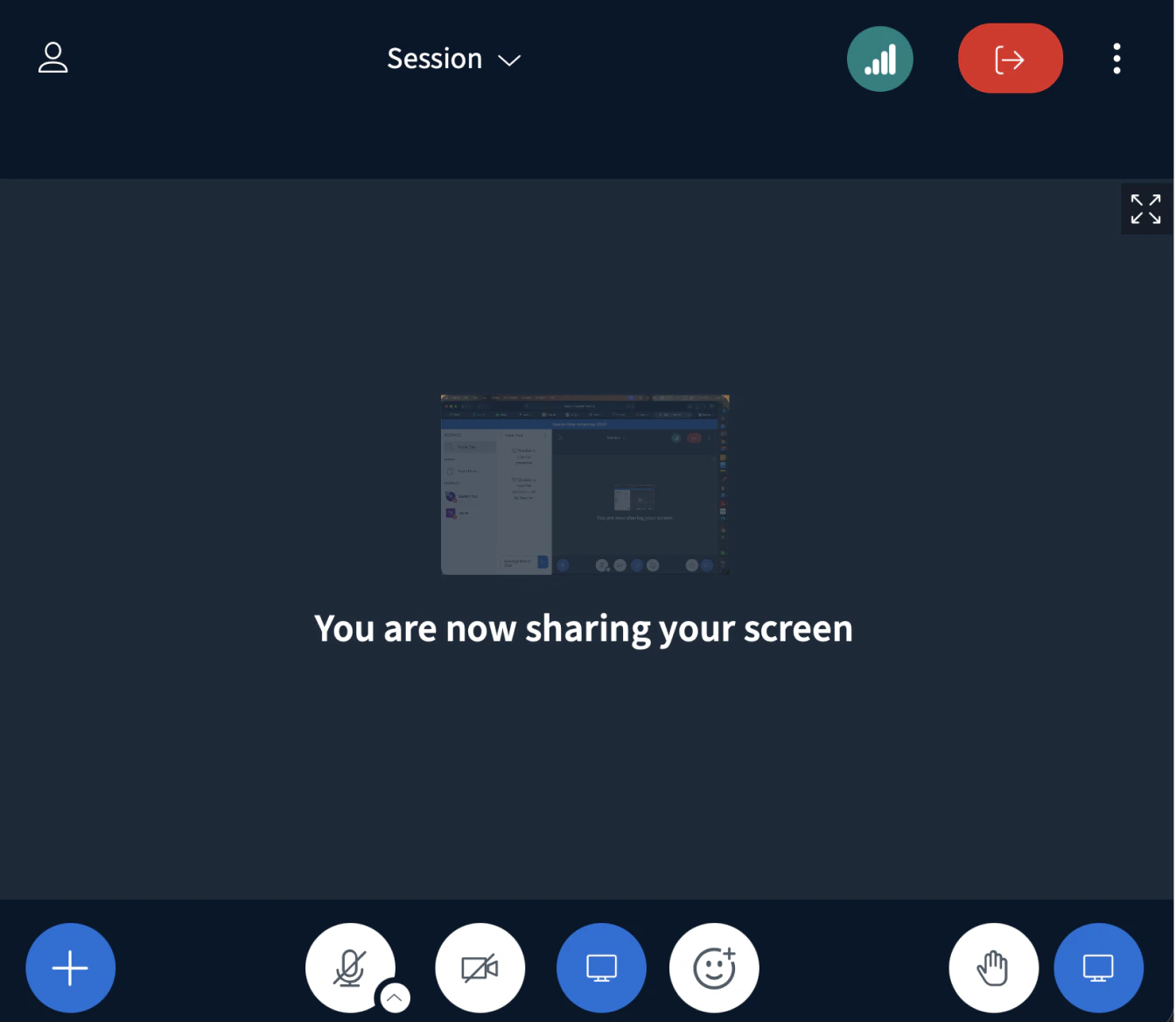
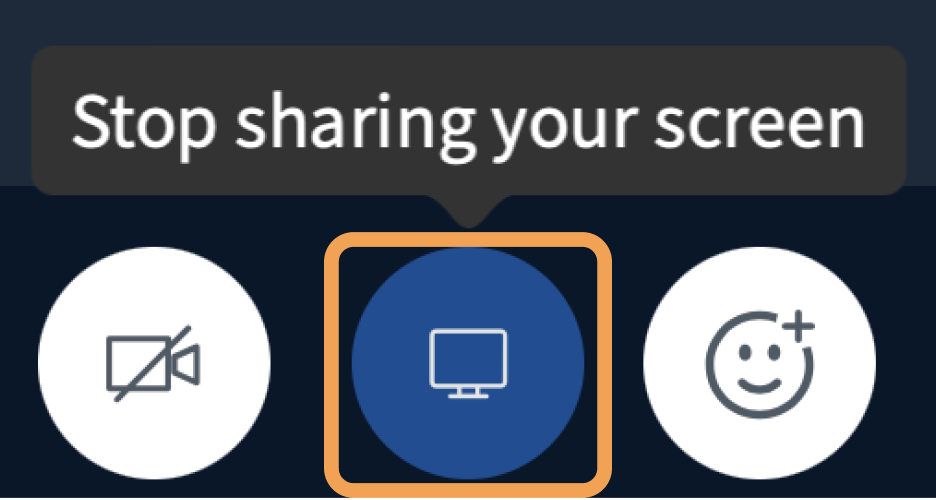
Choose a sharing option for your browser
The next steps depend on which browser you use.- Chrome
- Firefox
Chrome prompts you to choose Chrome Tab [1], an application Window [2], or Entire Screen [3]. After choosing, select Share [4] to begin sharing with attendees.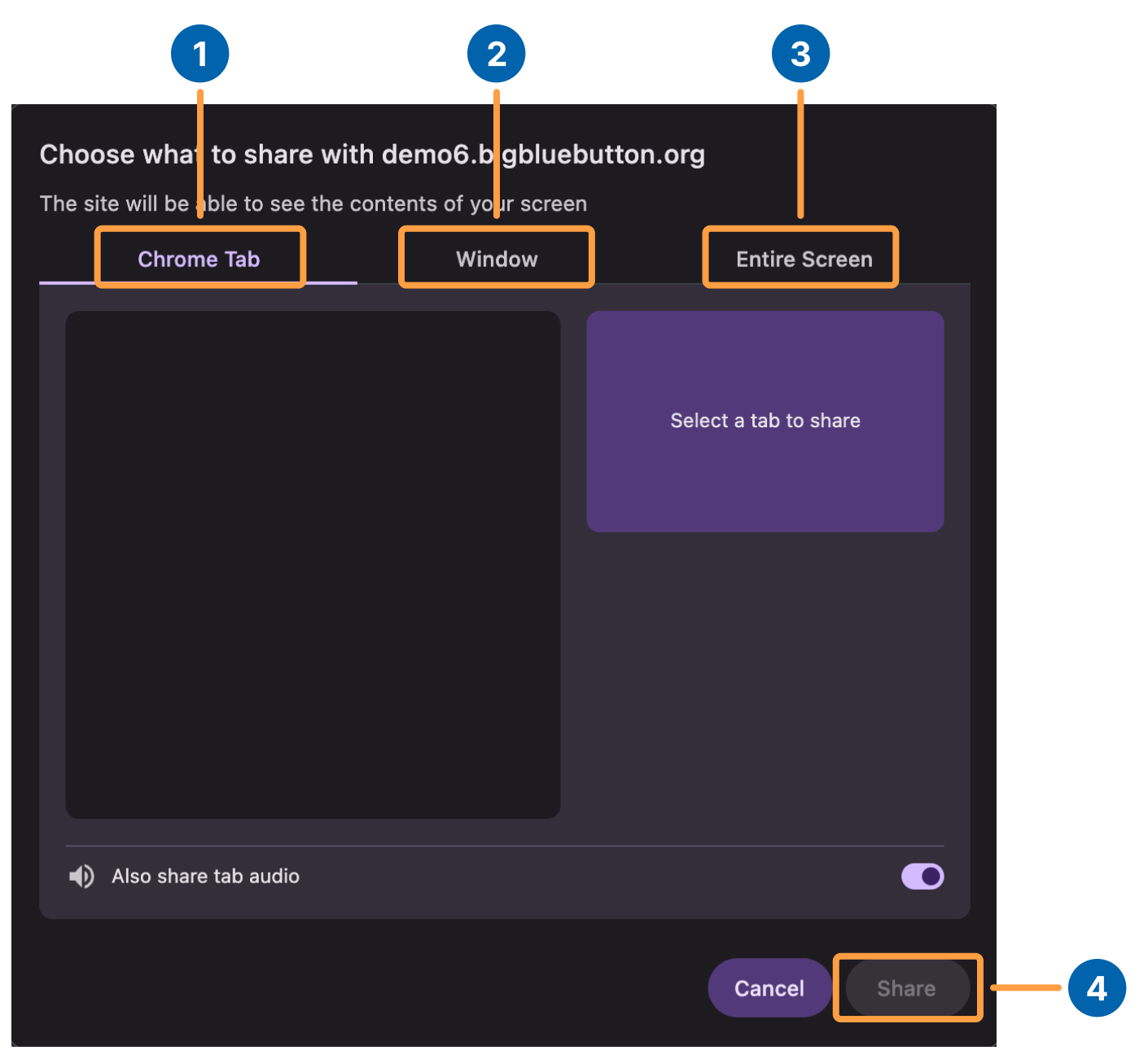
- Entire Screen — Attendees see your screen even when you switch to another browser or application. Use this option if you plan to move between several applications without reconfiguring screen sharing.
- Window — Attendees see only the selected application. If you navigate outside that application, attendees do not see those actions. This option uses less bandwidth than sharing your entire screen and works well when you stay in a single application.
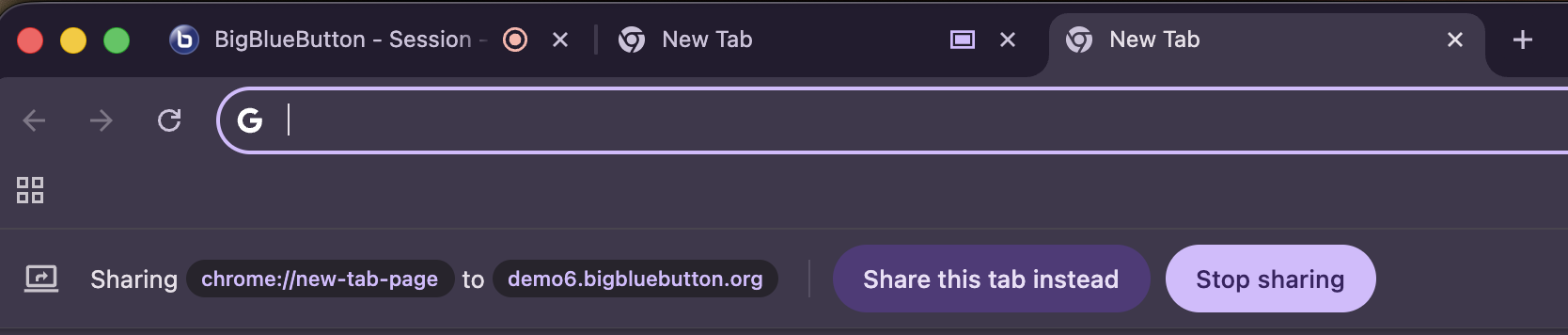
- Chrome Tab — On the latest version of Chrome, switch tabs quickly by opening another tab and selecting Share this tab instead.
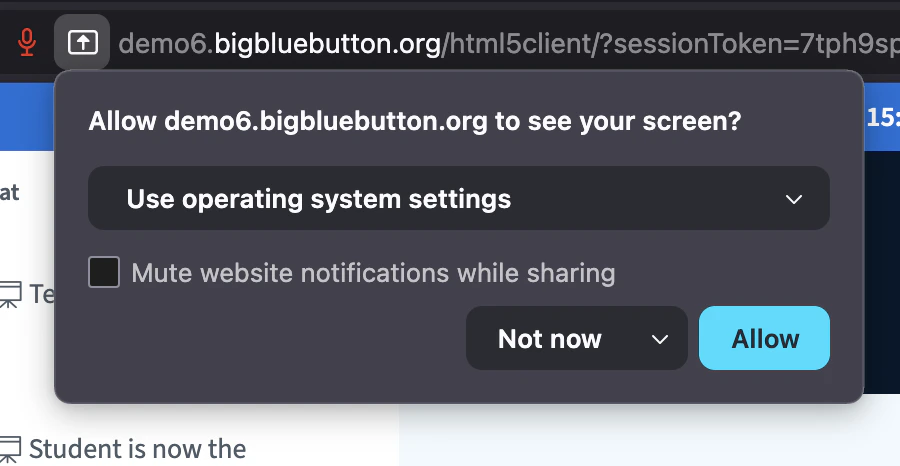
What attendees see
Attendees see your shared screen displayed in the presentation area of the BigBlueButton interface — it no longer loads in a separate window.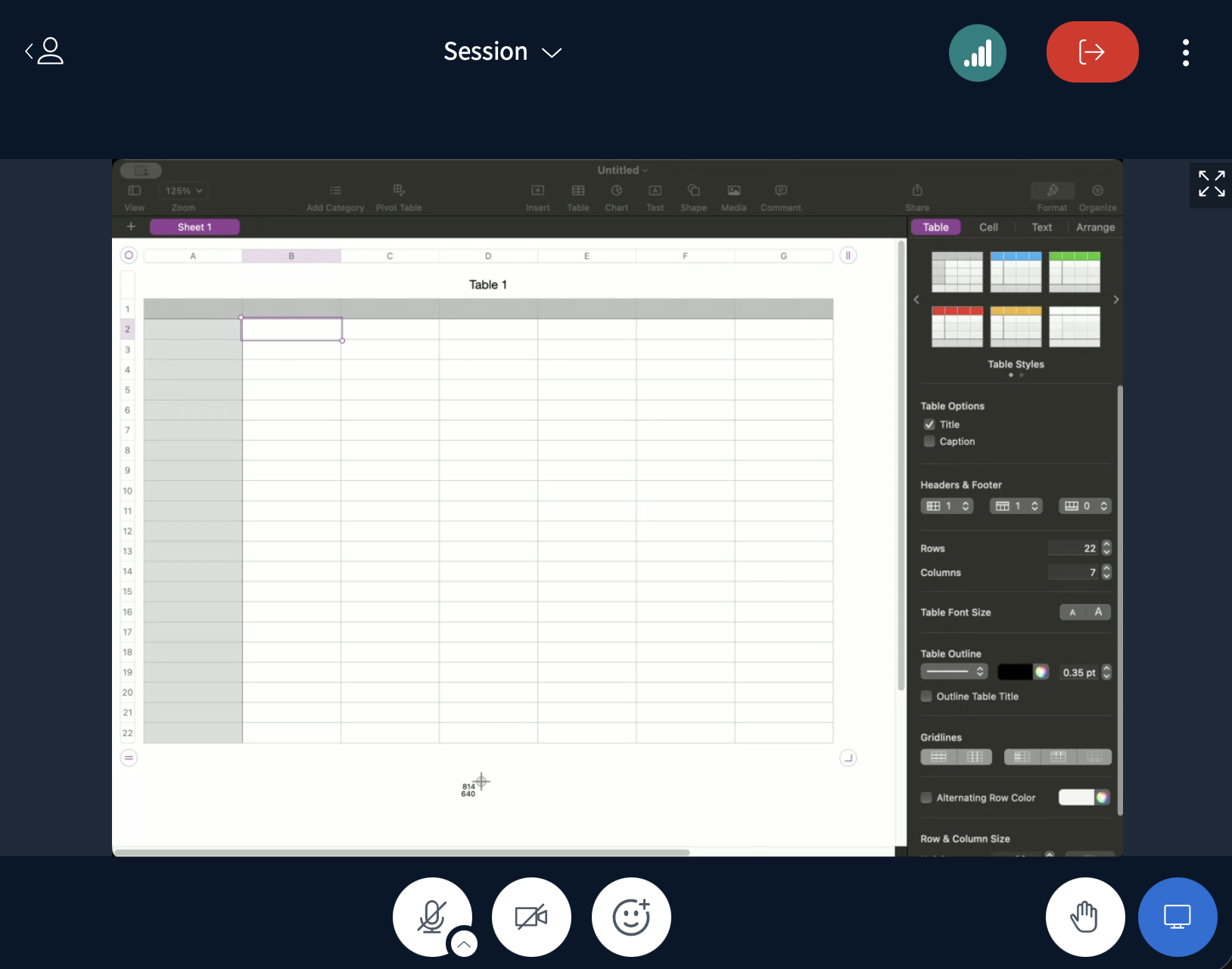
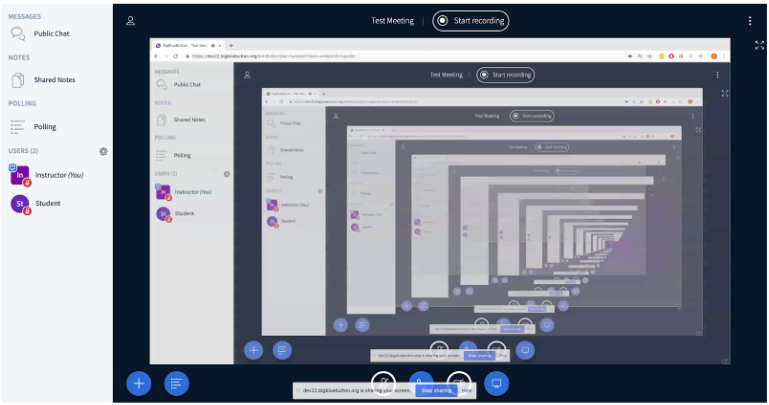
As the presenter, your own BigBlueButton interface shows a mirrored broadcast of the shared screen. Attendees viewing another tab or application do not see this duplicated view.