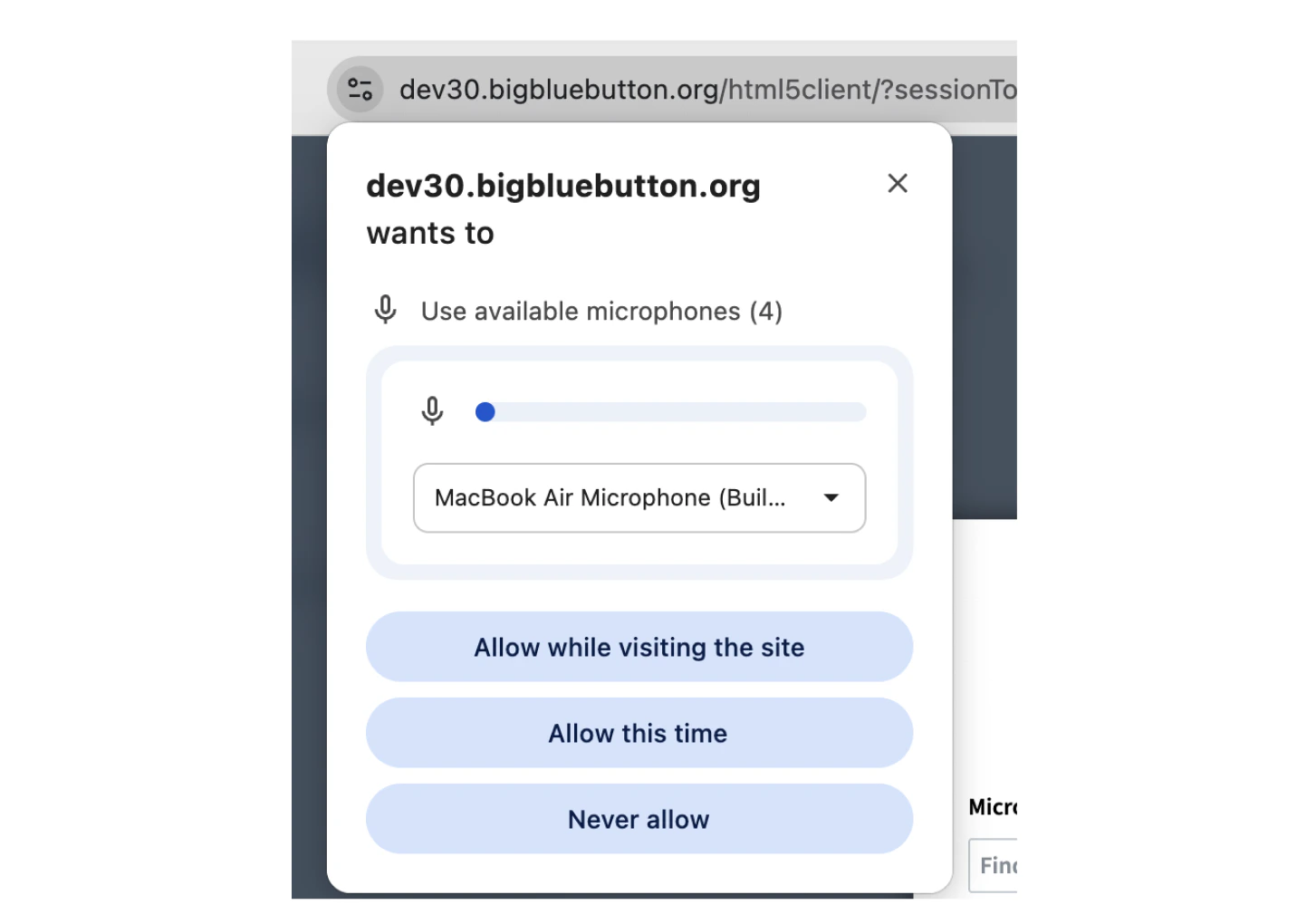
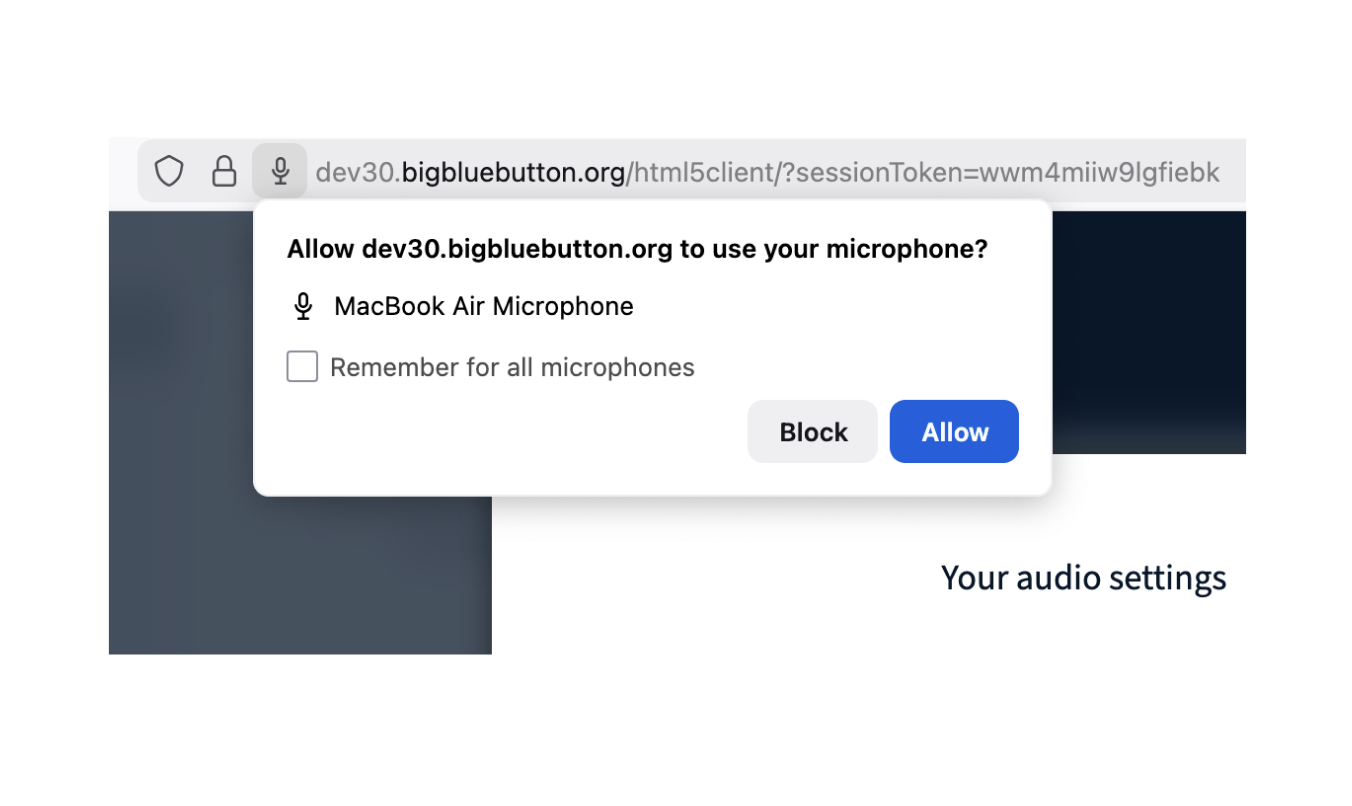
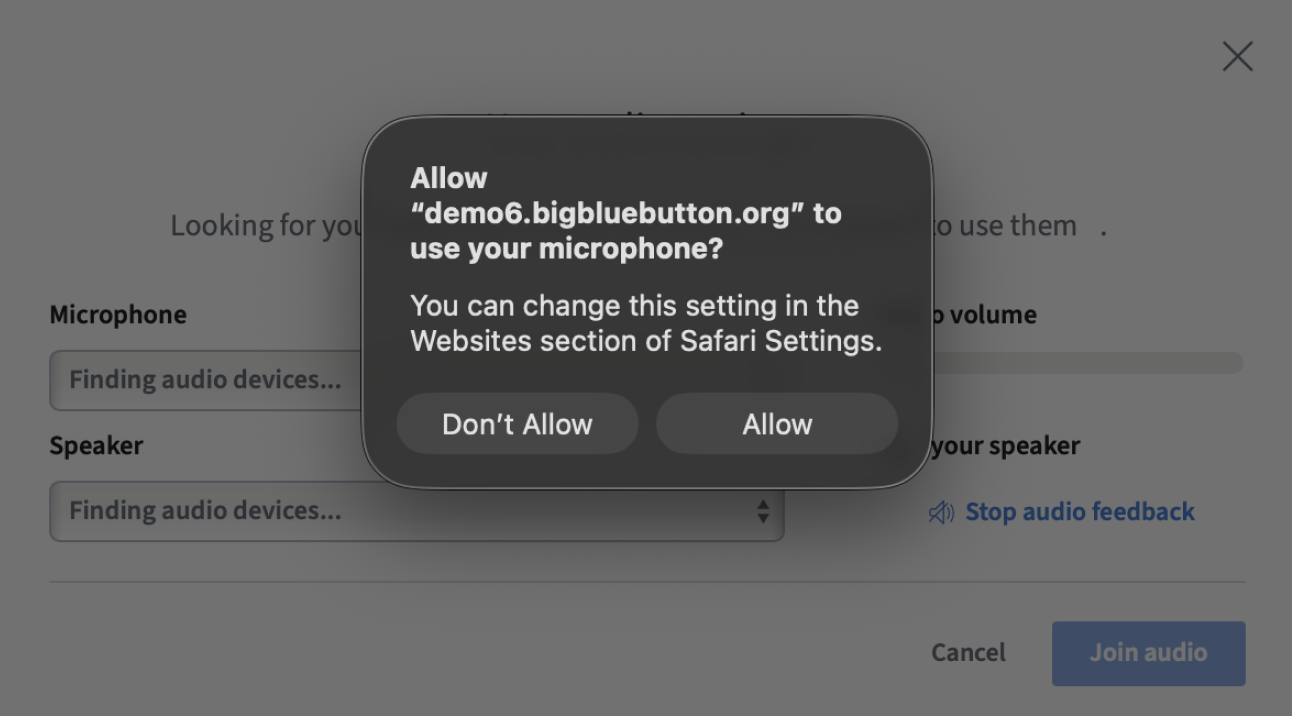
Anyone with a connected audio device can join audio in a BigBlueButton session. You can join with a microphone or listen only. When you first join a session, your browser prompts you for permission to access your microphone. Select Allow.
Allow audio in Chrome
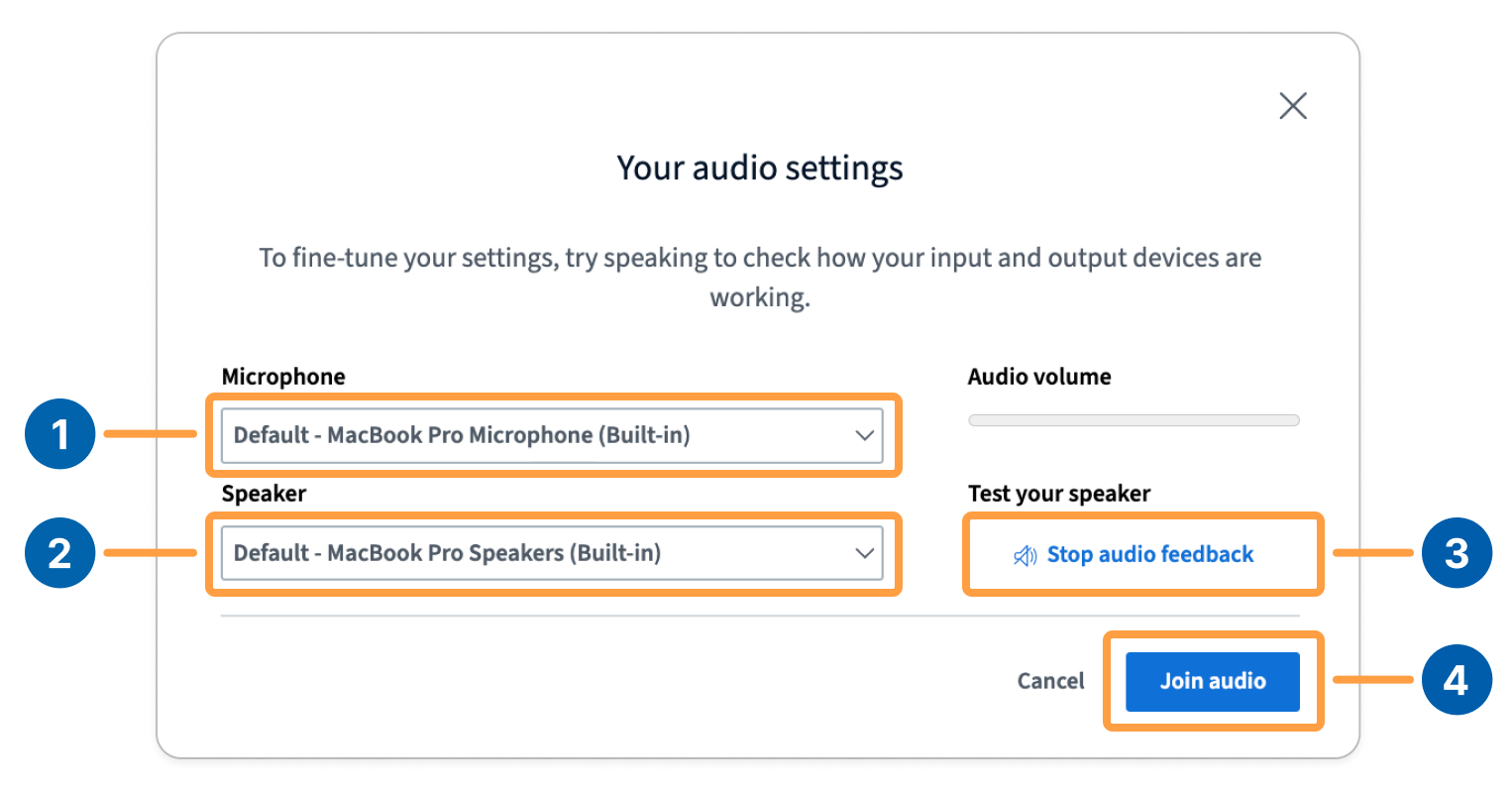
Next, your Audio Settings appear. You can select your microphone input [1], speaker output [2], test your audio feedback [3], and join audio when you are done adjusting your settings [4].
Joinaudioprompt
You have the option to join the audio with a mic or listen only. You can choose from different microphone and speaker devices in the dropdown menus. After you confirm your audio settings and select Join Audio, a confirmation prompt appears in the session.
Audioprompt
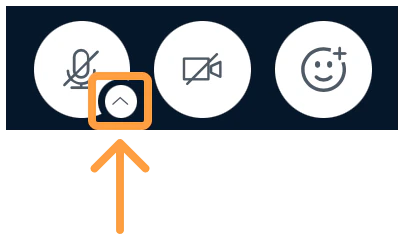
You can always access your audio settings from the arrow icon next to your microphone icon.
Audioarrowmenu

Join with a mic

If you want others to hear you, select Microphone.
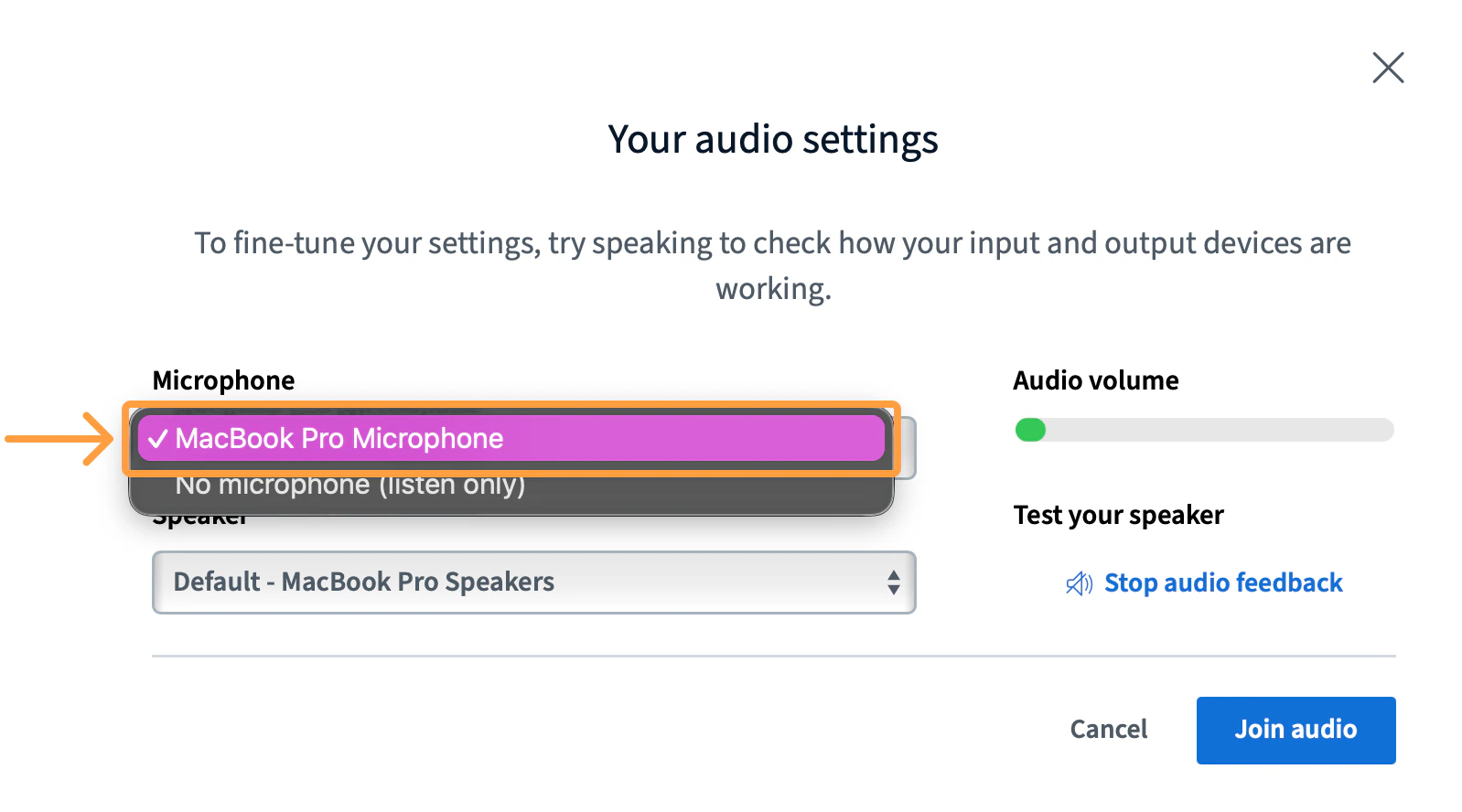
Micselect
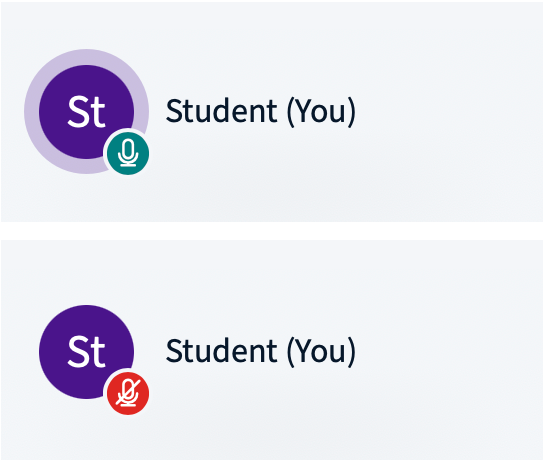
After joining audio with a microphone, a microphone icon appears next to your name in the user list, showing either muted or unmuted status.
Miconoff

Join listen only

If you do not intend to talk in the session or if you are in an area that has significant background noise, you can also choose to join with No microphone.
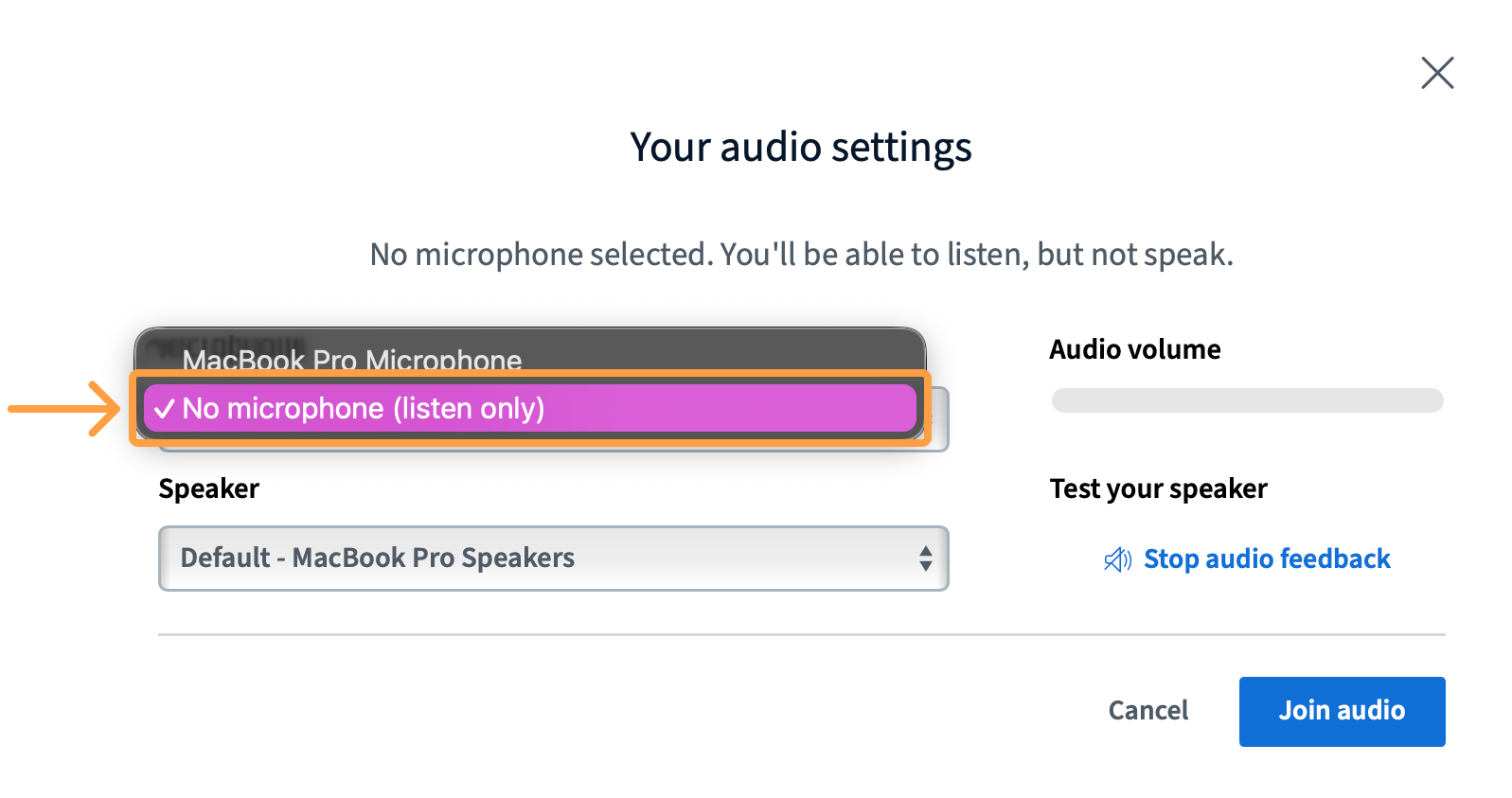
Micnonselect
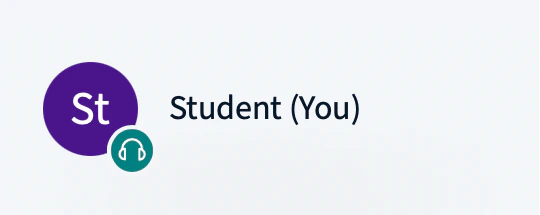
When you connect in listen-only mode, a headset icon appears next to your name in the user list.
Listenonly

No audio

If you are in the session and do not have an indicator next to your icon in the user list, you are not connected to the audio. Try refreshing the browser to engage the audio chooser.
Noaudio
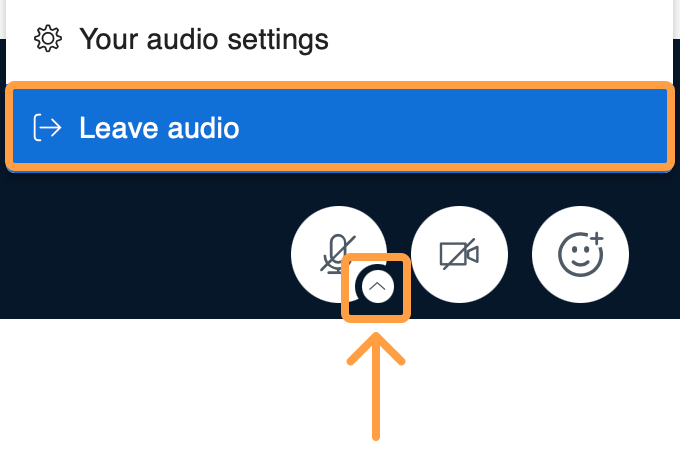
If you ever want to disconnect your audio devices during a session, you can select Leave audio from the audio settings menu.
Leaveaudio

Access the audio settings menu

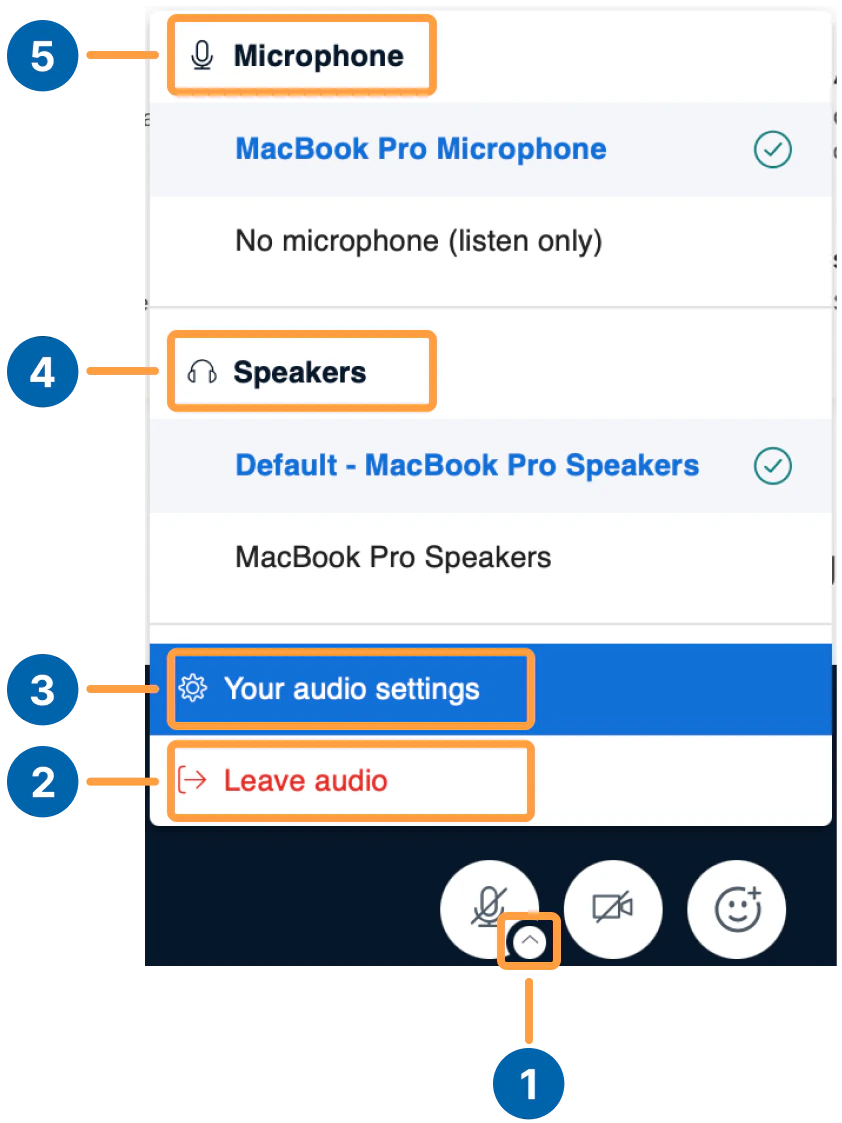
You can quickly change your audio preferences by accessing the audio settings menu in BigBlueButton. Select the arrow button [1] under your microphone icon to access the menu.
Audiominimenu
You can choose to leave audio [2], access your audio settings [3], change your speakers [4], and change the microphone [5] that you are using.

Troubleshoot microphone issues

On Windows or macOS, if you are still unable to hear yourself in the echo test, visit our test server at my.bigbluebutton.com and join the audio with a microphone and go through the steps below. These steps are for the Chrome browser.
  1. Refresh your browser (you don’t need to log in again, the client will automatically reload).
  2. Verify you have a working microphone.
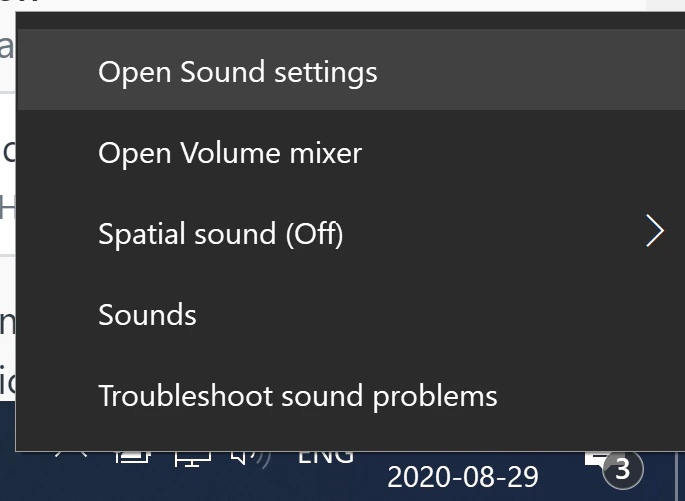
On Windows 10, right-click on the audio icon in the task bar and choose Open Sound Settings.
Windows Sound Settings
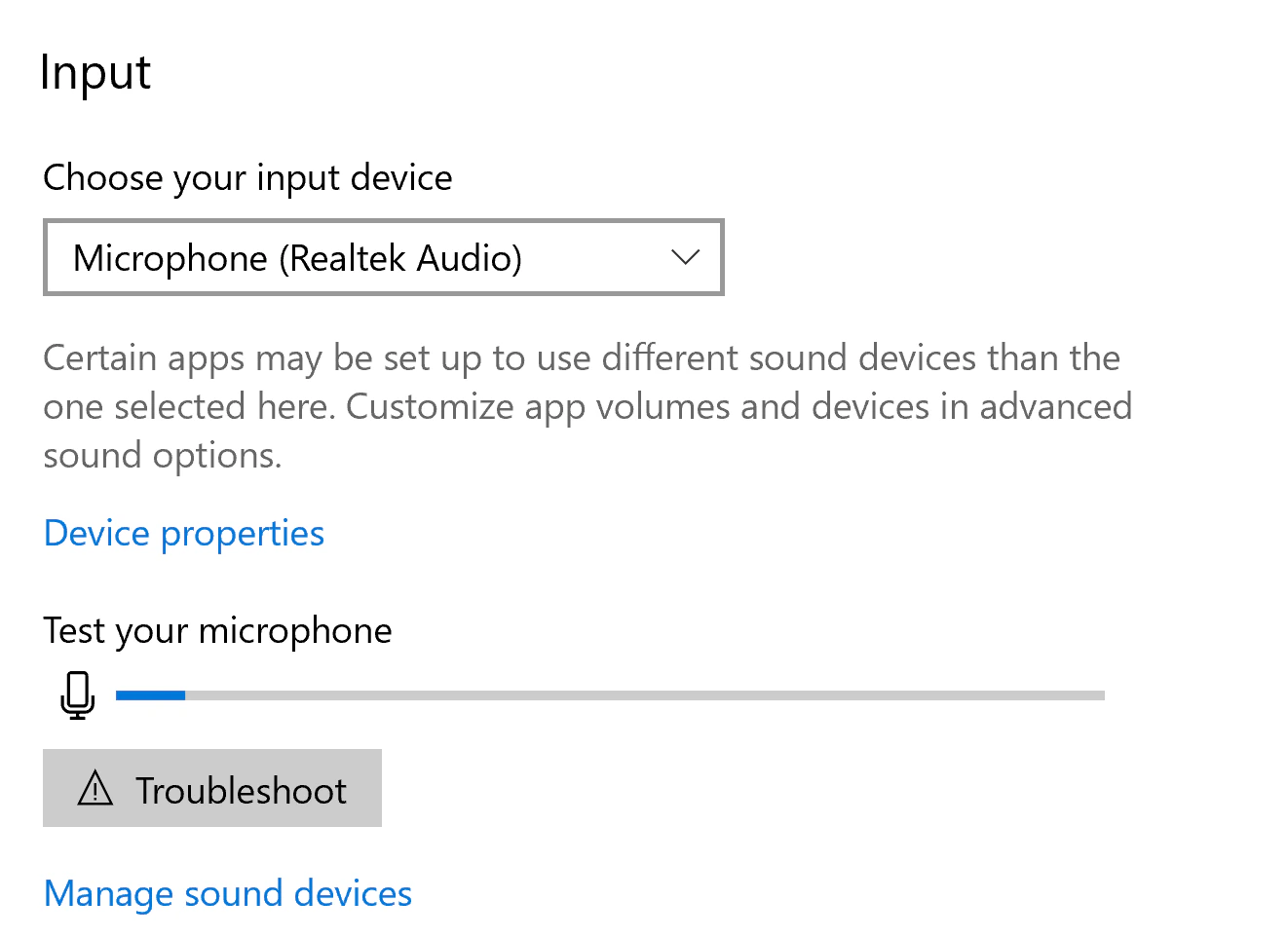
Windows will open a Settings window showing you the settings for your current input audio devices.
Windows microphone input settings
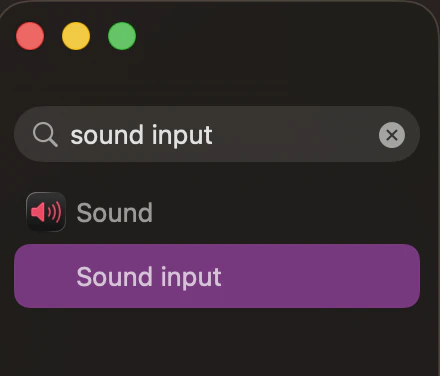
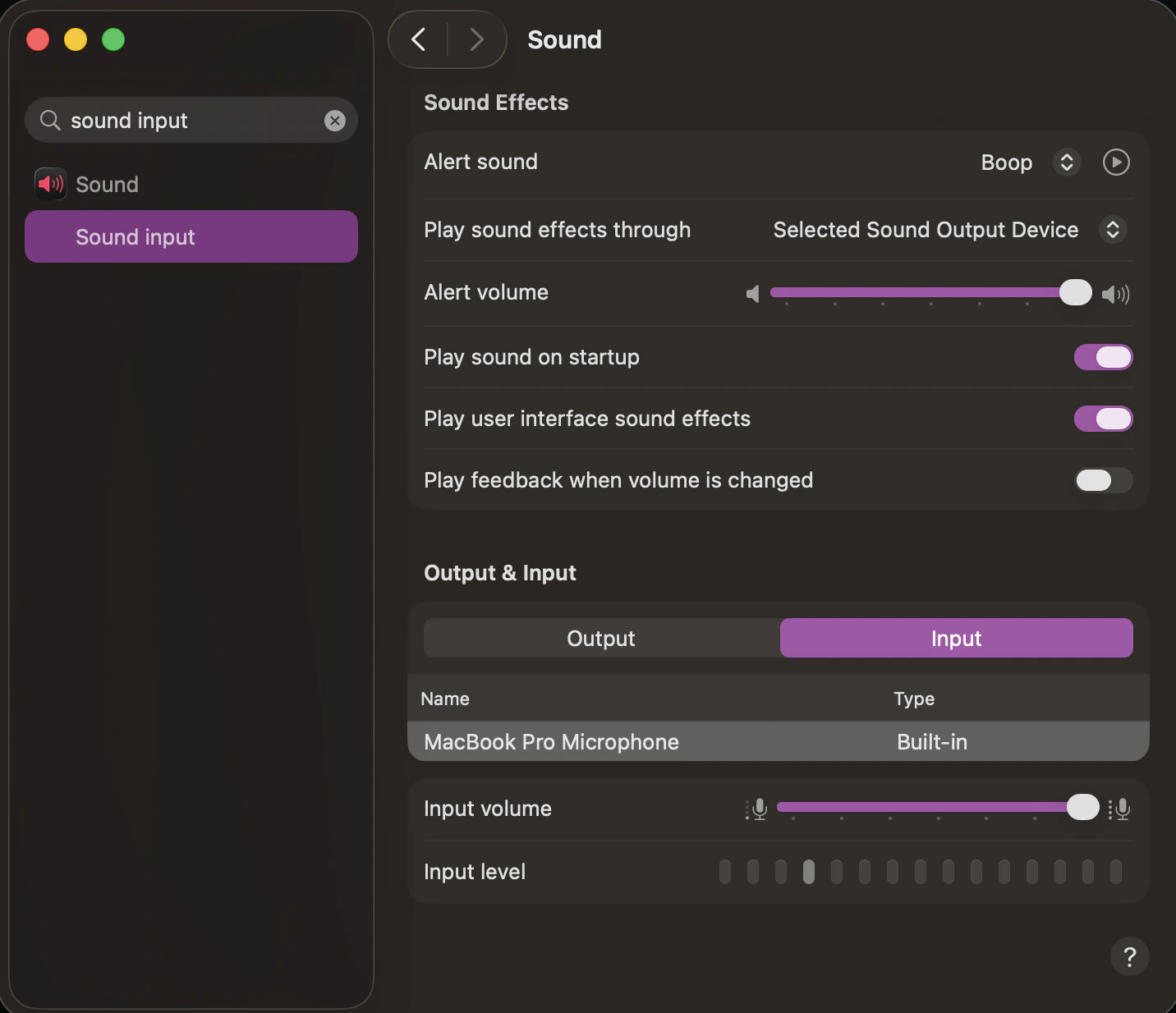
Talk into your microphone and you should see the energy bar highlight under Test your microphone as you speak. If there is no energy, try choosing a different microphone under Choose your audio device. Once you see energy in the microphone, close the Settings window, and leave and rejoin (or refresh) your session in BigBlueButton. When prompted to join the audio, choose Microphone and listen to ensure you hear yourself in the echo test. On macOS, open System Preferences and type in sound. Choose Sound input.
Screenshot2026 03 16at12 24 32PM
As you talk, you need to see blue bars highlight on the Input Level. Tap your microphone — you should see the blue energy bars move. If not, select a different microphone from the list.
Screenshot2026 03 16at11 36 36AM
Once you see energy in the microphone, close the Settings window, and leave and rejoin (or refresh) your session in BigBlueButton. When prompted to join the audio, choose Microphone and you should now hear yourself in the echo test. If not, verify on macOS that Chrome has permission to access the microphone.