Use shared notes

In addition to public and private chats, all users in BigBlueButton can access the Shared Notes panel. Shared Notes enable all the users in a meeting to contribute to a common text-based file; you can use formatting options and always export the Shared Notes later.
Sharednotesuser
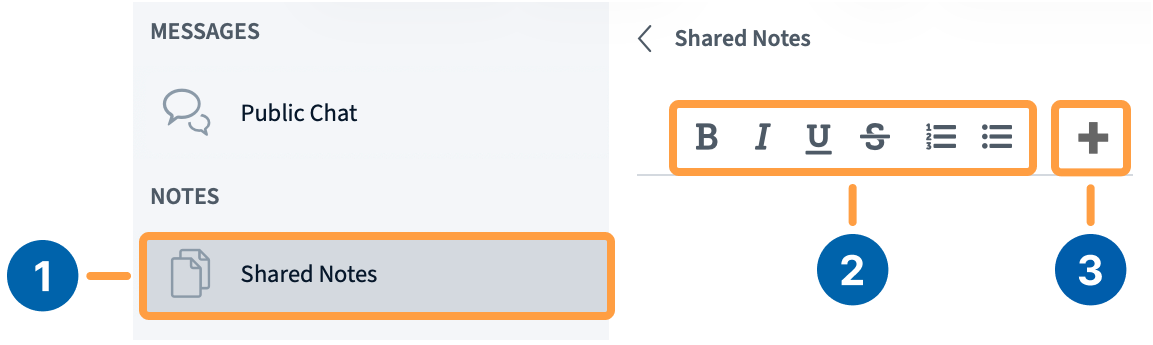
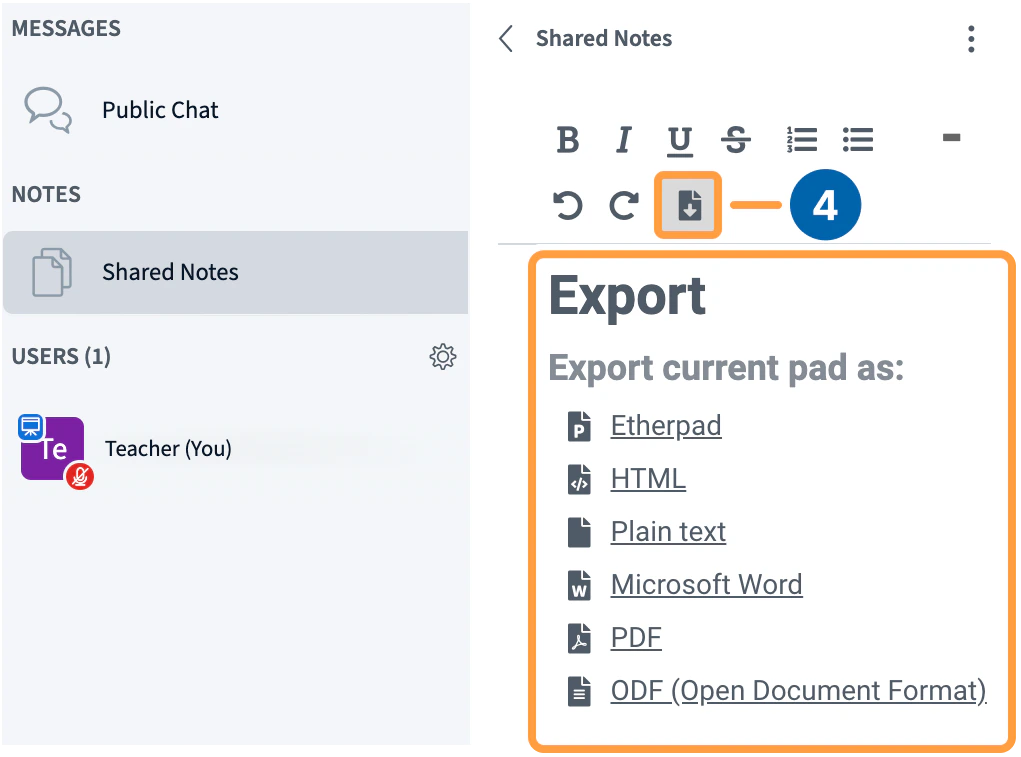
Located under the notes section, select Shared Notes [1] to expand the notes panel. Formatting Options [2] such as Bold, Italic, and undo/redo can be found at the top of the notes panel. To find undo/redo and the download buttons, press the ’+’ [3] button. To download the current notes, select the Export [4] button.
Exportnotes
A list of available formats will appear. Select the preferred format and save to your device.
Notesnotification
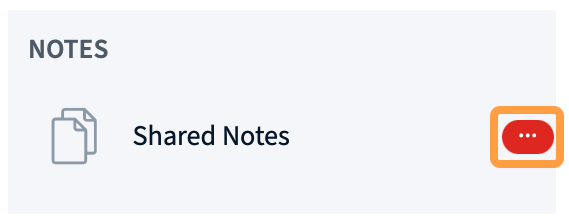
When edits are made, the Shared Notes icon displays an alert to notify users.

Exporting notes to the whiteboard

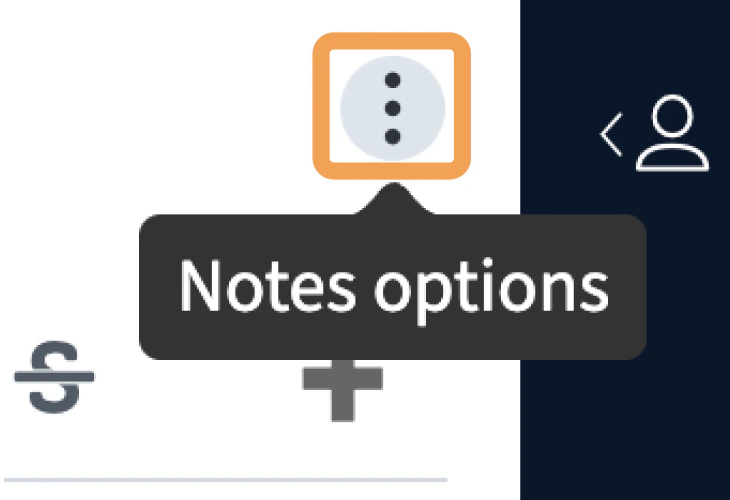
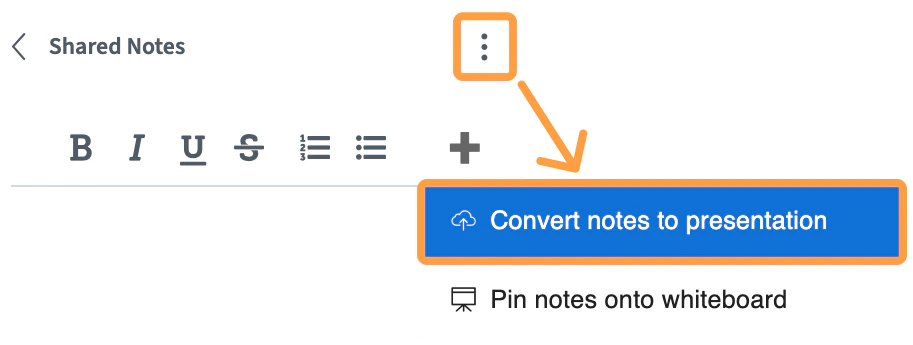
To export shared notes to the board, select the Notes options menu in the upper right-hand corner.
Screenshot 2026 03 16 At 6 56 13 PM
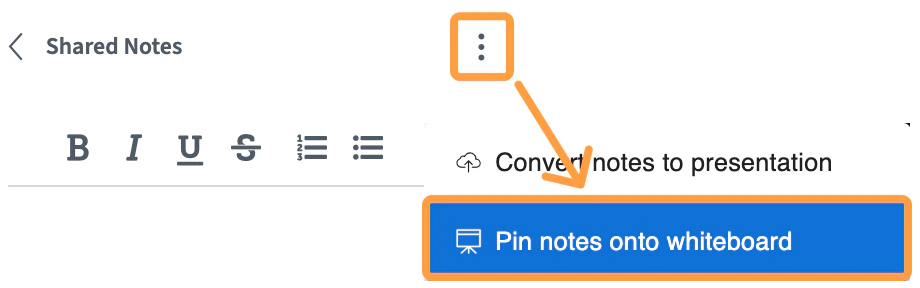
If you want to pin the shared notes to the presentation area, select Pin notes onto whiteboard.
Pinnoteswhite
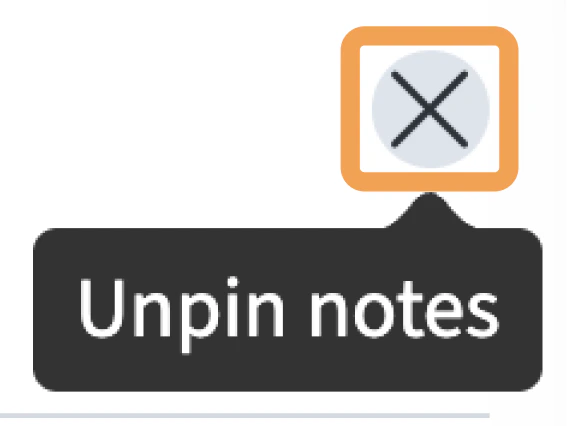
You and every other user in the session will be able to type in the shared notes. To unpin the shared notes back into the sidebar, press the X button on the right-hand corner.
Screenshot 2026 03 16 At 7 08 18 PM
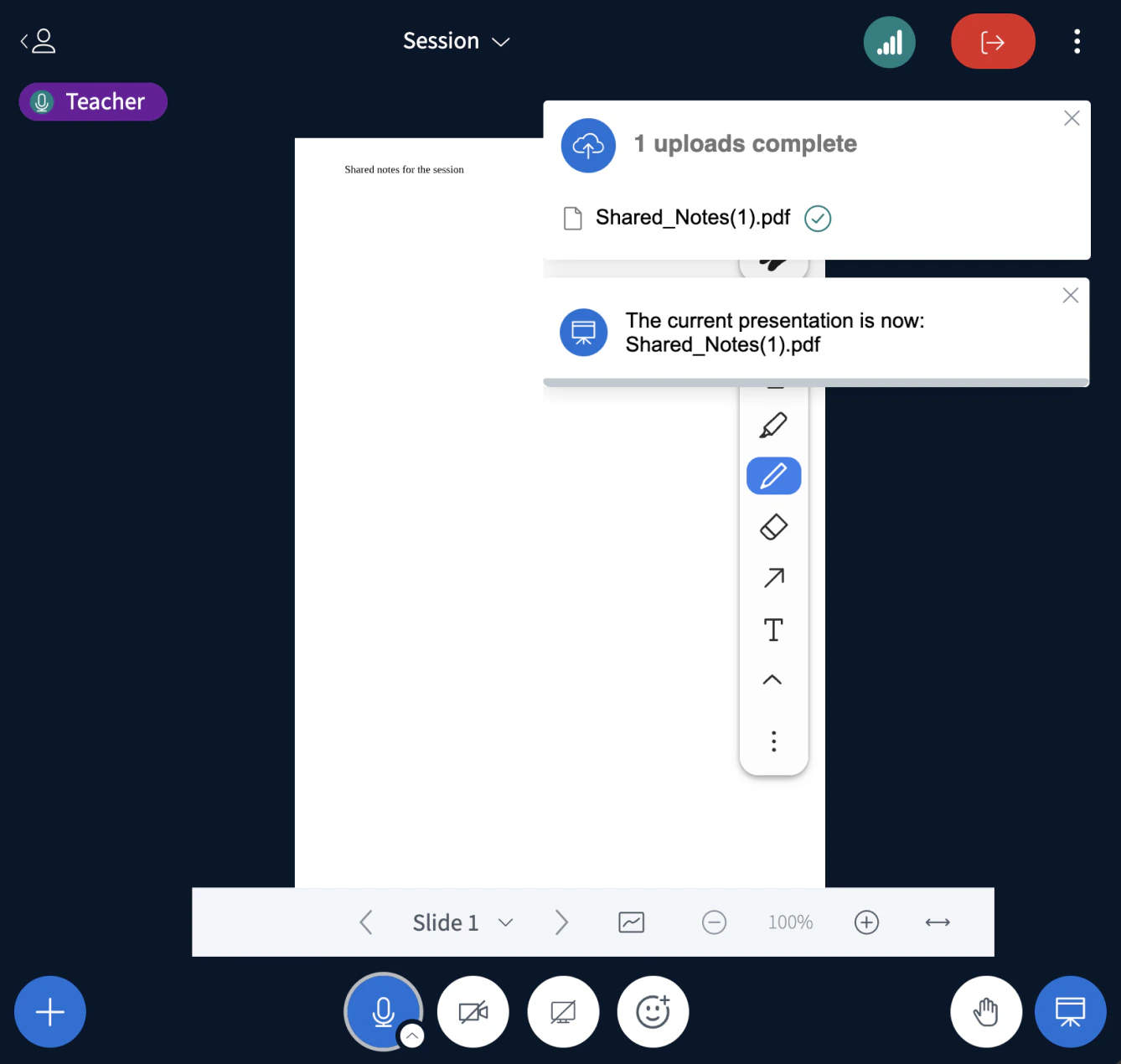
Select Convert notes to presentation to post the notes onto the presentation slide as a pdf.
Convertnotes
The shared notes that were typed in the session will appear like a document.
Screenshot 2026 03 16 At 6 53 05 PM

Important notes

  • Shared Notes are not captured in the recording processing.
  • All users must open their Shared Notes pad individually.
  • Shared Notes contributions are anonymous.