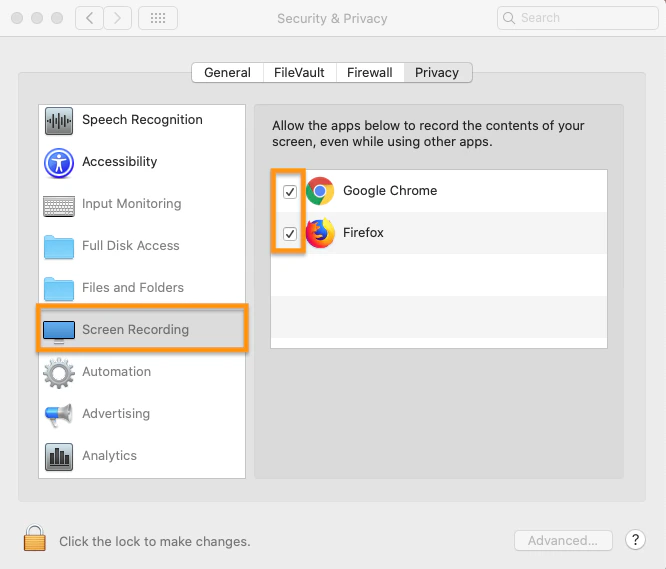
After updating to Catalina (or later), you must explicitly give BigBlueButton screen sharing permissions in System Preferences.
Mac OS users will note, after updating to Catalina version 10.15 (or later), they will be prompted to allow all media permissions and in some cases set specific system preferences to make use of sharing microphone, webcam, or screen. We recommend entering your first BigBlueButton session after this OS update early to ensure adequate time to enable all settings and restart your browser. For example, after updating to Catalina, the first time a presenter attempts to use the screen sharing they will be prompted by the mac OS to open their system preferences to enable screen recording for the current browser.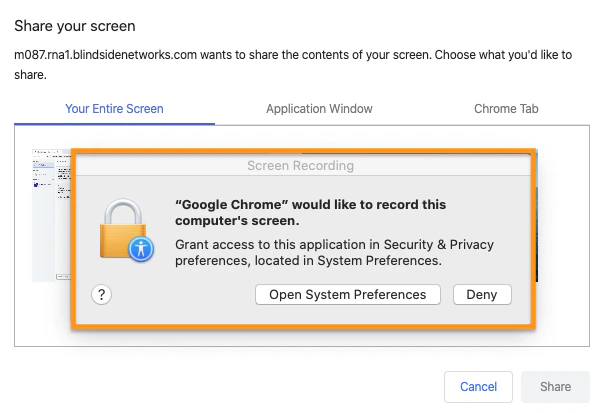
- Open your Mac’s Security & Privacy preferences.
- Click the Privacy tab.
- Click the Lock icon and enter your Mac credentials to make changes.