As a moderator, you have the ability to restrict or “Lock” viewers’ ability to access media and other components of the BigBlueButton interface.

In some cases, you may want to restrict the viewers from accessing features or media within the BigBlueButton interface. Some common examples include:
  • Restricting access to the public chat to encourage attendees to use their microphones/verbalize.
  • Locking the private chat to reduce back-channel communications, such as online testing.
  • Restricting viewers’ ability to share their webcams; reduces bandwidth and focuses viewer attention on uploaded content.
  • Locking the shared notes to reduce back-channel communications or to use as moderator notes (only moderators would be able to access).
It is important to note that the following lock settings do not apply to other moderators in the session.

Apply the lock settings

Screenshot 2026 03 16 At 10 46 27 PM
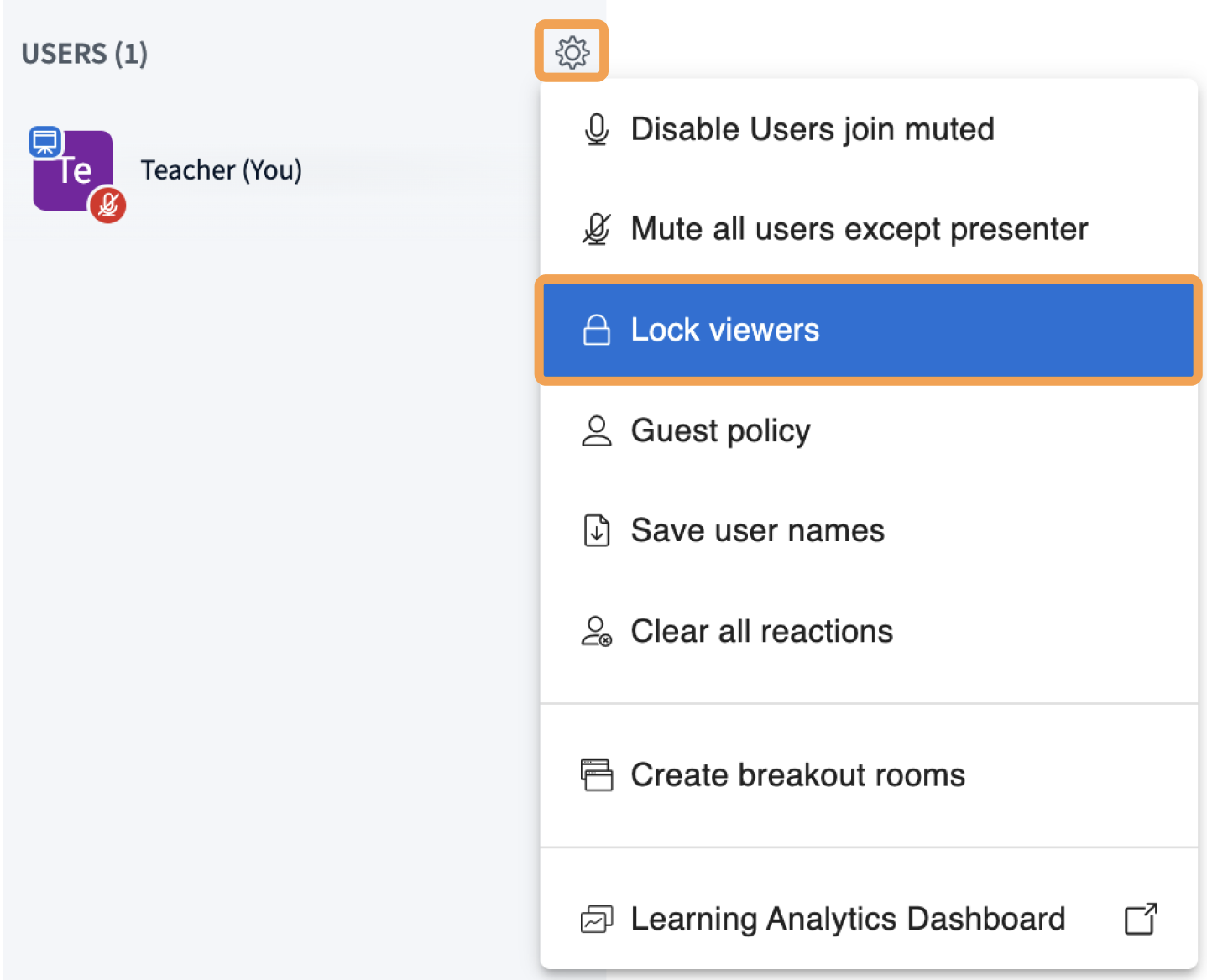
The lock settings are found via the Moderator Control menu located in the Users list (cog wheel). Locate and select the Cog Wheel and choose Lock Viewers from the drop-down menu.
Lockmenu
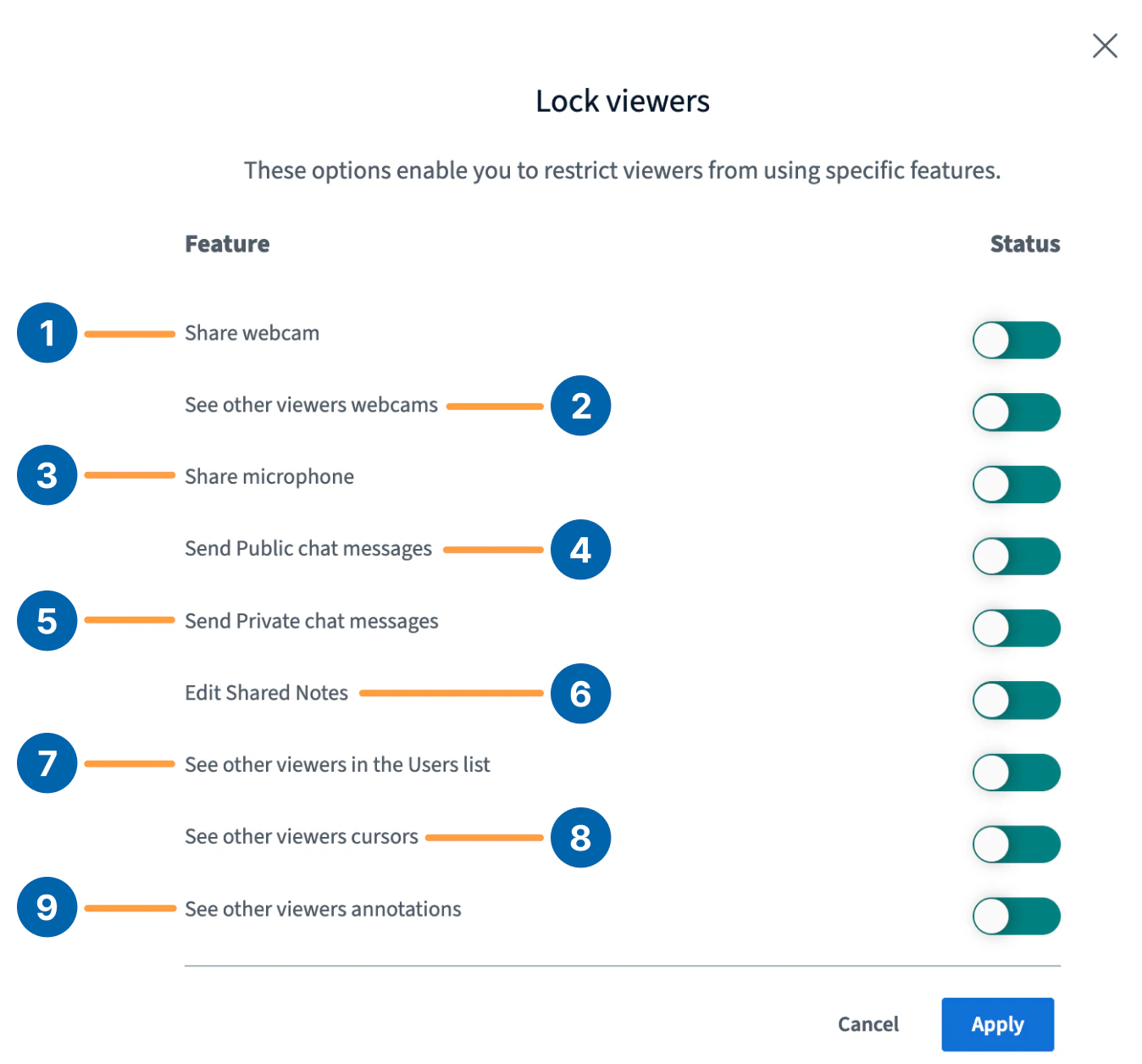
The available lock settings include:
  • Share webcam [1]: restricts viewers’ ability to share their webcams.
  • See other viewers webcams [2]: when enabled, only the moderator’s incoming webcam will be visible to viewers, while all viewers’ webcams are still visible to the moderator. This setting also reduces the bandwidth for individual viewers.
  • Share microphone [3]: restricts a viewer’s ability to share their mic. If there are already mics joined in the session when this lock setting is applied, all joined mics will be automatically muted and locked, restricting a viewer’s ability to unmute.
  • Send Public chat messages [4]: restricts viewers’ ability to post to the public chat.
  • Send Private chat messages [5]: restricts viewers’ ability to send private chat messages to other viewers unless a moderator sends a private chat. Viewers can reply to private chat messages from moderators when the private chat is locked.
  • Edit Shared Notes [6]: restricts viewers’ ability to open and contribute to the shared notes.
  • See other viewers in the Users list [7]: restricts viewers’ ability to see other attendees/number of attendees in the Users list. When enabled, viewers will only see their own user icon and the moderator.
  • See other viewers cursors [8]: restricts viewers’ ability to see their own and other attendees’ cursors on the whiteboard. When enabled, viewers will only see the moderator’s cursor.
  • See other viewers annotations [9]: restricts viewers’ ability to see their own and other attendees’ annotations on the whiteboard. When enabled, viewers will only see the moderator’s annotations.
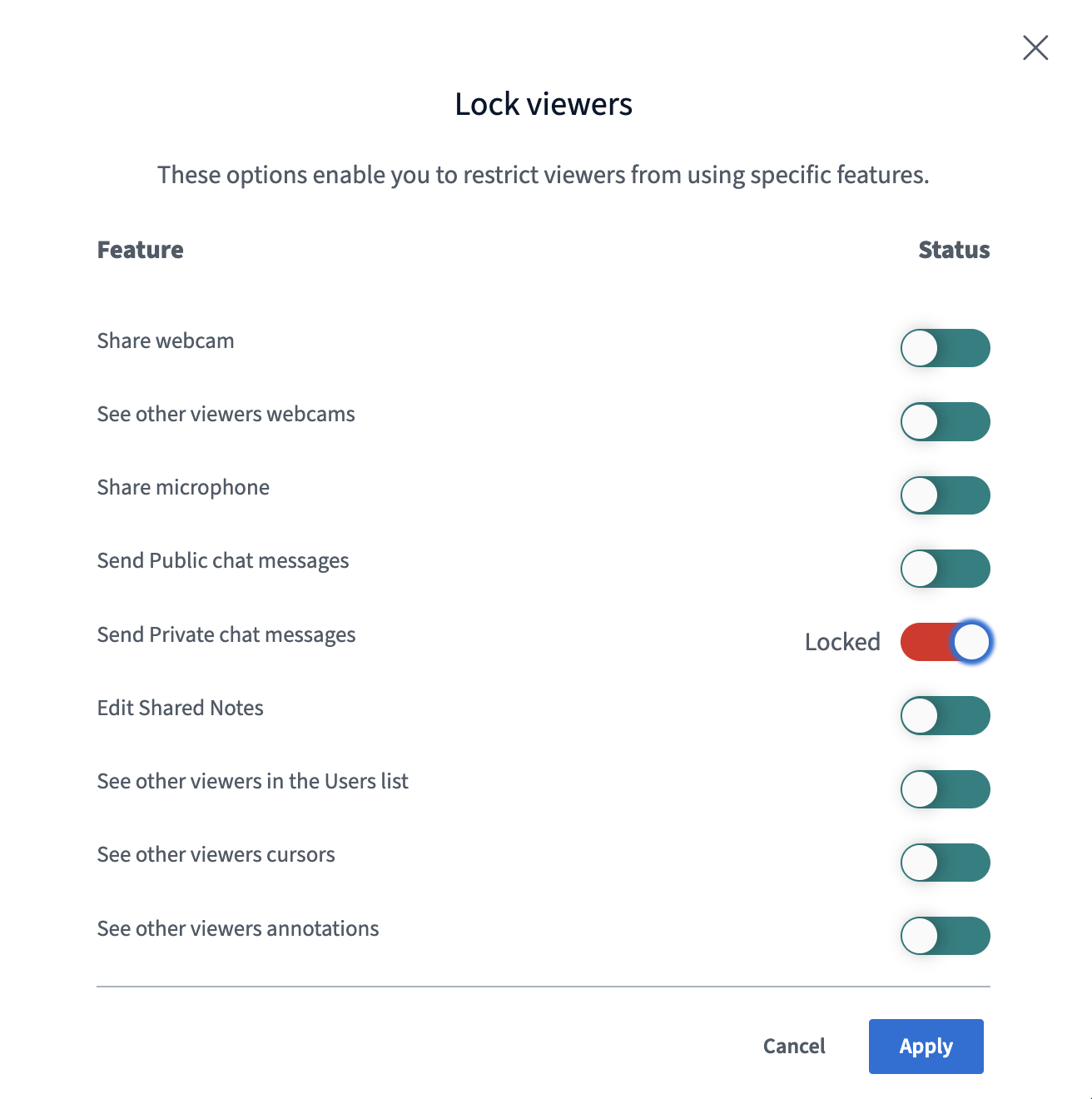
Meetings can be configured to begin with Private Chat messages disabled for users, or the Send Private chat messages setting can be manually Locked by a Moderator once the meeting begins: ##How to lock or unlock users to enable or disable Private Chat messages
Screenshot 2026 03 16 At 9 18 56 PM
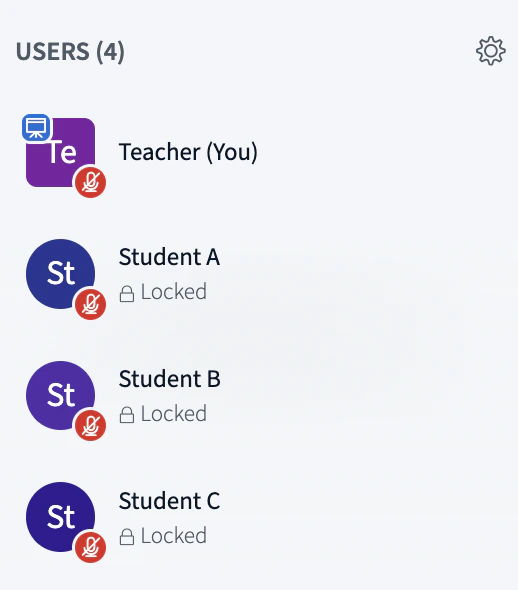
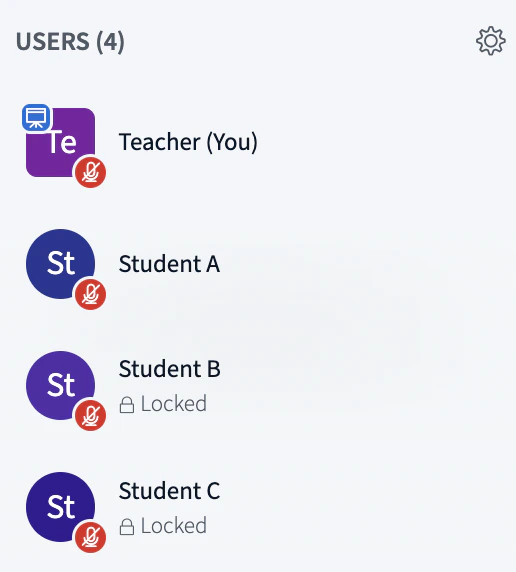
Once set, users appear as Locked.
Screenshot 2026 03 16 At 9 22 47 PM
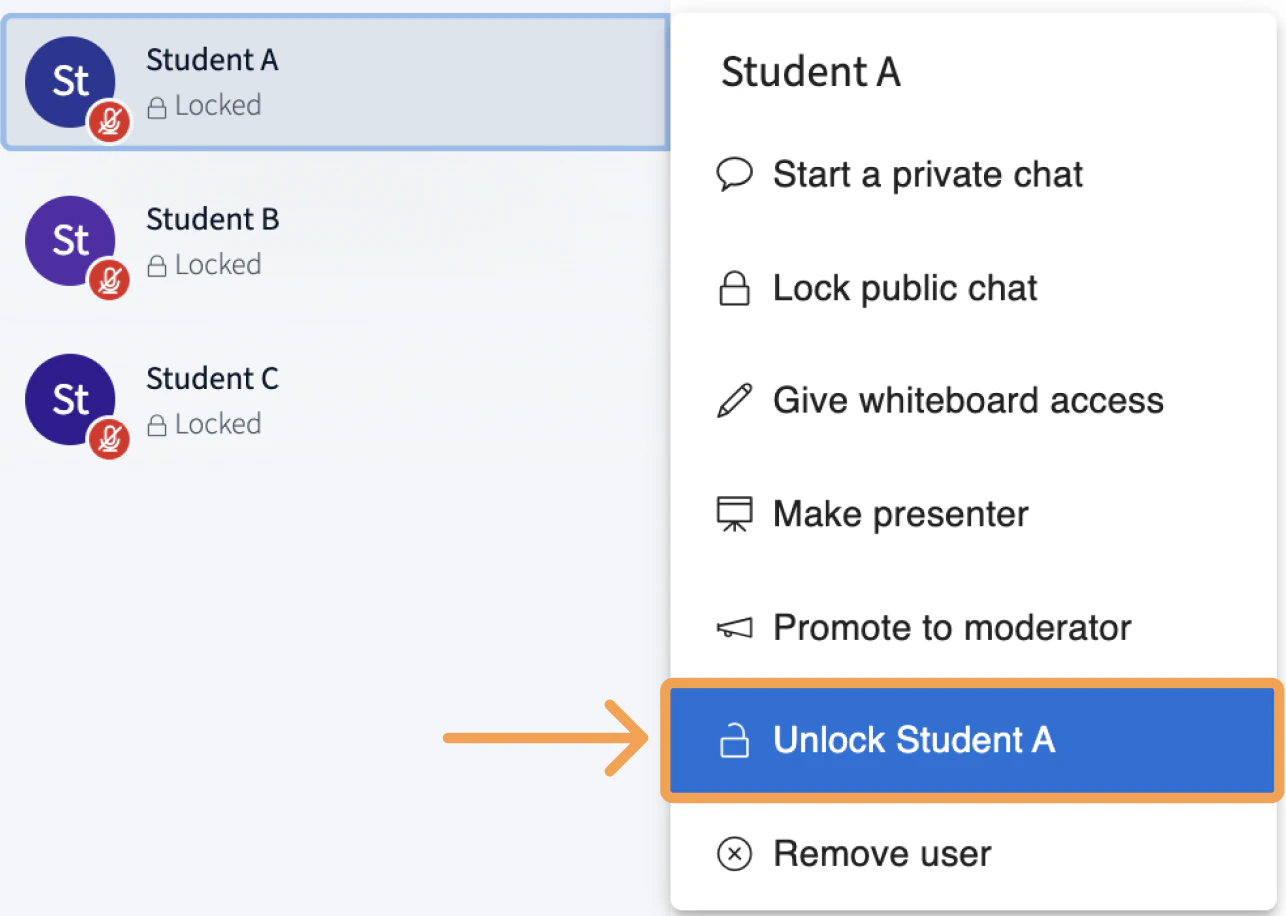
While locked and with Private Chat messages disabled, users are unable to send Private Chat messages to each other, although Moderators can still send Private Chat messages to locked users. To enable Private Chat messages for individual users, without unlocking the meeting’s Send Private chat messages setting, Moderators can unlock them by clicking on their name in the Users list and selecting Unlock <user>:
Screenshot 2026 03 16 At 9 24 46 PM
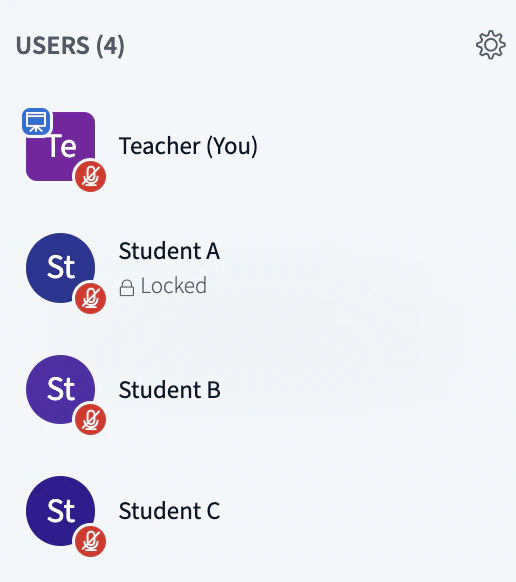
Unlocked users can send Private Chat messages to locked users, however any locked user is unable to reply. In the example below, Student A is unlocked and can send Private Chat messages to Student B and Student C, however neither would be able to reply:
Screenshot 2026 03 16 At 9 23 09 PM
Unlocked users can send Private Chat messages to other unlocked users. In the example below, Student B can send Private Chat messages to Student C, and vice versa.
Screenshot 2026 03 16 At 9 26 14 PM
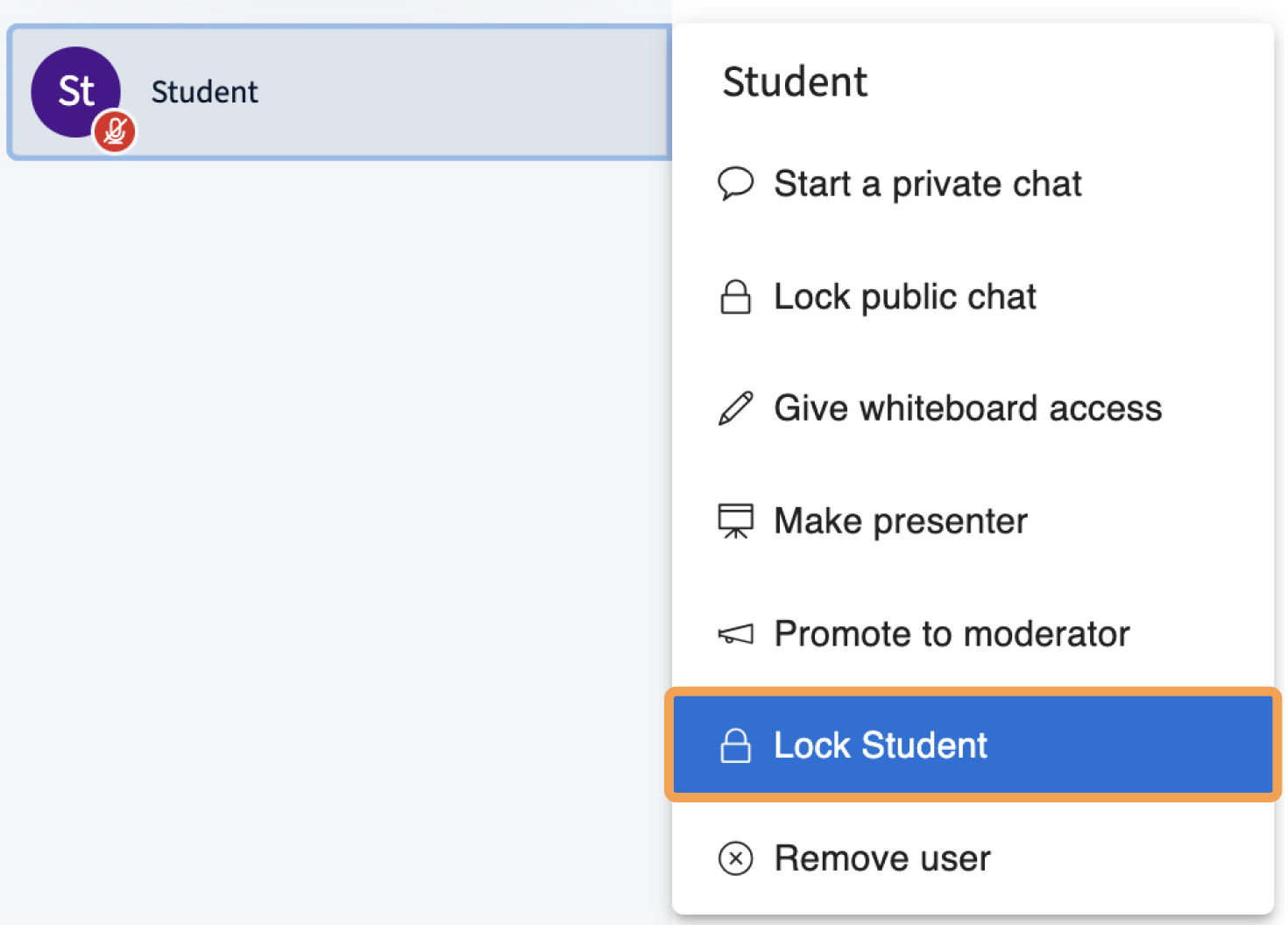
By using the Lock <user> feature on individual users, configuration from the Lock viewers settings is then applied to the selected users. That is, if the meeting Send Private chat messages is set to Locked, then by locking a user, that user is then unable to send Private Chat messages. To lock a user again, press the user’s icon and select Lock <user>.
Screenshot 2026 03 16 At 10 54 59 PM