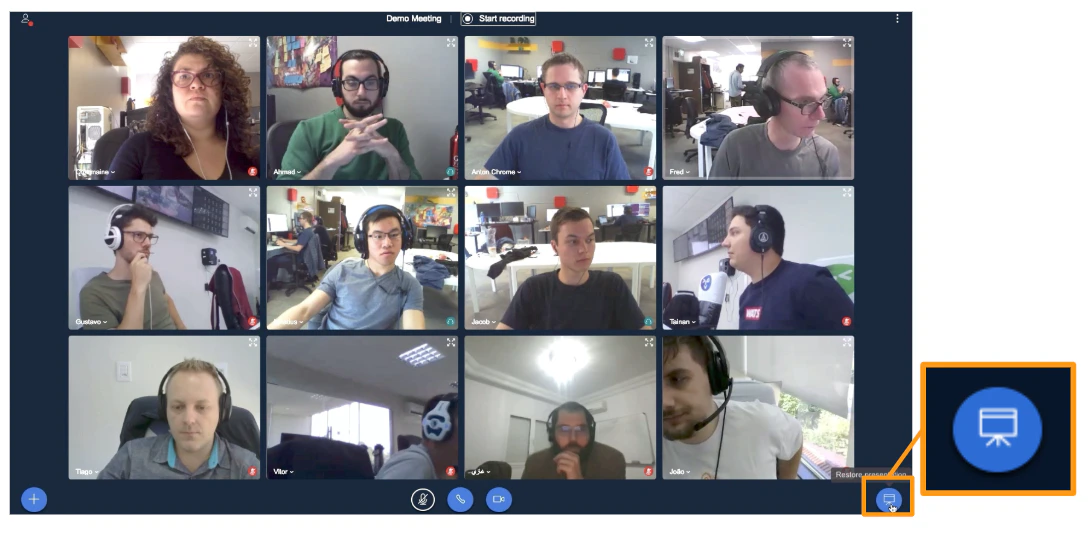
Any user can close the presentation area to enlarge shared webcams, or disable incoming webcams to save bandwidth.
Any user can close the presentation to give shared webcams the full screen — useful for a video chat-style session. You can also disable incoming webcams to save bandwidth on a slow connection.
You can only close the presentation when at least one webcam is being shared.
To close the presentation, select the X in the upper-right corner of the presentation area. The webcam streams expand to fill the full BigBlueButton interface.To restore the presentation, select the Presentation icon in the lower-right corner.
There is no hard limit on the number of webcams that can be shared, but bandwidth is the practical limit. With many webcams, some may stop updating.
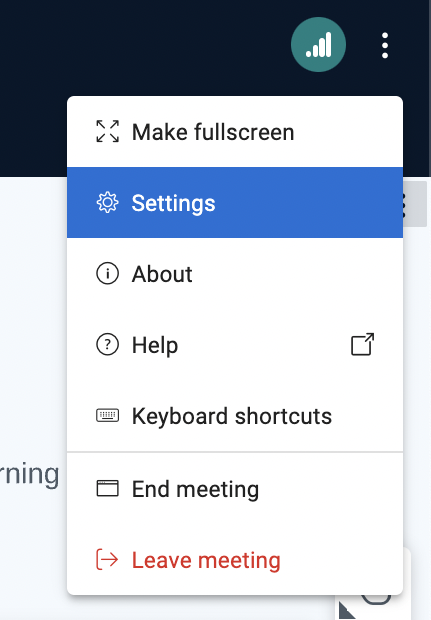
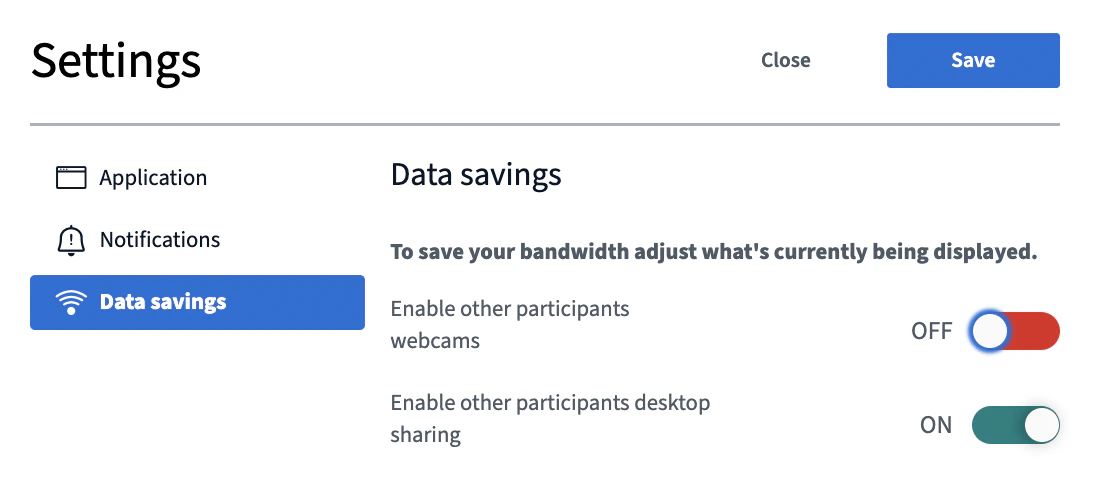
To turn off all incoming webcam streams — useful on mobile or low-bandwidth connections — open the Settings menu.Select Data savings, turn off Enable other participants webcams, then select Save.
Was this page helpful?
Assistant
Responses are generated using AI and may contain mistakes.