New Shared Notes Editor
In March 2026 we released a modern shared notes editor. This is a markdown aware editor that provides support for markdown styles and tables.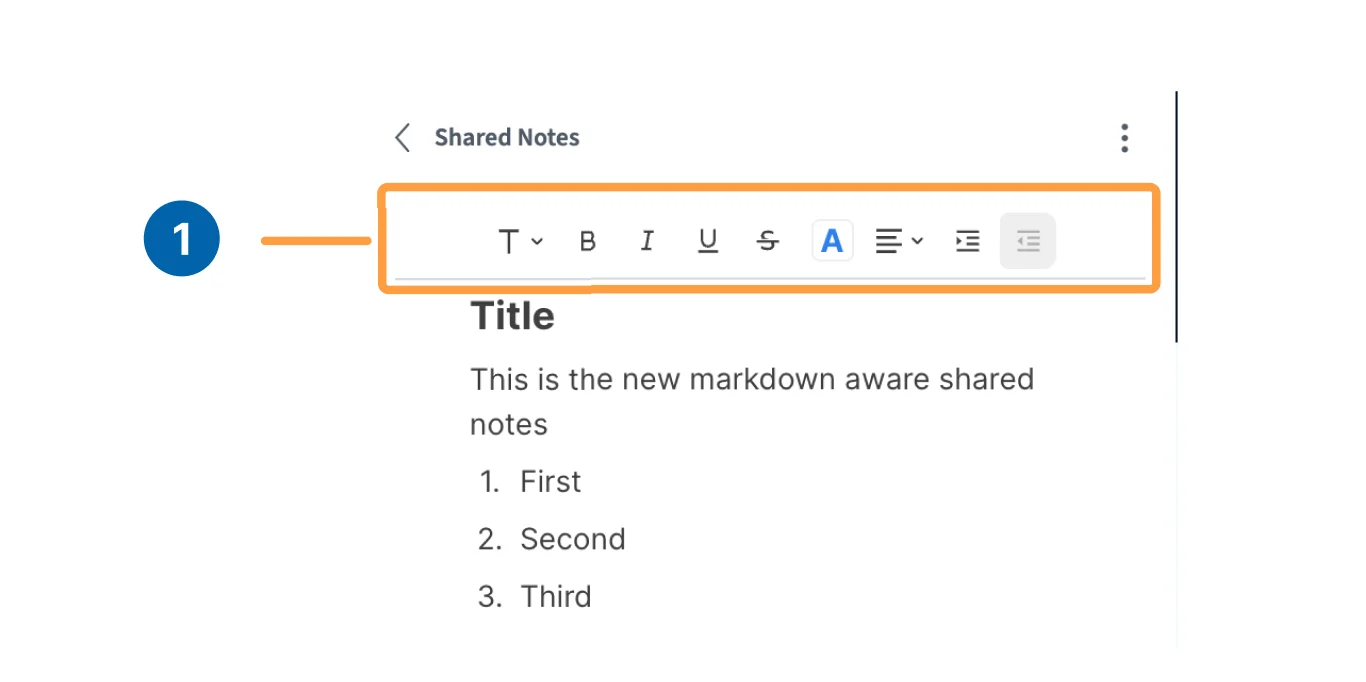
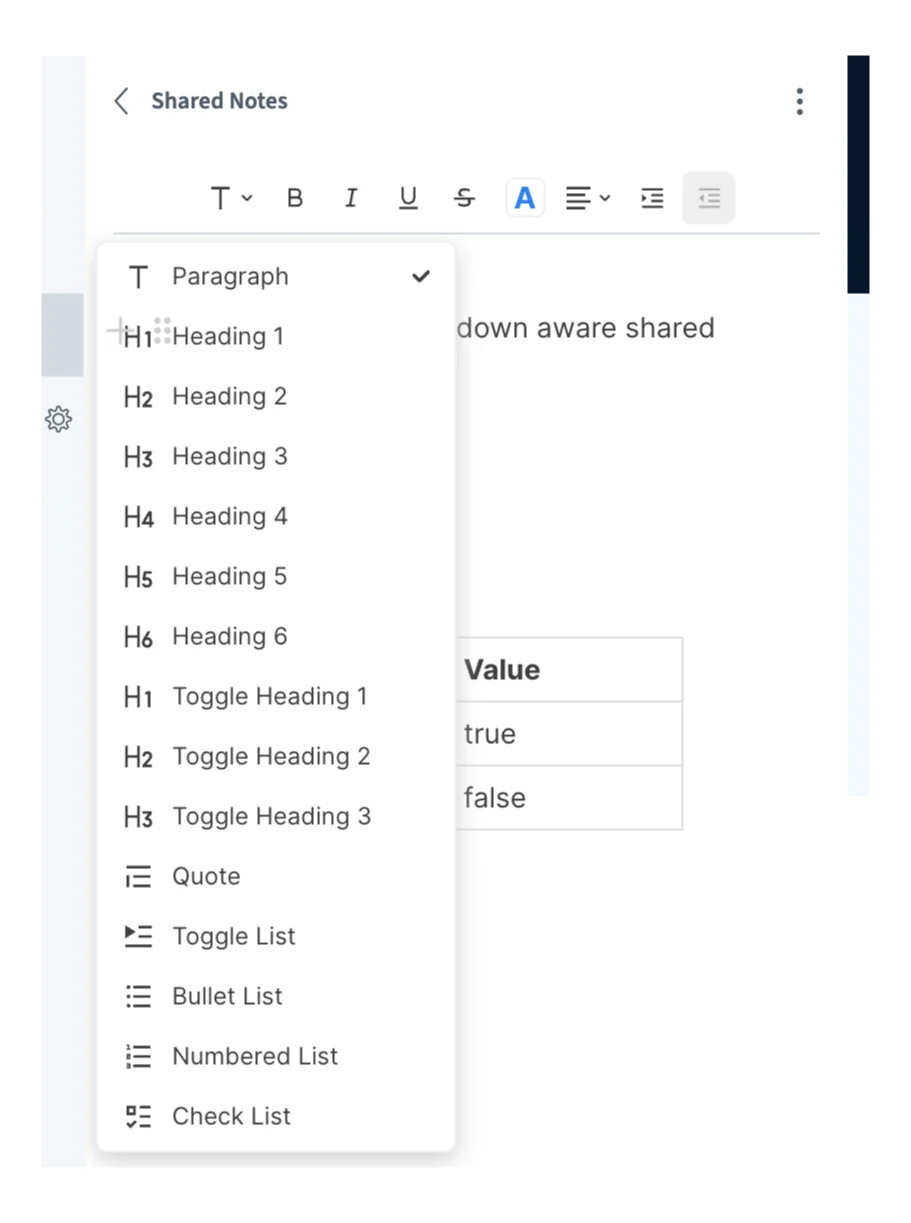
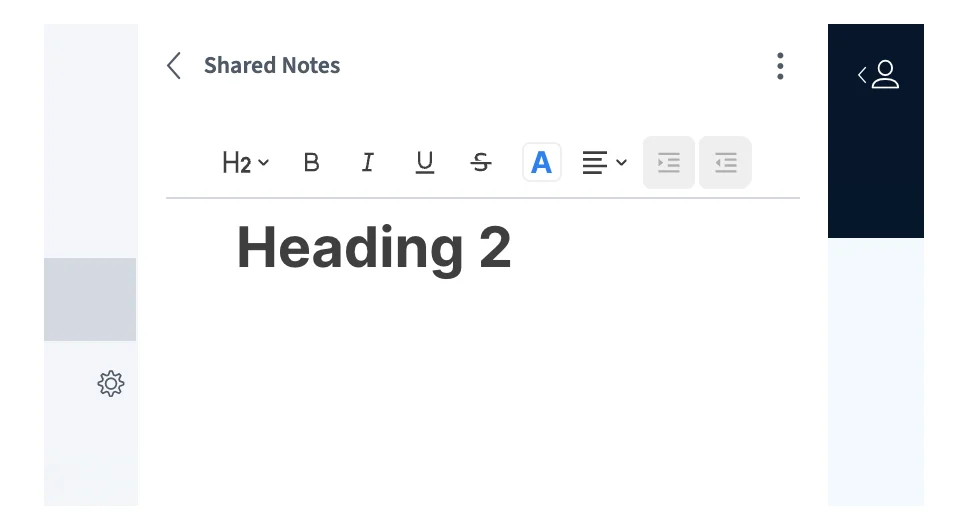
Insert menu ’/’
You can also open an insert menu by typing the ’/’ key.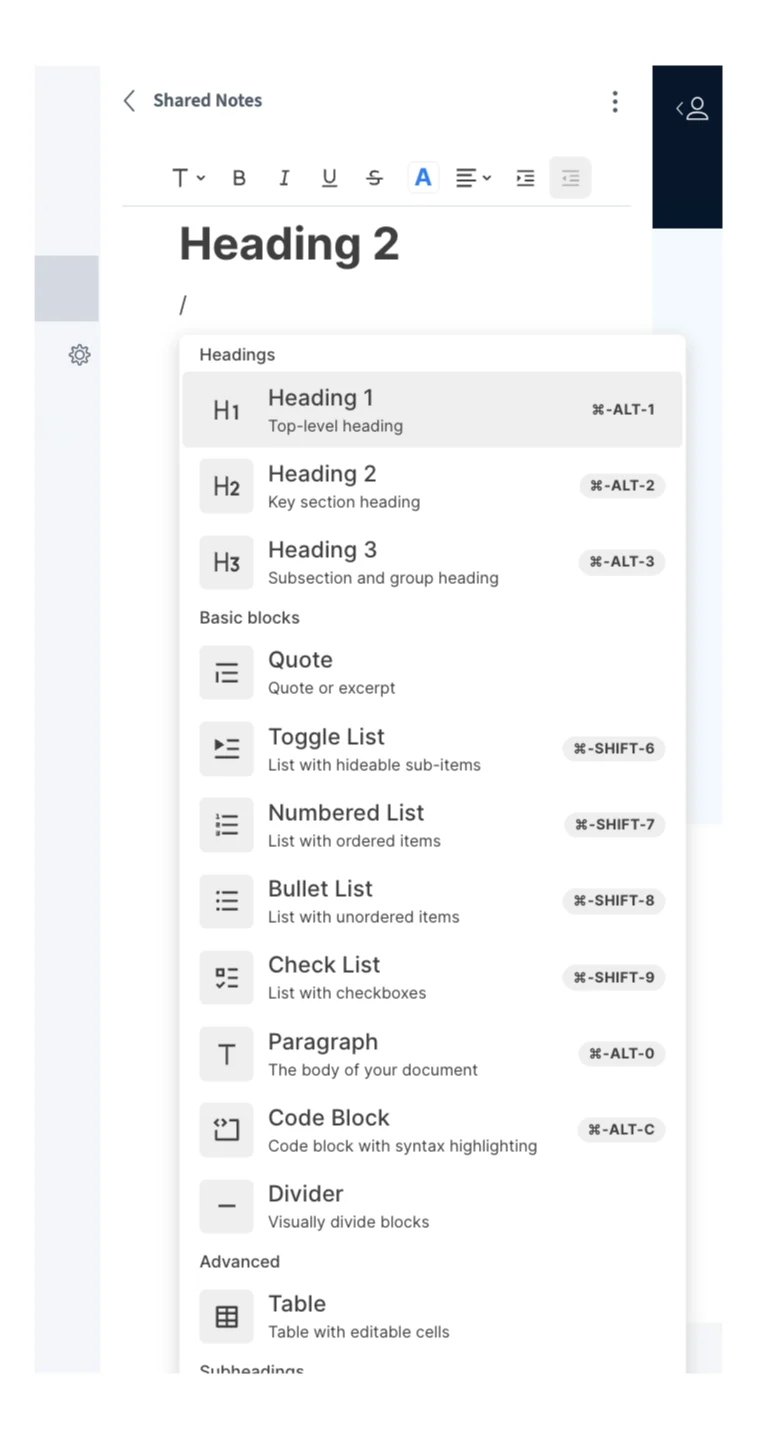
Shared Notes Options
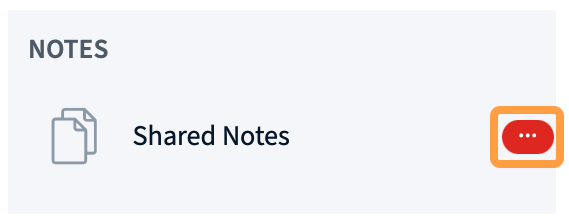
You can Convert notes to presentation [1] which will convert the notes to a PDF and upload them to the presentation area. Letting you annotate the shared notes with the whiteboard.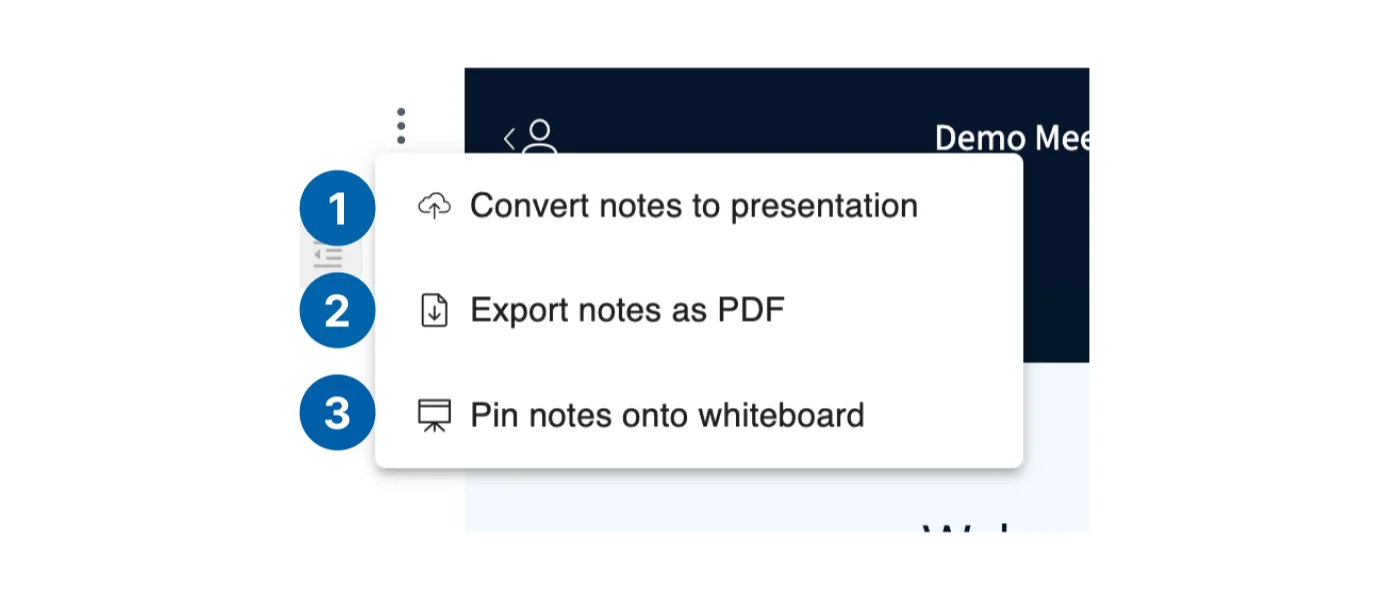
Legacy Shared Notes Editor
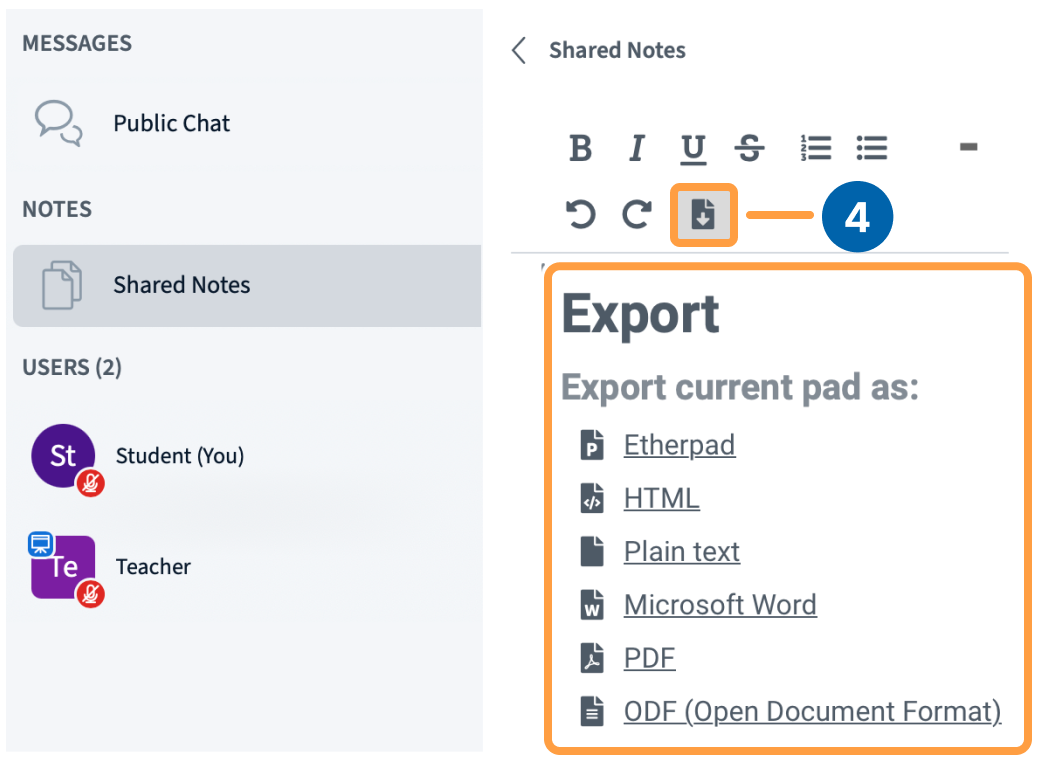
On some installations, the older shared notes editor may still be available.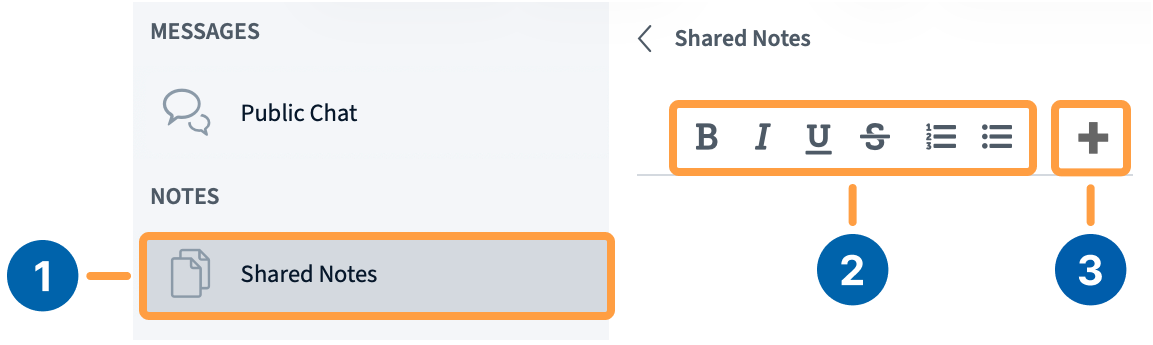
Export the notes to a file
To download the current notes, select the Export [4] button.