Moderators manage settings for all users at once or for individual users from the User list.
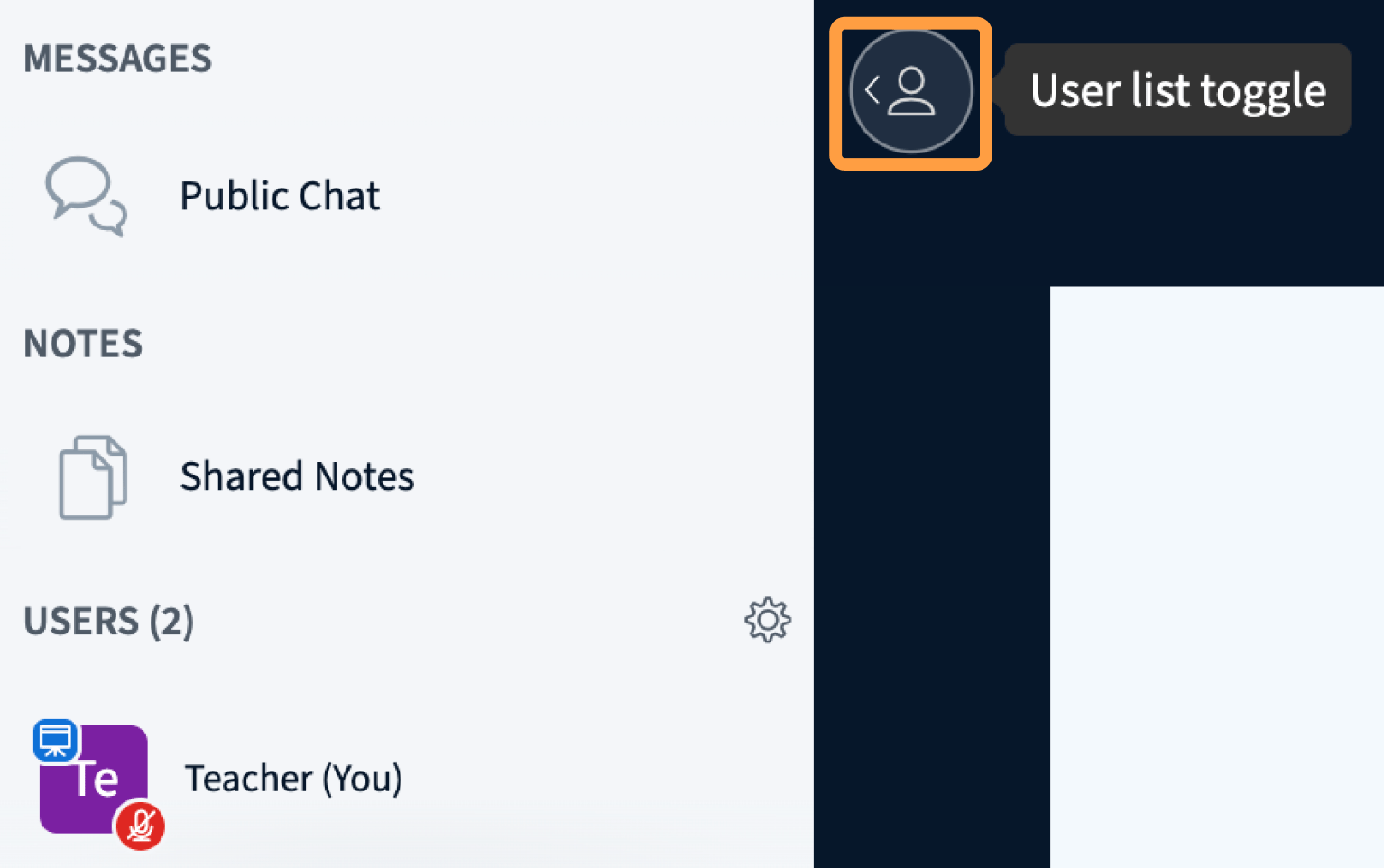
Moderators manage participant settings for everyone in the session or for individual users. All users (moderators and viewers) appear in the User list panel on the left side of the session.To show or hide the panel, select the User list toggle button.
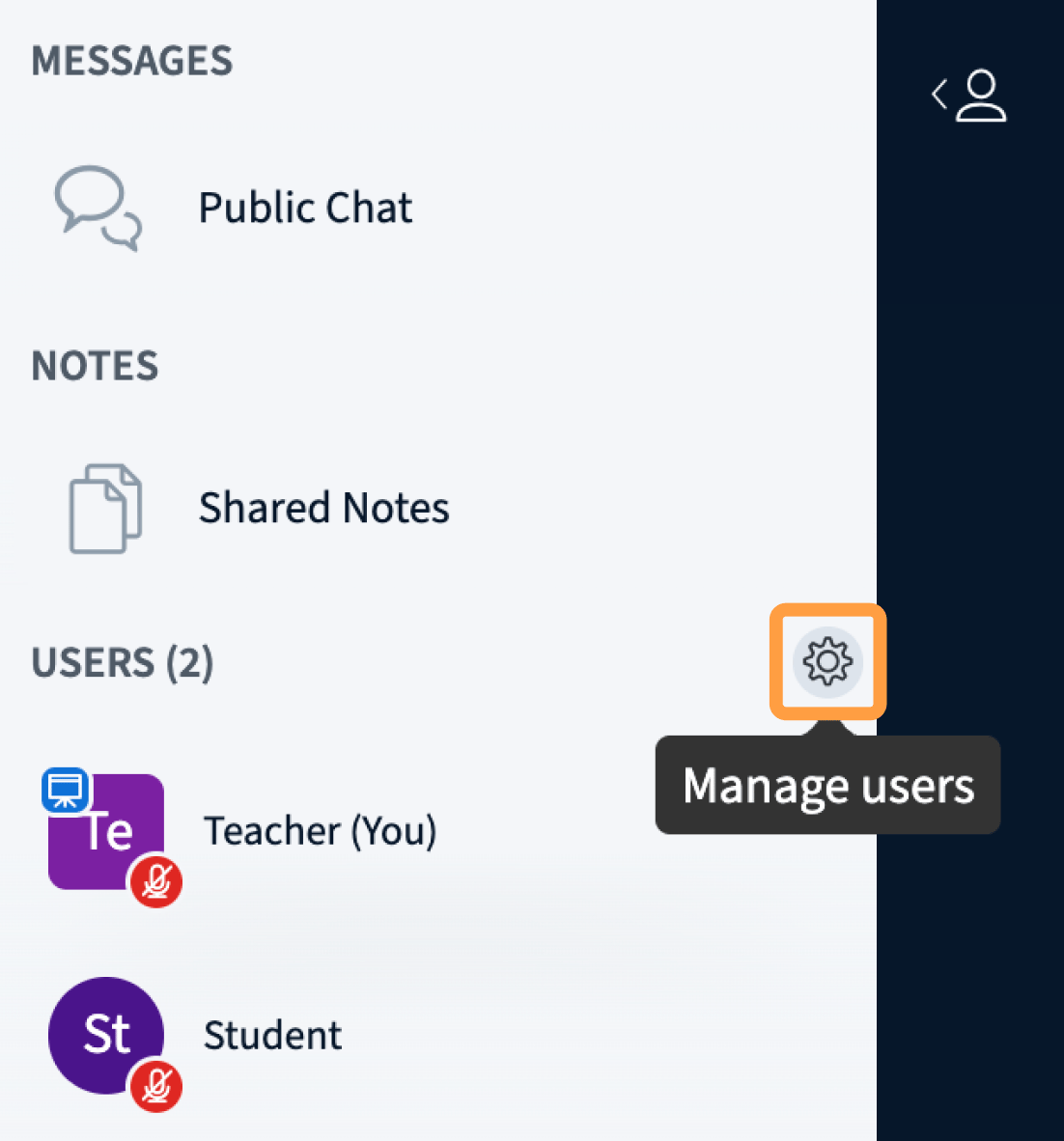
To open settings that apply to everyone, select the Manage users gear icon beside USERS. The manage users menu opens.
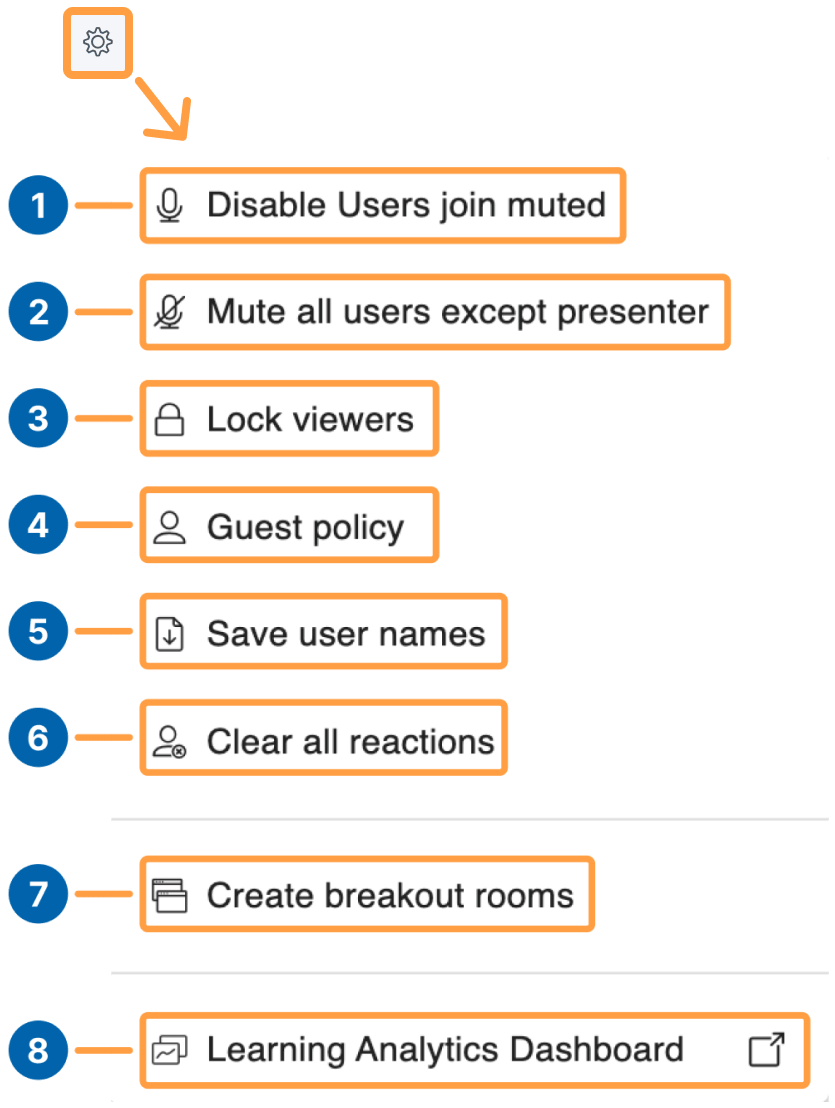
Select [1] Enable (or Disable) Users join muted to control whether users joining the session have their microphones muted.Select [2] Mute all users except presenter to mute every user except the presenter. Users can still unmute themselves.Select [3] Lock viewers to open a menu with more granular options. See Lock viewers for more information.Select [4] Guest policy to set the session user access policy. See Guest policy for more information.Select [5] Save user names to download the list of users as a text file.Select [6] Clear all reactions to remove all emojis and raised hands.Select [7] Create breakout rooms to open the breakout rooms management interface. See Create and manage breakout rooms for more information.Select [8] Learning Analytics Dashboard to open the dashboard. See Learning Analytics Dashboard for more information.
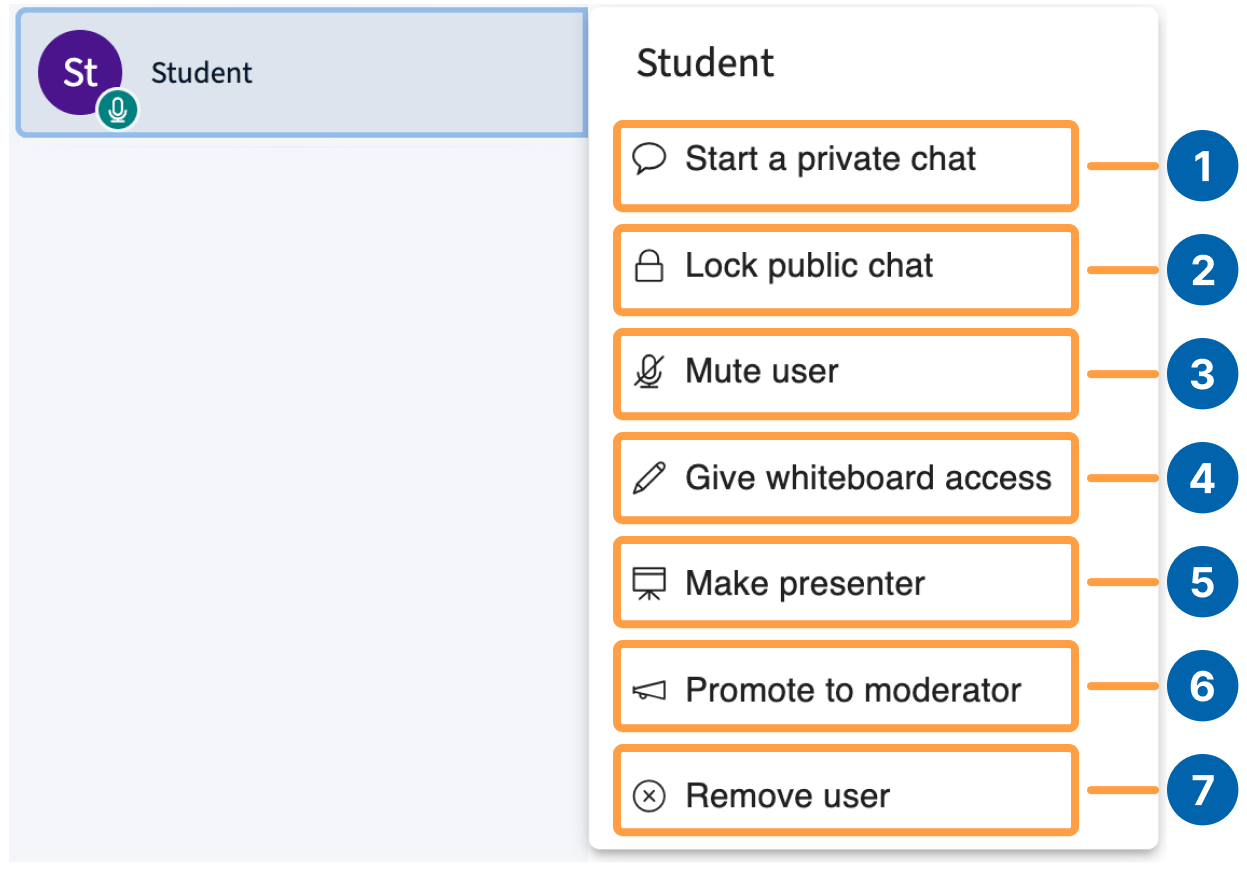
To open settings for an individual user, select their name in the User list. A menu of actions for that user opens.
Select [1] Start a private chat to open a window visible only to the moderator and the selected user.Select [2] Lock public chat to prevent the user from posting messages in the Public Chat window.Select [3] Mute user to mute the selected user’s microphone.Select [4] Give whiteboard access to allow the selected user to mark up the whiteboard.Select [5] Make presenter to promote the user to the presenter role.Select [6] Promote to moderator or Demote to viewer to change the user’s role.Select [7] Remove user to eject the user from the session. You can also choose Prevent this user from rejoining the session.
Was this page helpful?
Assistant
Responses are generated using AI and may contain mistakes.