Presenters can navigate slides , zoom and fit content, and enable the multi-user whiteboard for everyone. For annotation tools, see Use the multi-user whiteboard .
Confirm your presenter role By default, the first moderator to enter the session receives the presenter role. If you are a viewer, request the presenter role from a moderator before continuing.
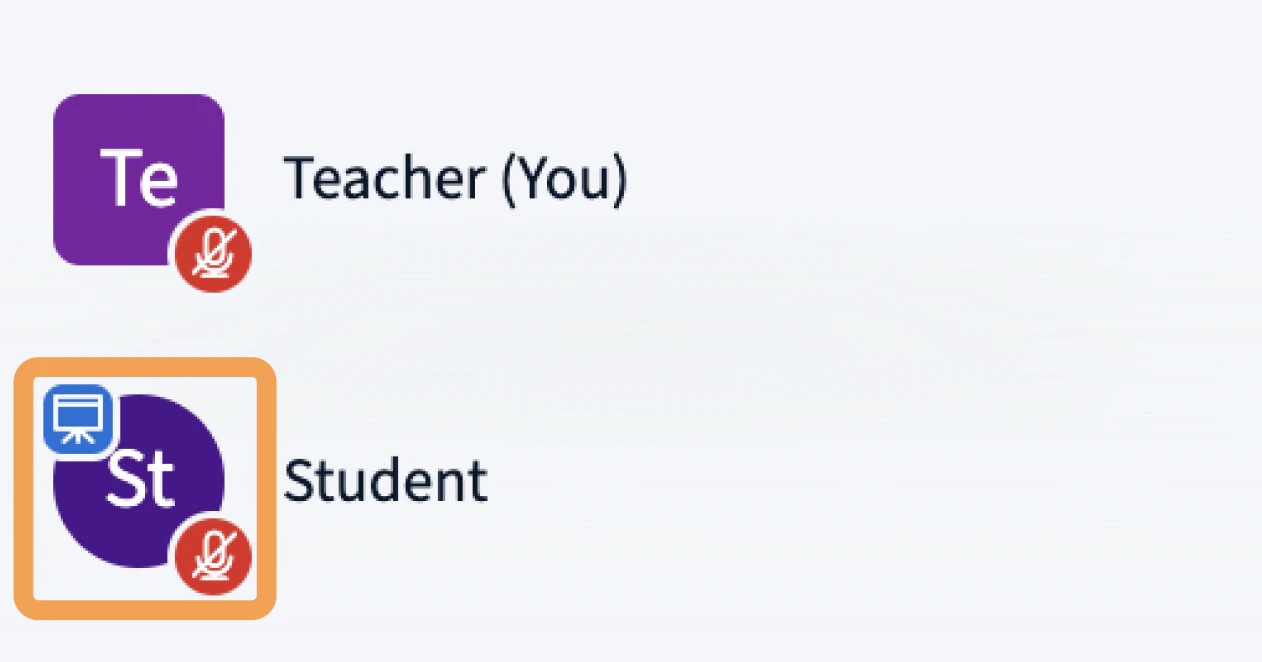
When a user has the presenter role, the presenter icon appears over their avatar in the user list.
Navigate slides Once content is uploaded into the presentation area, you can control how it displays and which slide is shown.
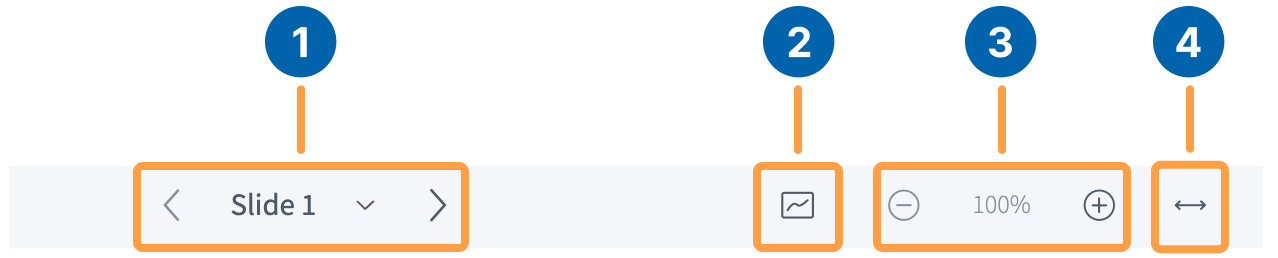
The presenter’s slide control panel sits below the presentation display, above the media controls.
To move through your slides, use the Slide Navigator [1] :
Select the forward arrow (>) to advance.
Select the backward arrow (<) to go back.
Select a slide number from the dropdown to jump to a specific slide.
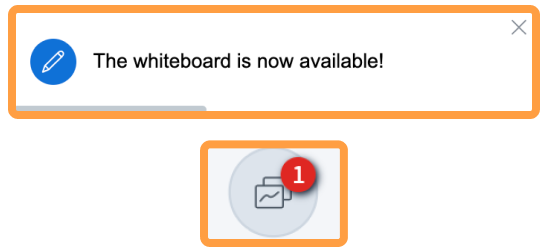
Enable the multi-user whiteboard To let every user annotate the slide, select the multi-user whiteboard button [2] .
A prompt appears in the upper-right corner confirming that multi-user mode is on, and the multi-user whiteboard icon highlights in the toolbar.
Zoom and fit content The presenter control panel also includes zoom and fit options:
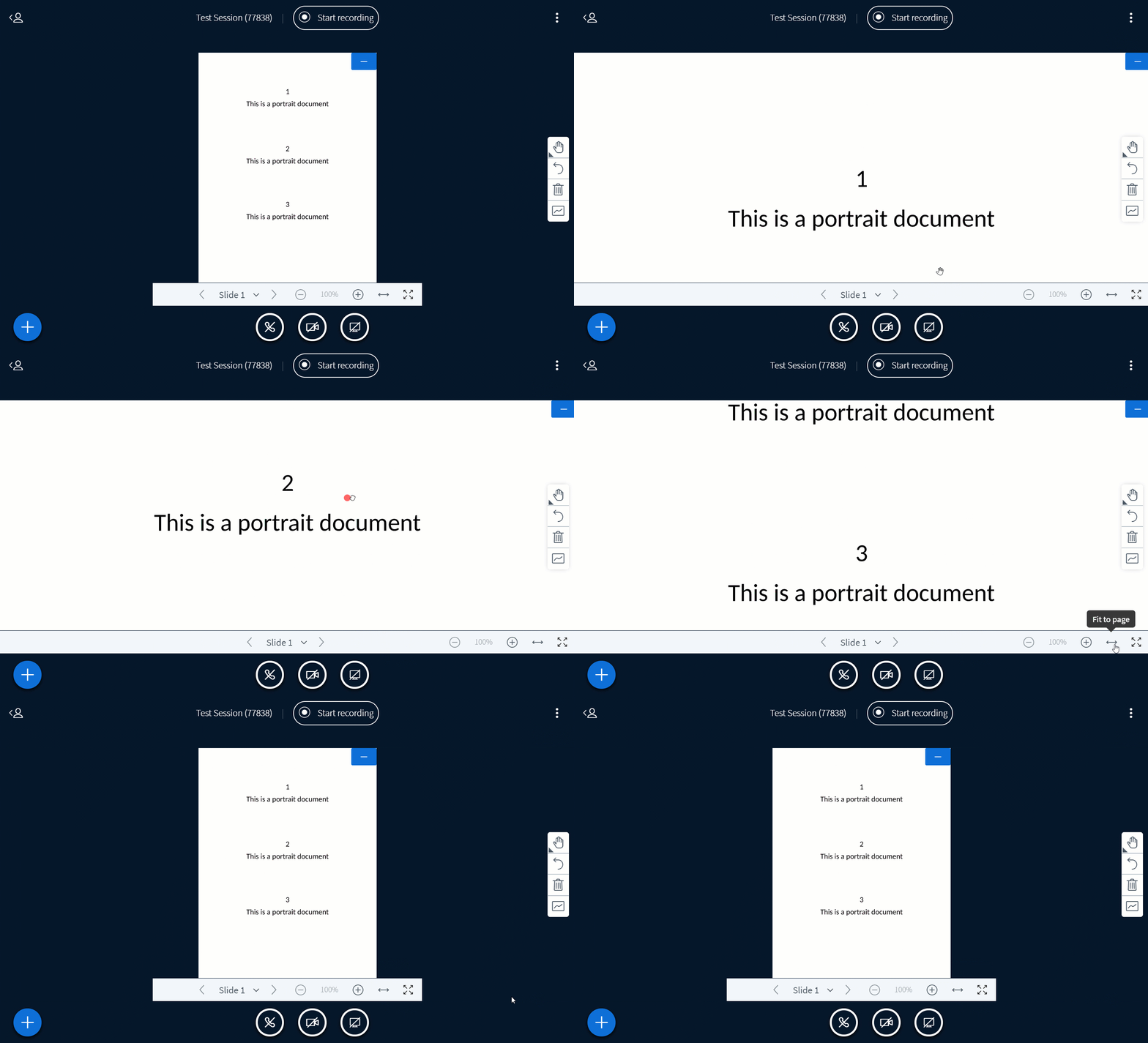
Zoom in (+) or Zoom out (-) [3] — change the zoom level of the slide.Fit-to-Width [4] — fit the slide to the width of the presentation area.
For portrait documents, use Fit-to-Width to enlarge the text. You can then drag with the hand tool to scroll up and down the document.