

Enable captions for your audio
This feature must be enabled on your account by Blindside Networks support. Once enabled, each user has the option to caption their audio when joining. In a class, typically the educator captions their own voice.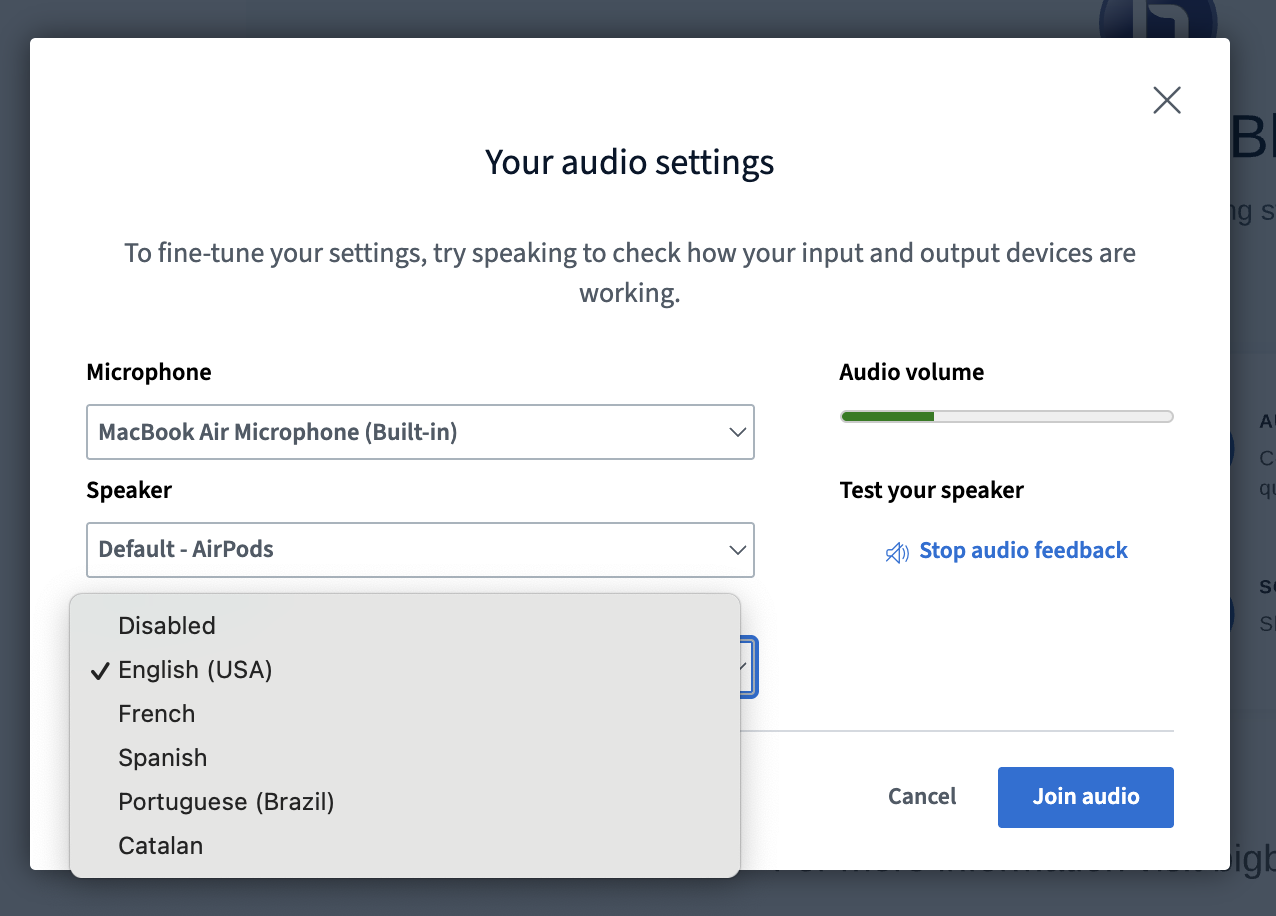
View captions during the session
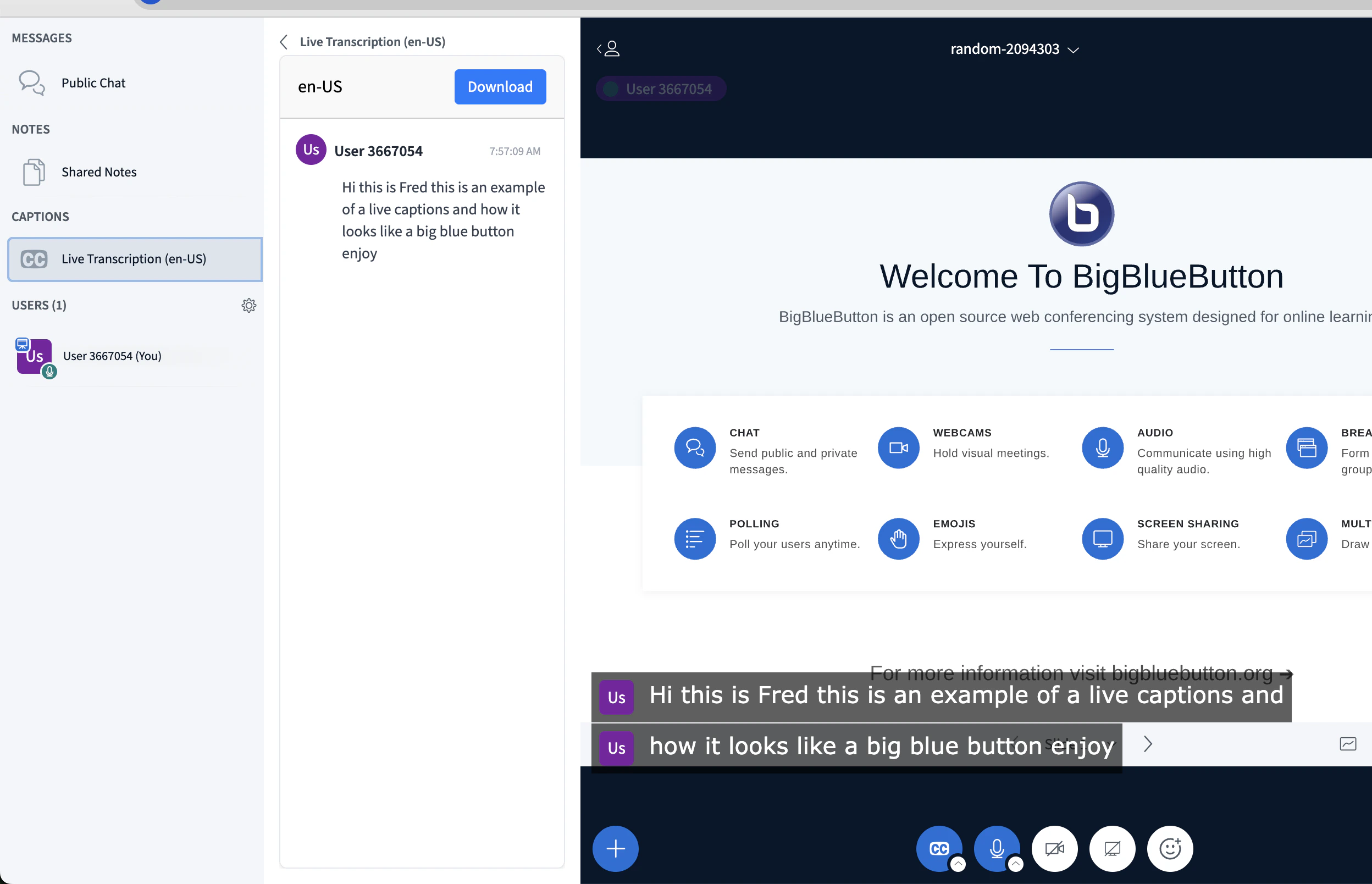
As soon as one user has captions enabled, a CC button appears at the bottom of the screen for everyone.
Captions in the recording
After the session ends, the captions appear automatically as subtitles in the recording.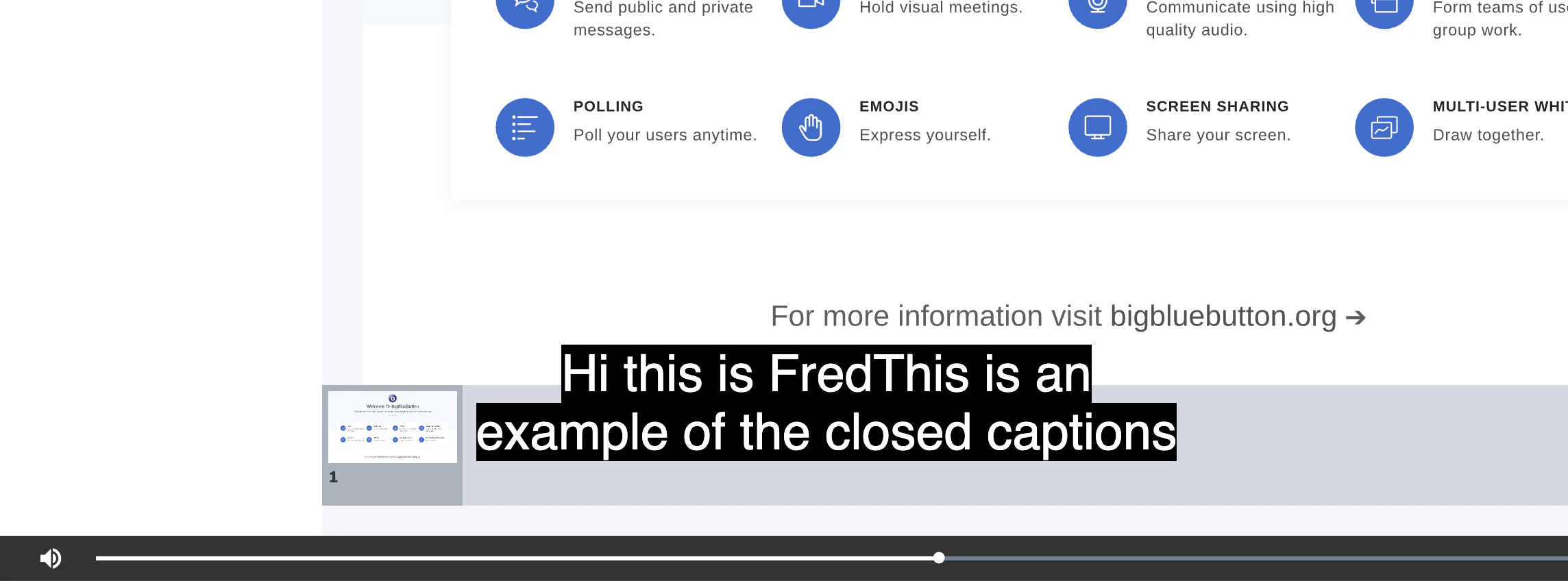
Privacy: Chrome implements browser speech-to-text by sending the user’s audio to Google’s cloud services for live transcription. Captioning works well, but the user’s audio is shared with Google for the speech-to-text conversion. Be aware of this data sharing before enabling the feature.