

View the room overview
When you open a room, you see how long the current session has been running and the controls for joining, ending, or editing the room.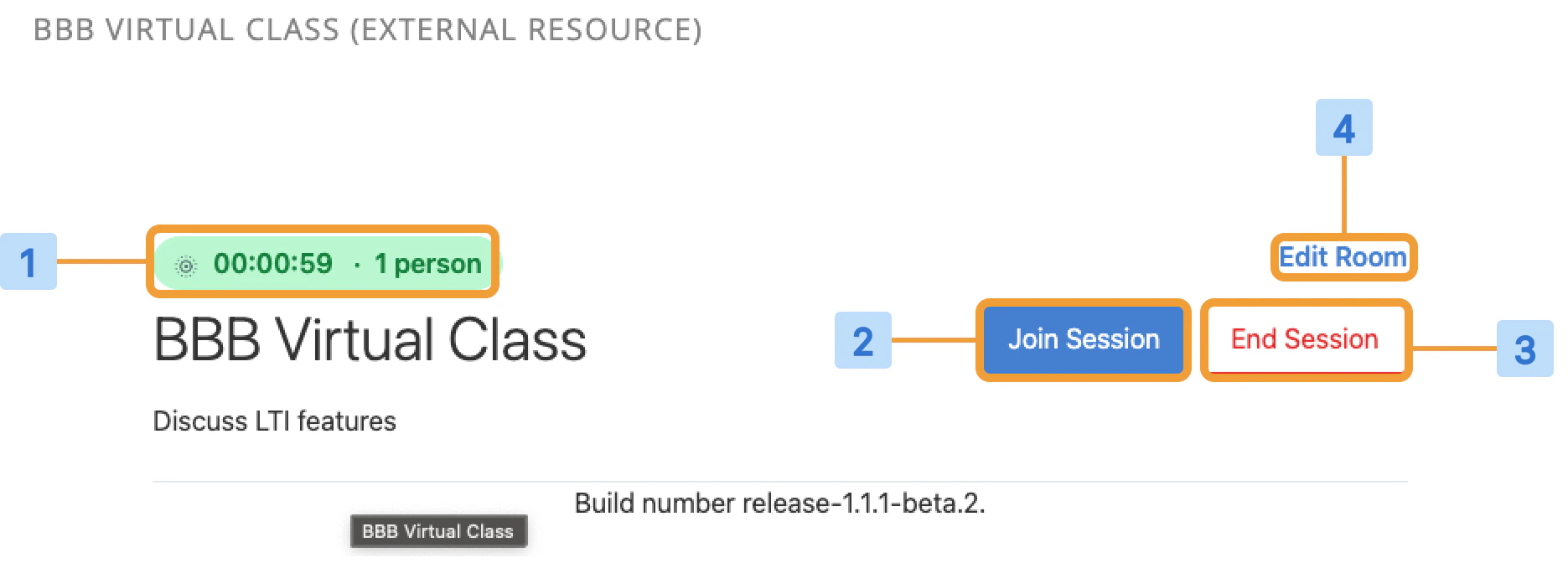
- [1] Session running time and the number of participants currently in the session.
- [2] Join Session opens the running session.
- [3] End Session ends the session for everyone (moderators only).
- [4] Edit Room opens the room settings (moderators only).
Edit a room
To rename the room, add a description, set a welcome message, or adjust lock and room settings, select Edit Room.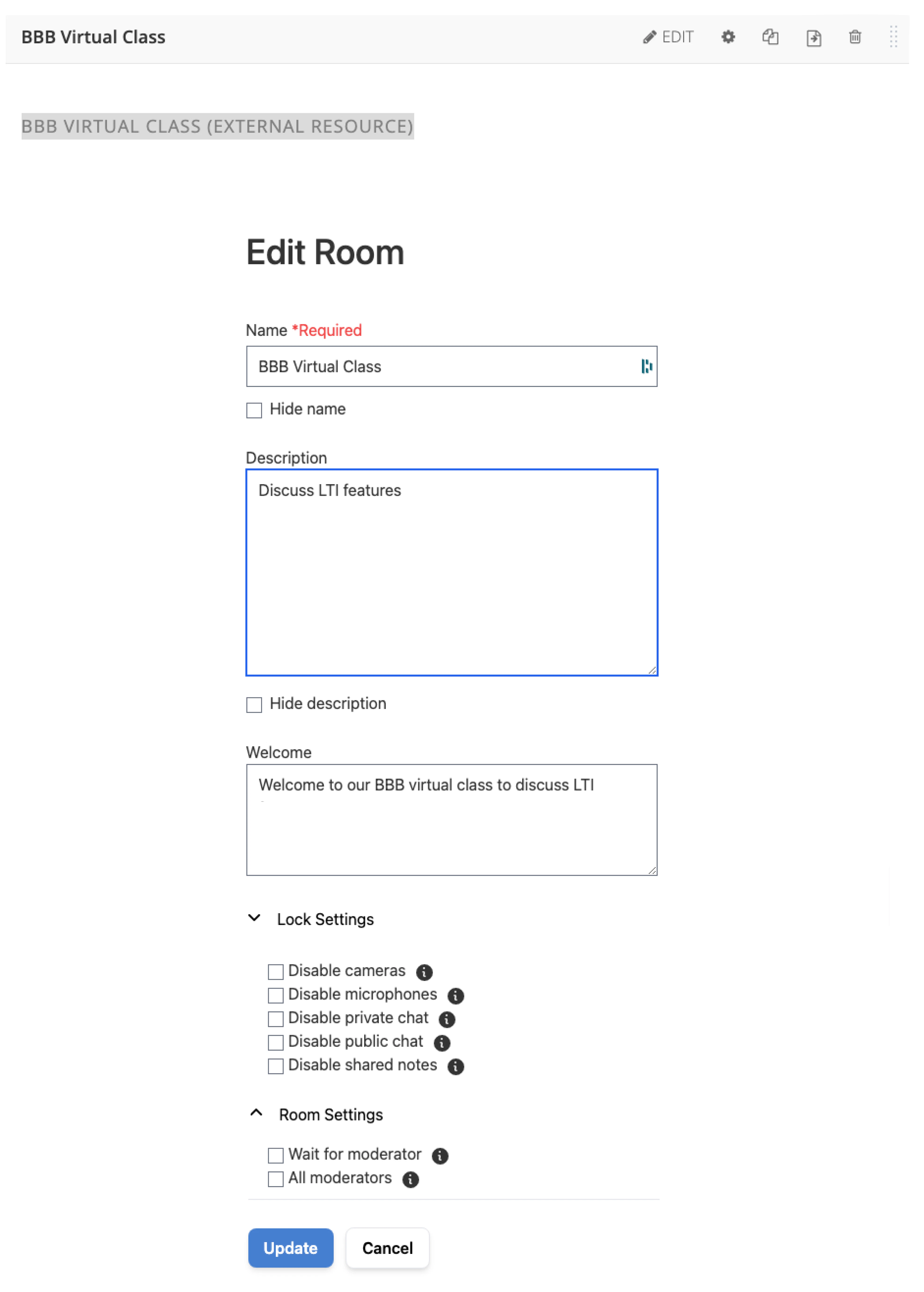
Lock settings
Lock settings restrict what viewers can do during a session.- Disable cameras
- Disable microphones
- Disable private chat
- Disable public chat
- Disable shared notes
Room settings
Room settings control how participants enter the session.- Wait for moderator holds viewers until a moderator joins.
- All moderators promotes every participant to moderator on join.
Manage recordings
To review session content or change recording visibility, use the recording management panel.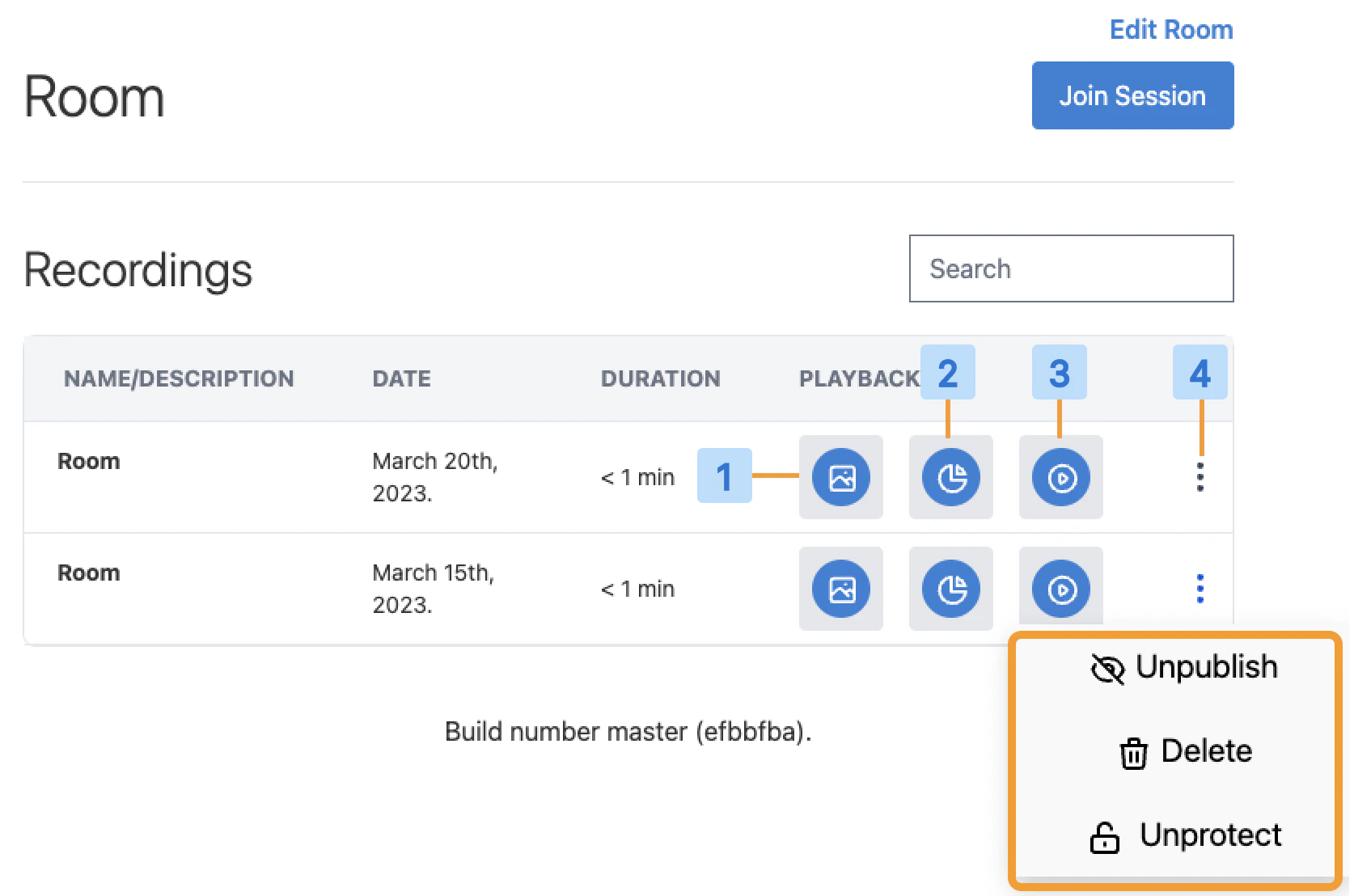
- [1] View presentation opens the presentation from the session.
- [2] View statistics shows session attendance and engagement data.
- [3] View recordings plays back the recorded session.
- [4] Modify recording opens controls to publish, unpublish, delete, protect, or unprotect the recording.